How to Widen Claude Code's Allow List From a Phone Mid-Run
Run Claude Code 2.1.319 so it refuses instead of asking, share it read-only, and add an allow rule from your phone through a second session while it keeps going.
Artemii Amelin10 min read
Contents
Claude Code 2.1.319 came out on November 6 with a new setting, permissions.denyInsteadOfPrompting. The Claude Code changelog describes it in one line: a tool call that would wait on a permission prompt is denied and the turn continues, in terminal sessions, subagents and teammates. The v2.1.319 release on GitHub has the same notes.
That matters most for a run nobody is sitting in front of. A Claude Code session in Manual mode stops at the first command it has no rule for and waits for a person. Share that session through a read-only shell.online link and nobody can answer the prompt from a browser either, so the run sits there until someone comes back to the machine. Claude Code's dontAsk mode already refused such calls; the new key gives the same outcome as a setting, so you can keep Manual mode and turn refusal on for one session. The call is refused, Claude is told so, and it carries on with whatever else it can do.
The refusals are now the interesting part of the run. Each one is a command you either forgot to allow or did not want run. This guide sets up a Claude Code run that refuses instead of asking, shares it read-only so a teammate or your own phone can watch it, and gives you a second, interactive session that only you hold, so you can add an allow rule from your phone while the run keeps going.
What you need
You need Claude Code 2.1.319 or later, shell.online installed on the machine that will do the work (the CLI page has the installer), and a project that keeps its tests behind a command such as npm run test. The commands below were checked against the shell.online source at the current release, 0.25.0, and the read-only and attach behaviour described here comes from its macOS and Linux host code. The refusal text quoted later comes from a short test of Claude Code 2.1.319 on macOS.
It helps to know how Claude Code decides what to ask about. The permissions documentation lists the modes: default (shown as Manual) prompts on first use of each tool, auto hands the decision to a background classifier, and dontAsk denies every call that would otherwise prompt. The new setting only changes what happens when a prompt would appear, so it pairs with Manual mode. In the macOS test, the same command that was refused in Manual mode ran without a prompt in auto mode, because the classifier approved it.
Step 1: Write the allow list in your local settings file
Put the commands the run is expected to use in .claude/settings.local.json at the root of the project:
{
  "permissions": {
    "allow": [
      "Bash(npm run lint)",
      "Bash(npm run test *)"
    ]
  }
}Bash rules match the whole command text, with * standing for any text. Each part of a compound command has to be allowed on its own, so npm run test && git push still needs a rule for git push.
The choice of file is deliberate. The settings documentation says Claude Code watches its settings files and applies most edits, including edits to permissions, to a running session without a restart. It also says the local file's allow rules apply without the workspace trust step, as long as git does not track the file. Check both things before you leave:
python3 -m json.tool .claude/settings.local.json
git ls-files .claude/settings.local.jsonThe first command prints the file back, formatted, if it parses. Settings files are strict JSON, so a trailing comma is an error, and Python's json command line tool reports the line and column of the problem. The second command prints nothing when the file is untracked; git ls-files lists only files in the index.
Step 2: Start the run read-only with the new setting
shell --read-only --name nightly-tests --auto-close 3h -- \
  claude --permission-mode default \
  --settings '{"permissions":{"denyInsteadOfPrompting":true}}' \
"Run npm run test, fix the failing tests under src/, and end with a list of any commands that were refused."Everything before -- belongs to shell. --read-only makes a view-only link, --name labels the session in shell list and the web app, and --auto-close 3h closes the session when Claude exits or after three hours, whichever comes first. shell's parser stops at the --, the same rule the Go flag package follows and that POSIX utility syntax guideline 10 describes, so every flag after it goes to claude.
--permission-mode default pins Manual mode for this session, which matters if your own default is auto. --settings takes JSON inline or a path to a file, and applies for this session only, above your user, project and local files. The JSON sets no allow list of its own, so the one from Step 1 stays in effect.
shell prints a browser link, a ten-character password and, in an interactive terminal, a QR code, then returns your prompt. Claude keeps running in the background. An interactive Claude Code session stays open after it finishes the task, so in practice the three-hour deadline, or shell kill, is what ends it.
The setting refuses tool calls. It does not answer the workspace trust dialog that Claude Code shows the first time it starts interactively in a folder you have not trusted, and that dialog appeared in the macOS test with the setting on. A read-only link cannot answer it. Before you walk away, run shell list, copy the session ID, run shell attach <ID> in your own terminal, answer the dialog, then press Ctrl-X, release, and press D to detach. Attaching locally types into the process even on a read-only session; only browser input is blocked.
Step 3: Watch the refusals from a phone
Open the link on your phone, or send it to the teammate who should watch, with the password over a different channel. The end-to-end encryption page explains why the two travel apart: the link carries only a salt, and the key comes from the password. On a read-only session the relay drops browser input, and the host on your machine drops it again before it reaches the terminal, so nobody holding the link can type into Claude or approve anything.
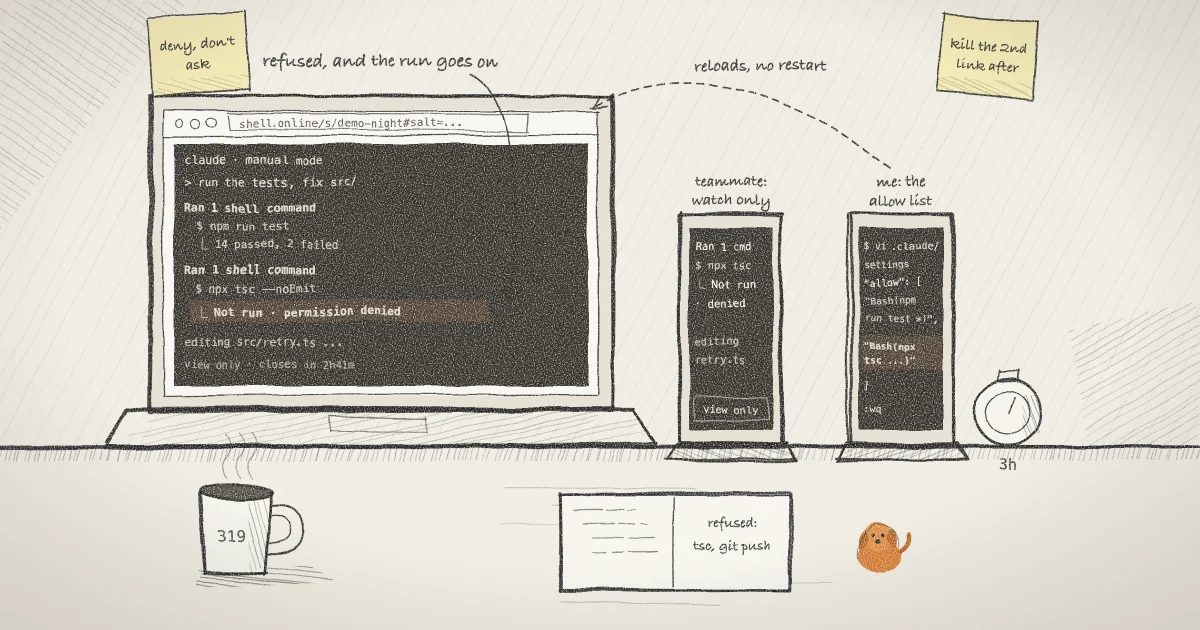
When Claude tries a command your rules do not cover, Claude Code refuses it. In the macOS test, the refused Bash call appeared under a Ran 1 shell command line as:
⎿ Not run · permission deniedClaude then reported that the command needed approval and that the session had no way to grant it, and it did not try another route. That second part is the model's choice in one short test, not a promise; the line above it is Claude Code's own.
Read the screen while the run is going. In the same test Claude Code drew itself on the terminal's alternate screen, the buffer that the xterm control sequences reference lists as mode 1049, and stayed there. The browser shows that screen as it is now, so a refusal that has scrolled out of Claude's view is not in browser history to scroll back to. The final list you asked for in the prompt is the place to collect them.
Step 4: Open a second session that only you hold
When you see a refusal for a command you meant to allow, you want to add a rule without stopping the run. Start a plain shell in the same project, interactive this time, with its own name and deadline:
cd ~/projects/demo-app
shell --name allow-list --auto-close 3hWith no command, shell shares a fresh shell. It prints a second link and a second password. Keep these to yourself. This link types into a shell on your machine as you, which is far more than the read-only link gives anyone, so it does not go to the teammate who is watching the agent.
shell list now shows both sessions side by side, with the ACCESS column reading view-only+e2ee for the agent and interactive+e2ee for the shell, and the CLOSES column counting down to each deadline.
Step 5: Add the rule from your phone
Open the allow-list link on your phone and edit the file with any terminal editor:
vi .claude/settings.local.jsonAdd the command that was refused, for example "Bash(npx tsc --noEmit)", to the allow list, save, and check that the file still parses:
python3 -m json.tool .claude/settings.local.jsonClaude Code picks up the change in the running session. Release 2.1.319 also fixed edits being ignored when they landed within a few seconds of Claude Code writing the same file, which is the version you need for the new setting anyway. The new rule covers the next time Claude runs that command. It does not replay the call that was already refused, and from the read-only link you cannot ask Claude to try again. If you want the step redone, attach from a terminal on the machine and say so, or leave it for the final list.
When you are done editing, close the second session straight away rather than waiting for its deadline:
shell list
shell kill -- <allow-list ID>Stopping a session ends its process and takes its link offline. The agent session keeps running.
What this setup does not do
It does not make Claude Code safe to run on anything. The allow list decides what runs without asking; read-only decides who can type. Neither is a sandbox. A command you allow can still delete files it can reach, and the OWASP entry on excessive agency is a good checklist for keeping that list short.
It does not notify you when a refusal happens, and it keeps no browser history of Claude Code's screen. You see refusals when you look, and the final report depends on Claude following the prompt.
It does not limit the second session to one file. Anyone with the allow-list link and its password has a shell as you, can edit any file you can, and can run shell attach on the agent session to type into it, read-only or not. That is why it has a deadline and why you kill it as soon as you are finished. If you want to cut off a link without stopping its process, shell password rotate <ID> does that, as covered in how to revoke a shared terminal link without killing the process.
It does not answer prompts that are not tool calls, such as the trust dialog, and it does not change anything in auto mode, where the classifier rather than a prompt makes the call.
The read-only half of this is not new. Watching a coding agent after you turn off its permission prompts and a read-only terminal link for your coding agent cover it in more depth. What 2.1.319 adds is a run that refuses rather than skips, which leaves you a list of things to decide on instead of a list of things that already happened. The security page sets out what the relay can and cannot see in each case.
Where Pilot Protocol fits
The pattern here is an allow list decided in advance, a default of refusal for anything outside it, and one person who can change the list while the work goes on. Pilot Protocol, the networking stack for autonomous agents whose team develops shell.online, applies a similar idea one layer down. Its network policies let an owner or admin cap a network's membership and list the ports members may reach; once ports are listed, connections to any other port are dropped. The post on roles, policies and the audit trail shows who may change those rules and how each change is recorded, which is the part a JSON file on one laptop does not give you.
Share the run, keep the controls
shell.online is open source. Read the code that drops browser input on a read-only session, or start with the docs.
shell.online on GitHub