How to Review a Codex Patch From a Browser Before You Approve It
Run Codex 0.167.0 under shell.online, open its patch details from a laptop or phone while the approval prompt waits, and decide who answers.
Artemii Amelin10 min read
Contents
OpenAI published Codex CLI 0.167.0 on November 6. The headline feature is a new agent command center, opened with codex agents --no-daemon. Two smaller changes matter more if you approve Codex's actions by hand. The first is inline patch review during approval prompts: while Codex is waiting for you to approve a patch, you can now click the collapsed patch details in the transcript and read them, and the transcript stops following new output until that approval ends. Before this, the disclosure controls could not be clicked while a prompt was open.
The second concerns network approvals. Codex now resolves a network approval prompt when its request ends, so a prompt whose request has gone away no longer waits on screen, and a stale answer cannot interrupt a later turn. It also queues prompts per endpoint, so three commands hitting the same host ask you once at a time instead of three times at once. Both pull requests were merged on October 30 and shipped in this release.
Together these make an approval something you can actually review rather than a yes or no you press on trust. That only helps if you are at the terminal when Codex stops. This guide runs Codex under shell.online so the approval prompt, and the patch behind it, can be read and answered from a browser on a laptop or a phone. It also covers what a teammate watching the same session sees, and who gets to press the key.
Step 1: Update Codex and check the version
The Codex README gives two install routes. Use whichever you installed with:
npm install -g @openai/codex
# or
brew install --cask codex

codex --versionThe last command should print 0.167.0 or later. If it prints an older number, the patch details will stay closed while a prompt is open and nothing in this guide about expanding them applies.
Then confirm shell is installed with shell --version. The latest published CLI release is v0.25.0, and everything below works with it. The CLI guide has the install steps if you need them.
Step 2: Start Codex with approvals on, inside shell
Codex only asks when its approval policy tells it to. OpenAI's page on approvals and security gives codex --sandbox workspace-write --ask-for-approval on-request as the setting where commands the sandbox allows run without prompts, and Codex asks before editing files outside the workspace or running commands that need the network. It also says network access is off by default. Pass those flags explicitly so the run does not depend on whatever your config file says today:
cd ~/code/acme-api
shell --name "codex review" -- codex --sandbox workspace-write --ask-for-approval on-request--name labels the session in shell list and the web app. The -- marks where shell's own options end, so every flag after codex goes to Codex. shell starts Codex in a pseudo-terminal on this machine, returns your prompt, and prints a browser link, a ten-character password and a QR code that holds both. The session is interactive by default, which means anyone who opens the link with the password can type into it. Keep the computer awake and online; closing a browser tab does not stop Codex.
To see the session again later:
shell listThe table shows the session ID, access mode, uptime, command and share link, and whether the relay is online. shell password <ID> prints the password again if you lost it.
Step 3: Open the link and read the patch
Open the link in a browser and enter the password, or scan the QR code with a phone. The terminal payload is end-to-end encrypted between your machine and the browser; the relay carries ciphertext over a WebSocket and never receives the password. The encryption page lists what the relay can still see.
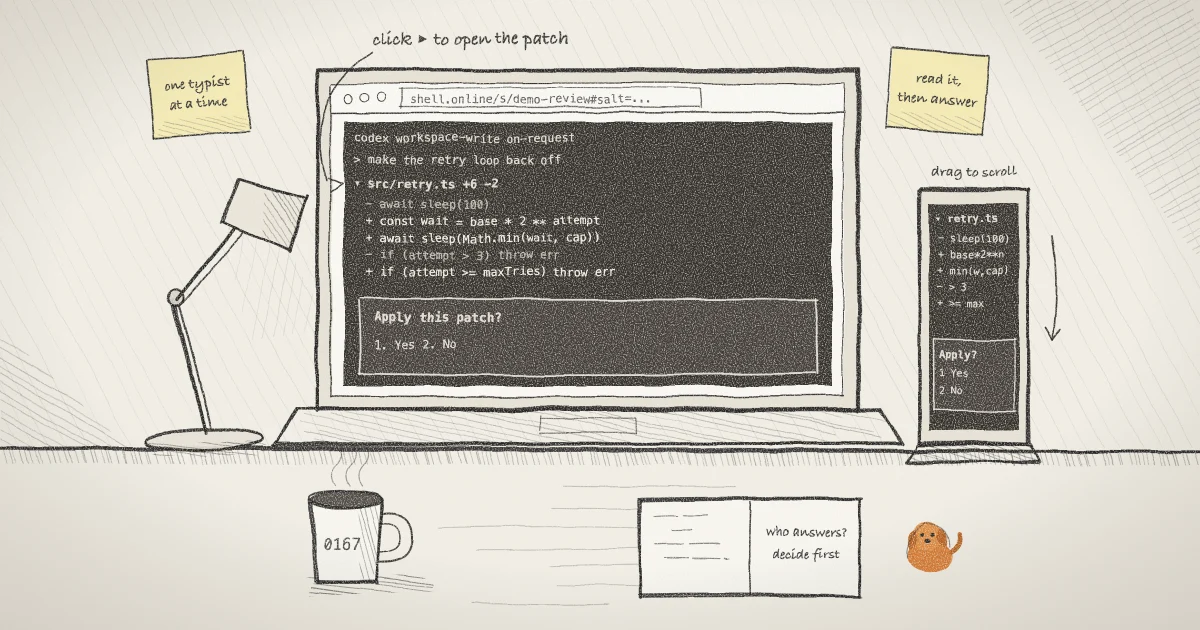
When Codex wants to apply a patch, the approval prompt appears in the browser exactly as it would in your local terminal, because it is the same screen. With 0.167.0 you can click the disclosure control on the collapsed patch in the transcript to open it. In the browser this works the way it does locally. shell's terminal view uses xterm.js, and when a full-screen program like Codex turns on xterm mouse tracking, xterm.js turns your click into a mouse report. The shell web app forwards those reports to the process along with your keystrokes, including the older binary mouse formats, as long as your link is allowed to type.
Reading a long patch needs scrolling. On a desktop, the mouse wheel does it. On a phone, which never sends wheel events, the app turns a one-finger vertical drag into line-sized wheel events (deltaMode DOM_DELTA_LINE), one per row, and xterm.js reports them to Codex. The phone guide describes the same behavior: in full-screen programs that handle mouse input, gestures are sent as wheel input, and how the program scrolls is up to the program. Codex's pull request says manual scrolling is preserved while the details are open, and that the transcript goes back to following new output once the approval ends or moves to another patch.
Use the xterm.js renderer for this, which is also the one the phone guide suggests when input looks wrong. The app also has a chat view that reads the screen as a conversation, which is good for following Claude Code from a phone (the post on watching Claude Code as a conversation covers it), but it is an ordinary scrolling list and does not pass clicks to the program. Switch from Terminal controls on a shared link, or with the Renderer selector in an app terminal tab. Switching changes only the browser view; it does not restart Codex or change permissions.
Step 4: Answer the prompt
When you have read enough, answer with the choices Codex lists on the prompt, using your keyboard or the terminal key controls on a phone. The keypress reaches Codex the same way it would from a local keyboard. If the patch looks wrong, deny it.
For network prompts, 0.167.0 changes what you see. If Codex runs several commands that reach the same host, protocol and port, you get one prompt, and the others wait behind it. After a one-time approval or denial, the next command to that endpoint asks again. A decision you made for the whole session is reused without another prompt. If a request ends while its prompt is still open, the prompt closes itself, so a prompt you find on your phone ten minutes later should belong to a request that is still waiting.
I would still check the result in Git after a large approval rather than trusting the transcript alone. git diff with no arguments shows changes in the working tree that are not staged, and --stat gives a per-file summary. To do that from the same browser, start a plain shell in the repository as a second session:
cd ~/code/acme-api
shell --name "acme shell"With no command, shell wraps your default shell and prints a second link and password. Open it and run git --no-pager diff --stat there. The --no-pager keeps Git from opening a pager you would have to quit from a phone keyboard.
Step 5: Let a teammate review without answering
Sometimes the right reviewer for a patch is someone else. There are two ways to set this up, and they differ in who can press the key.
If you give a teammate the link to the interactive session from Step 2, they can type, and so can click. They can expand the patch and they can also approve it. If you want them to read but not answer, start the run read-only instead and answer locally:
shell --read-only --name "codex review" -- codex --sandbox workspace-write --ask-for-approval on-request
shell list
shell attach 3f9c1aWith --read-only, the relay rejects all browser input, so no browser can type or click into Codex, and scroll gestures that would be sent to Codex are blocked too. That includes your own browser. shell attach with an ID prefix of at least six characters puts Codex in your local terminal while the browser link stays live. Press Ctrl-X, release it, then press D to detach without stopping Codex.
The read-only teammate still sees the patch details when you expand them, because everyone looks at one screen. The earlier post on watching an agent after you turn off its permission prompts covers the opposite setup, where nobody approves anything and the link is only for watching.
One screen, one typist. Everyone on a session shares a single terminal grid. When a phone joins, the grid becomes 80 columns by 40 rows for every viewer (80 by 24 with older hosts), and Codex redraws the patch at that width until the last phone leaves. Clicks are shared too: if one person expands the patch details, everyone sees them expanded. Input is arbitrated by a 1.8 second lease. Typing at the host machine always wins, then whichever browser typed most recently, and input from anyone else during the lease is dropped, not queued. Two reviewers pressing different answers at the same moment will not both land, and the one that does is not necessarily the one you meant. Decide who answers before the prompt appears.
What this setup does not do
It does not add a review step of its own. shell shows the screen Codex draws and forwards the input Codex receives. It does not parse the patch, record who approved it, or stop anyone with the password from pressing the key. Codex decides what needs approval, through the flags in Step 2 and your config.
It does not make a read-only viewer a reviewer who can act. A read-only link can watch the patch you expand and nothing more. Read-only is fixed when the session starts; to give someone input later you start a new interactive share.
It does not keep Codex alive if your computer sleeps or goes offline. The process runs on your machine, and a sleeping laptop cannot be reached until it reconnects.
It does not make approvals a complete safeguard. OWASP lists excessive agency among the main risks for LLM applications and recommends a human approving high-impact actions, alongside limiting what the agent can do in the first place. A careful approval on a phone is one layer. The sandbox mode is another, and a patch you have not read is not reviewed just because you pressed yes.
When you are done, stop the run and close its link:
shell kill -- 3f9c1aThe agents guide covers more ways to run coding agents under shell, and the security page explains what the link and password protect.
Where Pilot Protocol fits
shell.online is developed by Pilot Protocol, whose post on two people sharing one terminal goes further into the input lease from the callout, including why a lease prevents simultaneous keystrokes but does not reserve a turn. Approval prompts are a check on what an agent does after it has read something. Pilot's AEGIS runtime firewall works earlier, scanning web pages and tool responses on the local machine before the model reads them, and the post is clear that it is one layer that works best with narrow permissions and human review.
Review your next Codex patch from a browser
Update Codex to 0.167.0, start it under shell with approvals on, and open the link on the device you will have with you.
Read the shell.online docs