How to Track Parallel Coding Agents on a Board as Conductor Cloud Closes
Move Conductor workspaces to your machine before November 13, start each agent under shell.online with a name, and follow them all on the app's session board.
Artemii Amelin10 min read
Contents
- Step 1: Get the workspaces onto your machine
- Step 2: Link the machine to an account
- Step 3: Start one named agent in each worktree
- Step 4: Switch the list to the board
- Step 5: Read the columns for what they say
- Step 6: Hand a session to a teammate
- Step 7: Stop the agents and remove the worktrees
- What this setup does not do
- When the agents need to talk to each other
Meta has bought Conductor, the startup whose app runs several coding agents side by side. TechCrunch reported on November 4 that Meta confirmed the deal without giving a price. The agents in Conductor come from labs such as Anthropic and OpenAI, so what is winding down is the layer that organized them.
The dates matter if you use it. Conductor's announcement says new sign-ups and downloads ended on November 4, Conductor Cloud becomes read-only on Friday, November 13, and on Friday, November 20 it shuts down and deletion of Cloud user data begins. The local Mac app keeps getting new models and critical fixes until early 2027, then starts winding down too.
The agents and the Git branches survive this. What goes away is the one place where you could see every run. This guide replaces that piece: you bring your workspaces to your own machine, start each agent under shell.online with a name, and follow them on the session board in the web app, from a laptop or a phone. It does not replace Conductor's review tools.
Step 1: Get the workspaces onto your machine
Do this before November 13. The Conductor 0.93.0 changelog gives two routes. Right-click a cloud workspace and choose Transfer to local to move it and its chats to your Mac, or go to Settings, then Account, then Export data to download everything. The announcement says you can still read chats and export during the read-only week. It does not say whether a transfer works that week, so I would not wait.
Each Conductor workspace is a separate worktree on its own branch, usually under ~/conductor/workspaces/<repo name>/<workspace name>, so git worktree can list them from your main checkout:
cd ~/code/acme-api
git worktree listThe main worktree comes first, then each linked one with its revision and branch. These paths are invented:
/Users/you/code/acme-api                         3f2a91c [main]
/Users/you/conductor/workspaces/acme-api/lisbon  8be04d2 [you/auth-retry]
/Users/you/conductor/workspaces/acme-api/oslo c17ad55 [you/billing-cleanup]To make a new one without Conductor:
git worktree add -b you/flaky-tests ../acme-api-flaky-testsA worktree made this way holds tracked files only. Conductor's docs say the same of its own workspaces, and that its Files to copy setting and setup scripts are what fill the gap. Neither runs outside Conductor, so copy your gitignored files and install dependencies by hand.
Step 2: Link the machine to an account
A link and a password work with no account at all, but the board lives in the app, so this guide needs one. Install the CLI (the platforms page lists other methods) and link:
curl -fsSL https://shell.online/install | sh
shell auth --no-remote-start
shell whoamishell auth opens a browser on an approval screen. --no-remote-start answers its other question in advance: your browser may list sessions from this machine but may not start processes on it, and the command says the machine is publish-only. shell whoami prints the linked account.
Per shell help auth, linking publishes the share URL, the command name, the host name and the timing. It never publishes terminal contents or the encryption key, which sits in the URL fragment and is stripped first.
Step 3: Start one named agent in each worktree
shell starts the process in the directory you ran it from, so cd first. Put --name before the command:
cd ~/conductor/workspaces/acme-api/lisbon
shell --name "api: auth retry" claude

cd ../oslo
shell --name "api: billing" codex

cd ~/code/acme-api-flaky-tests
shell --read-only --name "api: flaky tests" opencodeEach command runs the agent in the background and returns your prompt once the share is ready. It prints a card like this, with your own link and password in the two placeholder lines:
  Name       api: auth retry
  Open       (your link)
  Password   (ten characters)
  Vault      saved to your account vault
  Access     view and type · end-to-end encrypted
  Session    a1b2c3d4e5 · background
Closes when the task exitsNames can run to 120 characters, but the app cuts titles at 48, so keep them short and put the distinguishing word early. The board's search box matches a session's name or its command and nothing else, so typing api filters to this repository.
These are new processes. shell does not adopt a running agent and knows nothing about Conductor's chats. If your agent can find a transferred conversation, ask for it through shell. claude --continue resumes the most recent session in the current directory and exits with No conversation found to continue if there is none. codex resume --last is also scoped to the current directory, and opencode -c continues the last session. Conductor's pages do not say whether its chats appear to those commands, so test it. The branch is what you can count on.
A Cloud run did not need your computer. This one does. On a Mac, caffeinate -i blocks idle sleep while a program runs, and on Linux systemd-inhibit does the same job. Wrap a foreground session, because a background start returns and would drop the lock:
caffeinate -i shell --foreground --name "api: auth retry" claudeStep 4: Switch the list to the board
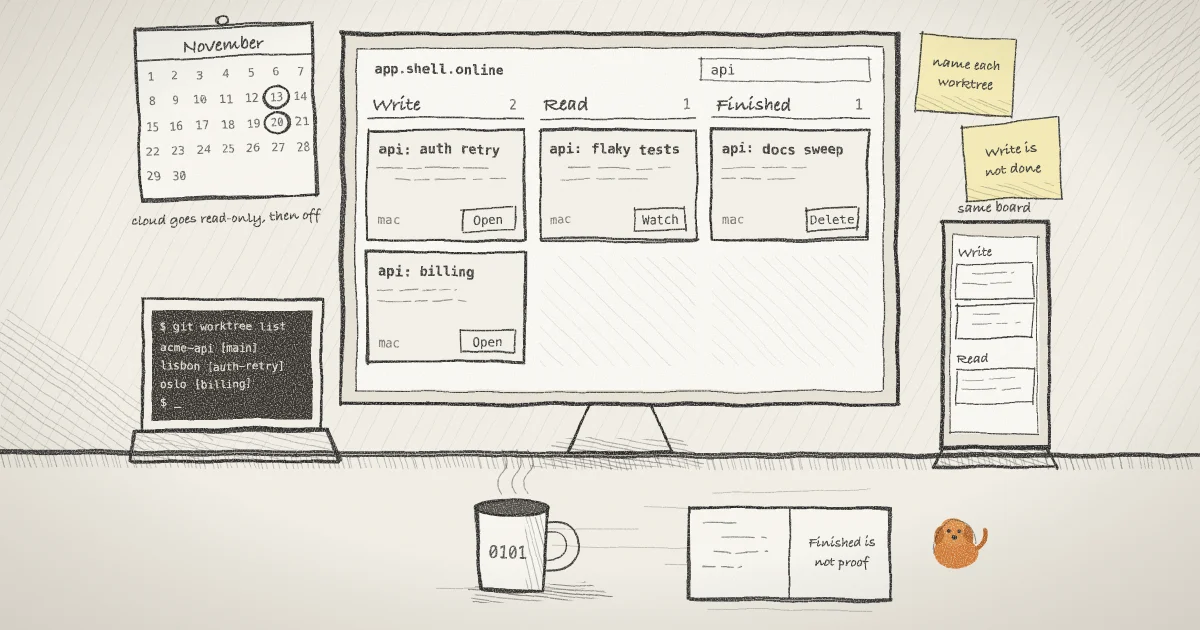
Open app.shell.online and sign in. Above the session list is a two-button toggle. The second button, titled Columns, shows the board, and that browser remembers the choice. At 900 pixels wide or less the columns stack, so on a phone you scroll from Write to Read to Finished.
- Write ("Yours to drive") holds live sessions you started or are assigned to, unless they are read-only. The button says Open.
- Read ("Available to watch") holds every other live session, including your own read-only ones. The button says Watch.
- Finished ("Process has exited") holds ended sessions. The button says Delete.
With the commands above, api: auth retry and api: billing sit in Write and api: flaky tests sits in Read, where the browser cannot answer its prompts; use shell attach on the host for that. Each card shows the agent's icon, the title, the machine, the state and how long it has been open. To read a session, open your vault or type its password.
A card reads "No description." until the session has one. Session summaries are a separate, owner-only feature, off by default. Turn them on for one session with shell permissions <ID> --summaries=true, then hover over the card or long-press it. Per shell help permissions, Claude Code is summarised on your machine, and any other process sends a redacted tail of its output to an attested enclave.
Step 5: Read the columns for what they say
The columns describe access, not progress. An agent that is writing code, one that has waited an hour on a permission prompt and one that has wedged all look the same: a card in Write marked online. Finished is no better a signal. The app guide calls it a known process exit and "not proof that the requested work succeeded." Open the session before you act.
A machine that goes quiet stays in Write as offline, because the CLI's reconnect loop usually brings it back. After ten minutes without the host, a session that is not persistent moves to Finished and is labeled machine gone. If the host returns, the card goes back to live on the next poll.
Pages hold 25 sessions counted across all three columns, so a long Finished column can push live work onto a second page. Delete removes one row, and Clean up removes all the finished and unavailable rows you may remove. Neither touches the machine.
Step 6: Hand a session to a teammate
Invite the person to your organization first. Everyone in it can see its sessions. In the source, the ability to type from the app belongs to the session's owner and its assignees, so assigning someone moves that card to their Write column. The assignee picker on the card is available to the owner and to organization owners and admins.
When you assign someone to your own session from your own browser, the app seals the password to that person's account key if the browser holds it, and they can open the session straight away. If their key has changed since you last sealed to it, the app waits for you to confirm on the session page. An admin who assigns someone to your session cannot seal it, because only the owner holds the password; the owner is offered the choice on the session page. A teammate without it sees a button asking the owner for it. The earlier post on sharing a session password explains the sealing.
Assignment is not a security boundary against someone who already has the credentials. The README says an interactive share lets its holder type with the process's permissions, and --read-only is the mode the relay enforces. Use it when someone should only watch.
Step 7: Stop the agents and remove the worktrees
Stop a run from the machine that hosts it:
shell list
shell kill -- a1b2c3d4e5shell list prints the IDs. shell kill ends the process and takes the link offline. The Stop button on a card is for the owner only, and assignment does not grant it. It queues a command that the machine's agent carries out, and that agent runs only where you allowed browser starts. Having said no in Step 2, you need shell auth --allow-remote-start before that button does anything, which also lets anyone signed in to your account launch processes on the machine as you. I would keep it off on a laptop.
When a branch is merged, remove its worktree:
git worktree remove ~/conductor/workspaces/acme-api/osloGit refuses if the worktree has untracked files or modifications. Read git status before you reach for --force, and leave alone any workspace you still open in local Conductor.
What this setup does not do
It does not create workspaces, branches or pull requests. Conductor's guide to parallel Claude Code sessions lists a Diff Viewer, a Checks tab for CI and comments, per-workspace ports and a merge-and-archive flow. shell has none of those. Review happens in Git or on your forge. Claude Code's own --worktree flag can create the checkouts for you, and you can start it under shell like any other command.
It does not run anything in the cloud. The process stays on your computer, and a sleeping host cannot be reached. For an agent on someone else's machine, GitHub documents starting and following Copilot cloud agent sessions from its mobile app.
The board does not tell you who needs you, and it sends no notification. The post on the session pulse covers the nearest thing, which works on open tabs. It also does not remove your dependence on a hosted service. The board is app.shell.online and the default relay is shell.online. The code is MIT licensed, you can run the relay on one Docker host, and the terminal keeps working from its link without an account. The self-hosting guide notes that the standalone relay does not include the accounts app, which is a separate deployment.
I took the board rules from the app's source on main and did not run them against the hosted app, and the README warns that a merged change is not proof that every hosted component has been updated. The board itself dates from 0.11.1. The commands come from shell help and the CLI reference, for release v0.25.0.
When the agents need to talk to each other
A board is for the person watching. The agents on it do not know about each other, and worktrees keep them apart on purpose. If you want one agent to hand work to another on a different machine, that is a networking problem, and Pilot Protocol, which develops shell.online, works on it. Its post on multi-agent pipelines walks through two-agent chains and fan-out over encrypted tunnels. The Pilot self-hosting page says what you take on by running the registry yourself: backups, upgrades and no support plan.
Put your first agent on the board
Install the CLI, run shell auth, then start one named agent in a worktree.