How to Watch a Muse Spark Open Server on Two Mac Studios From Your Phone
Meta's Muse Spark Open spans two Mac Studios. Run each download and the MLX server as named shell sessions and follow both Macs from one list on your phone.
Artemii Amelin11 min read
Contents
- What you need
- Step 1: Link both Macs to one account
- Step 2: Start each download as a named session
- Step 3: Find both Macs in one list
- Step 4: Start the server behind a read-only link
- Step 5: Check the API from your phone
- Step 6: Stop the server and check the second Mac
- What this setup does not do
- Where Pilot Protocol fits
On October 15, Meta released Muse Spark Open, an open-weight mixture-of-experts model with 816 billion parameters, 42 billion of them active per token, and a context window of 1 million tokens. The weights are on Hugging Face under the Muse Model License. The same day, Apple's machine learning team published its MLX measurements for the model. The 4-bit build takes about 493GB, so it does not fit in one 512GB Mac Studio. Apple's table lists 24.99 tokens per second of decode for two M5 Ultra Mac Studios using tensor parallelism and 36.73 for four. Apple also found the two-machine tensor setup slower to the first token on long inputs than the pipeline one, a point Gigazine's write-up picked up. MacStories notes that the 512GB M5 Ultra Mac Studio Apple tested on is slated for the end of the year, with no price announced.
Meta's Mac cookbook puts the setup at about four hours. Every Mac needs macOS 26.2 or later, which adds the RDMA over Thunderbolt driver, and MLX 0.30.1 or later. Each pair of Macs needs a direct Thunderbolt 5 cable, the primary needs passwordless SSH to the others, and each Mac loads the weights from its own disk. Meta's developer guide puts the NVFP4 checkpoint at about 530GB. Then one mlx.launch command starts mlx_lm.server on every Mac and serves an OpenAI-compatible API on port 8080. That is two half-terabyte downloads on two machines, then a server whose log sits in a terminal on the primary. None of it needs you at either desk.
This guide puts that work in one list you can open from a phone. You link both Macs to one shell.online account, run each download as a named session, start the server behind a read-only link, check the API from a plain session, and stop everything from the right machine. The shell behavior comes from the 0.25.0 help text and source. The MLX and Hugging Face commands come from Meta's cookbook and those projects' documentation. I have not run the 816B model myself, so I describe the server's output from its documentation rather than show it.
What you need
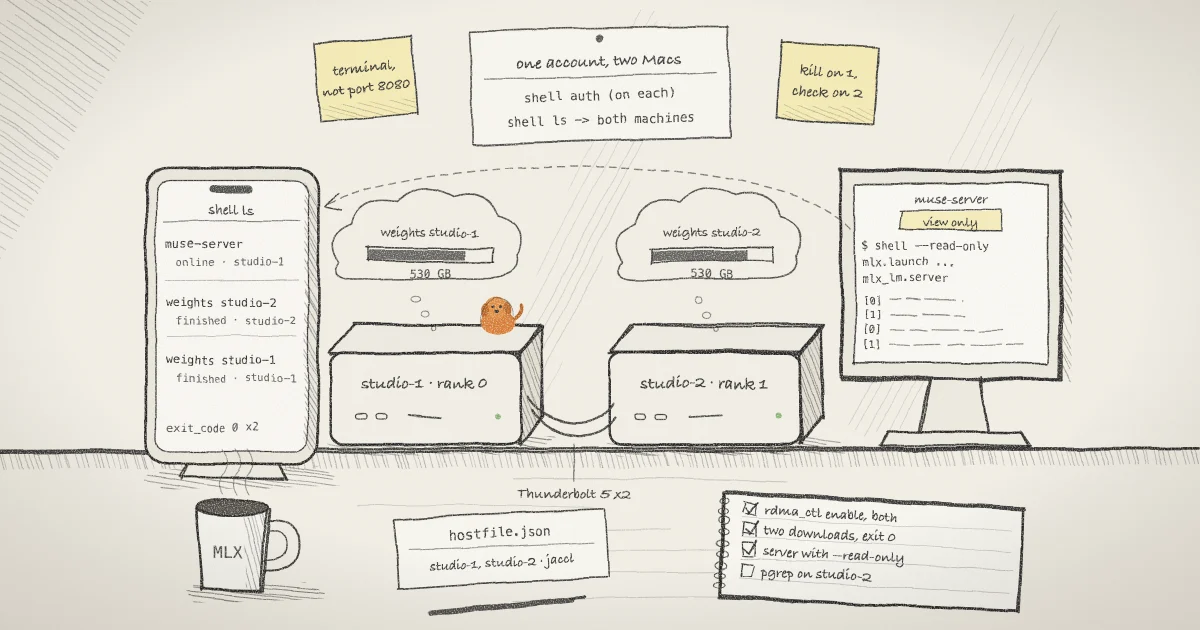
Two Mac Studios that meet the cookbook's requirements, joined by Thunderbolt 5. The MLX distributed documentation says RDMA cannot be switched on remotely, even with sudo: start each Mac in Recovery, open Terminal from Utilities, run rdma_ctl enable, and reboot. Afterwards ibv_devices should list rdma_en devices.
The cookbook tests SSH from the primary with ssh mac-studio-2.local 'echo ok'. If that asks for a password, it creates a key with ssh-keygen -t ed25519 and installs it with ssh-copy-id mac-studio-2.local. The host names here are examples. Then, on both Macs:
pip install -U mlx-lm
pip install -U "huggingface_hub"
hf auth login
curl -fsSL https://shell.online/install | shThe first line installs mlx-lm, which provides mlx_lm.server. The second installs the hf command; the Hugging Face CLI guide says gated or private repositories need the token that hf auth login saves. If the model page asks you to accept the license, do that first. The last line installs shell, and the platforms page covers Homebrew. I would run hf auth login before any shared session exists.
Step 1: Link both Macs to one account
shell works without an account. Linking is what lets one list show sessions from both machines. On each Mac:
shell auth
shell whoamishell auth opens the approval screen in a browser, and after you approve, the browser hands a one-time code back to a listener on 127.0.0.1. On a Mac you reach over SSH, shell auth --no-browser prints the approval URL instead. A browser on another computer cannot reach that listener, so it stops on a page that will not load, and you paste that page's address back into the terminal. shell whoami shows the linked account.
The first shell auth also asks whether your signed-in browser may start sessions on that machine. Nothing here needs it, and shell auth --no-remote-start links the Mac without it. From then on each session is published to your account as it starts: its share URL, the command, the Mac's host name and the timing. Terminal contents and the encryption key are never sent.
Step 2: Start each download as a named session
On the first Mac:
shell --name "weights studio-1" -- hf download meta-models/Muse-Spark-Open-816B-A42B-NVFP4On the second, the same command with --name "weights studio-2". --name labels the session in shell list, shell ls and the web app, in one line of at most 120 characters. The -- ends shell's own options. shell starts hf in its own terminal in the background and prints a card. These values are invented:
  shell.online  ✦
  Your terminal is ready. Open it in any browser.

  Name       weights studio-1
  Open       https://shell.online/s/EXAMPLE-ONLY#salt=EXAMPLE
  Password   EXAMPLEpw1
  Vault      saved to your account vault
  Access     view and type · end-to-end encrypted
  Session    2c8e4d6a90 · background
  Closes     when the task exits

  Rejoin     shell attach 2c8e4d6a90
  Stop       shell kill -- 2c8e4d6a90
Run these on this computer. Ctrl-X, then D detaches after rejoining.A QR code follows, holding the link and the password, and the line under it says that anyone who scans it can view and type in the session. If the Vault line says there is no account vault, keep the password, because the app will ask for it. I leave the downloads interactive so that Ctrl-C from the phone can stop one started with the wrong repository name. When hf exits, the session closes with it.
The weights land in the Hugging Face cache, where mlx_lm.server looks when given a repository name. Its server documentation says it downloads a model that is not cached, so skipping this step would bury half a terabyte of progress bars in the server log.
Step 3: Find both Macs in one list
On either Mac, run shell ls. In a terminal narrower than 132 columns it prints one block per session, newest first:
7f3a9c2e1b  weights studio-2
  online · 41m12s · mac-studio-2.local
  Command   hf download meta-models/Muse-Spark-Open-816B-A42B-NVFP4

2c8e4d6a90  weights studio-1
  online · 43m5s · mac-studio-1.local
Command hf download meta-models/Muse-Spark-Open-816B-A42B-NVFP4A wider terminal gets a table with ID, NAME, STATUS, UPTIME, MACHINE and COMMAND columns. shell ls never prints a password, and shell list shows only the sessions on the Mac you run it on. The post on tracking sessions across machines by name covers the release that added --name and shell ls.
On the phone, sign in at app.shell.online. The same sessions appear in one list, and opening one asks you to open your vault or enter that session's password. The app guide says status describes reachability: finished is a known process exit, not proof that the work succeeded. A Mac that stops answering shows as offline, and after ten minutes shell ls marks its sessions machine gone and hides them unless you add --all. To see how a download ended:
shell ls --all --jsonEach record carries status and, for a session that exited, exit_code. Zero from both downloads is the signal to start the server.
Step 4: Start the server behind a read-only link
The cookbook leaves the hostfile to MLX, whose documentation shows mlx.distributed_config logging in to each Mac over SSH, reading the Thunderbolt connections and writing the file. On the primary:
mlx.distributed_config --verbose --hosts mac-studio-1.local,mac-studio-2.local \
--over thunderbolt --backend jaccl --auto-setup --output hostfile.json--auto-setup needs passwordless sudo; without it, the tool prints the configuration commands for each Mac. Then start the cookbook's server command inside shell:
shell --read-only --name muse-server -- \
  mlx.launch --hostfile hostfile.json --backend jaccl --env MLX_METAL_FAST_SYNCH=1 -- \
mlx_lm.server --model meta-models/Muse-Spark-Open-816B-A42B-NVFP4 --port 8080shell stops reading its own options at the first --, so the second reaches mlx.launch untouched, which uses it to separate its options from the program it starts on every Mac. --backend jaccl picks the RDMA over Thunderbolt backend, and the cookbook calls MLX_METAL_FAST_SYNCH=1 an experimental feature for faster CPU and GPU synchronization.
The card now reads Access view only · end-to-end encrypted. The MLX documentation says mlx.launch gathers stdout from all processes, and its example output prefixes each line with the rank, so one session shows what both servers print. It does not say how stderr is handled, so a rank that fails quietly may need checking on its own Mac. Send a teammate the link and the password through separate channels; the guide to a read-only link for a training run gives the same advice.
Why read-only here. The MLX documentation says mlx.launch broadcasts stdin to all processes. In an interactive link, whatever anyone types in the browser goes to the terminal and from there to every rank. --read-only makes the relay reject browser input for every viewer, you included, so stopping the server becomes a job for a terminal on the primary Mac.
Step 5: Check the API from your phone
The server's link only shows output, so open a plain session on each Mac for running commands:
shell --name "studio-1 shell"With no command, shell starts your default shell in the background. This link is interactive, and whoever holds it types as you on that Mac, so keep it to yourself. Do the same with --name "studio-2 shell" on the second Mac. From the phone, in the studio-1 session:
curl localhost:8080/v1/modelsThe server documentation gives localhost and port 8080 as the defaults, and says /v1/models lists the available models with an id and a created field for each. Its example of a real request is longer to type on a phone:
curl localhost:8080/v1/chat/completions \
  -H "Content-Type: application/json" \
  -d '{
     "messages": [{"role": "user", "content": "Say this is a test!"}],
     "temperature": 0.7
}'The cookbook notes that the chat template defaults to xhigh reasoning and advises a high token limit to leave room for it. Apple's post also configures OpenCode to use http://127.0.0.1:8080/v1 as an OpenAI-compatible provider. With that in place, shell opencode on the primary gives the agent a browser link of its own.
Step 6: Stop the server and check the second Mac
From a terminal on the primary Mac, or from the studio-1 session on your phone:
shell list
shell kill -- 5d1e7b3f2ashell list shows that Mac's sessions with their IDs, and shell kill takes an ID or a prefix of at least six characters, then prints a Stopping line with the ID and command. In the source, stopping a session on macOS sends SIGTERM to the wrapped command's process group, waits two seconds, and sends SIGKILL if it is still running. That group lives on the primary. The ranks on the second Mac were started over SSH by mlx.launch, so what happens to them is up to mlx.launch and SSH. Check from the studio-2 session:
pgrep -fl mlx_lmIf it lists a process, stop it with kill and its PID. Close each plain session by typing exit in it.
What this setup does not do
The link carries the terminal, not port 8080. Nobody who opens it can send a request to the model, and the server stays on localhost, which matters because its documentation says it "is not recommended for production as it only implements basic security checks." Pilot's post on sharing a dev server's terminal with a teammate instead of its port makes the same argument.
It does not keep the Macs awake or online; a Mac that sleeps drops its sessions to offline. It does not restart a server that crashes or continue a download that failed. The session finishes and you start it again. For download timeouts, the Hugging Face guide suggests raising HF_HUB_DOWNLOAD_TIMEOUT and rerunning the command.
Read-only stops typing, not reading. Everything the server prints reaches every viewer. The relay sees ciphertext plus routing, size, timing, IP and lifecycle metadata, as the encryption page explains, and the account records the command line and host name. Any connected phone also switches the shared terminal to a portrait grid, a read-only phone included, so the server's lines wrap narrower until the last phone leaves.
Where Pilot Protocol fits
shell.online is built by Pilot Protocol, a networking stack for autonomous agents. shell carries a terminal. Reaching the API itself from another machine or agent is network traffic, which is Pilot's job. Its post on running HTTP services over an encrypted agent overlay shows a Go agent serving net/http on a Pilot virtual port, and pilotctl extras gateway start --ports 80 <address> mapping that agent to a loopback address so curl or a browser can reach it. Traffic between agents is encrypted with AES-256-GCM, and the post warns that the gateway serves plain HTTP on the local segment. Putting mlx_lm.server behind it would take a small agent in front of port 8080. That is a direction, not something I have tested.
shell's source is on GitHub, the CLI reference lists every flag used here, and the security model explains what a link and a password grant.
Put both Macs in one list
Install shell on each Mac, link them with shell auth, and start the server with --read-only so the people watching it cannot type into every rank.
Read the quick start