How to Try Muse Wonder in Muse Code and Approve Its Commands From Your Phone
Start Meta's Muse Code on Muse Wonder through shell, route its approval prompts to your phone, and put a time limit on the run.
Artemii Amelin10 min read
Contents
- Step 1: Install both tools on the computer doing the work
- Step 2: Start Muse Code on Muse Wonder through shell
- Step 3: Make sure the approvals come to you
- Step 4: Answer a prompt from your phone
- Step 5: Put a time limit on the run
- Step 6: Check, rejoin and stop from the desk
- What this setup does not do
- Where Pilot Protocol fits
On October 12, Meta's Superintelligence Labs released Muse Wonder and Muse Wonder Full, which TechCrunch calls Meta's first frontier model. Meta's research post says both were trained on long-running tasks with repeated cycles of testing and revision, and that Muse Wonder is available through the Meta Model API and through Muse Code, Meta's terminal coding agent. Muse Wonder Full is limited to Muse Code subscribers. TechCrunch's report gives API pricing of $4 per million input tokens and $20 per million output tokens, and notes that the benchmark comparisons with Fable 5.1 and GPT-6 Astra come from Meta's own testing.
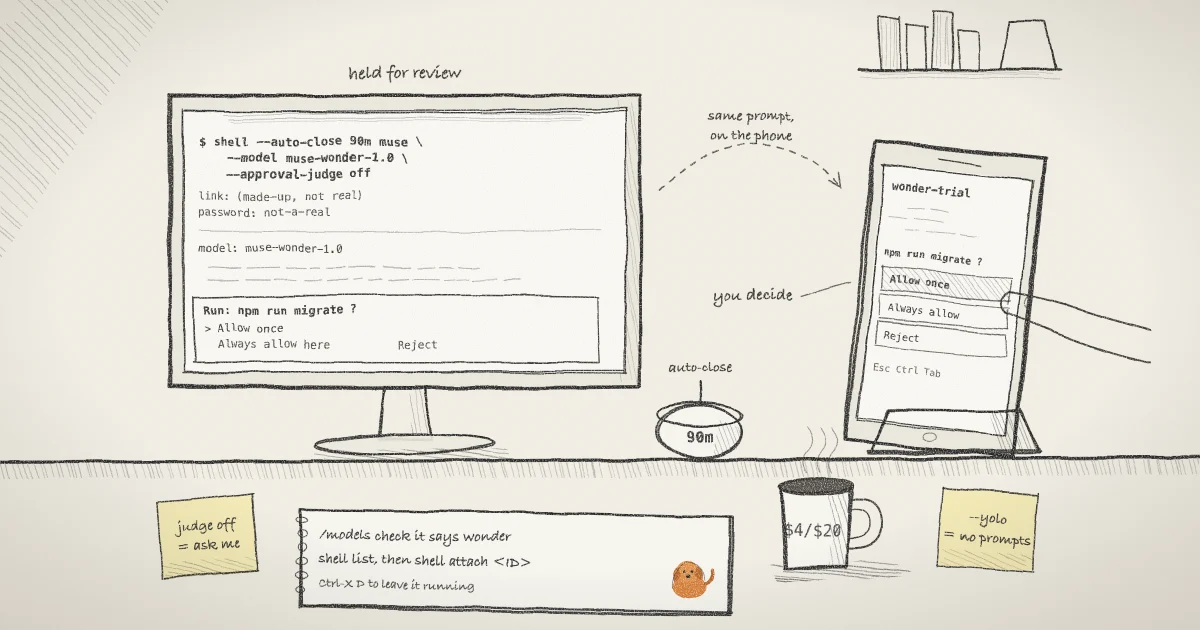
A model sold on long tasks invites long runs, and a long run of a coding agent stops for you. Muse Code's permissions page describes shell commands that hold for review, with three answers: Allow once, Always allow in this workspace, or Reject. If you have walked away from the desk, the run waits until you come back.
This guide starts Muse Code with Muse Wonder through shell.online on your own computer, so the approval prompts reach a browser on your phone. It covers how to pass Muse Code's flags through shell, how to make sure the prompts are yours to answer, how to put a time limit on a run of a model priced per token, and what this setup leaves out.
Step 1: Install both tools on the computer doing the work
shell runs on the computer that holds the code. The platforms page lists every build; on macOS or Linux the installer is one line. Muse Code's developer overview gives its own installer:
curl -fsSL https://shell.online/install | sh
curl -fsSL https://dev.meta.ai/install.sh | shThe first command installs the shell CLI and checks release checksums. The second installs the muse binary. Both tools also have PowerShell installers for Windows.
The first time Muse Code runs, it asks you to sign in through a browser or paste an API key, and the first time it opens a workspace it asks whether to trust it. Do that first run while you are sitting at the computer. Both questions are easier to answer there, and an API key is a secret you would rather not paste into a phone.
Step 2: Start Muse Code on Muse Wonder through shell
Muse Code's default model is muse-spark-1.2, according to its configuration page, and the --model flag picks another one for a single run. The model id for Wonder is muse-wonder-1.0. From the project directory:
cd ~/src/demo-app
shell --name wonder-trial muse --model muse-wonder-1.0 --approval-judge offEverything before muse belongs to shell and everything after it belongs to Muse Code. shell parses its options with Go's flag package, which stops at the first argument that is not a flag, so --model and --approval-judge are handed to muse untouched. --name wonder-trial labels the session in shell list, shell ls and the web app. If you prefer the boundary written out, shell --name wonder-trial -- muse --model muse-wonder-1.0 does the same thing.
shell starts Muse Code in the background and prints a link, a ten-character password and a QR code. The QR code carries both, so treat it like the password. The session is end-to-end encrypted by default: the link holds a random salt, and the password never reaches the relay.
Once Muse Code is up, type /models in it and check which model is active. The Rundown's guide to Muse Wonder makes the same point: a response that calls itself Wonder is not enough to go on, and changing reasoning effort does not change the model. The same guide lists muse-wonder-full-1.0 as the id for Wonder Full on eligible Muse Code plans.
Step 3: Make sure the approvals come to you
The --approval-judge off flag in Step 2 matters more than the model flag. Muse Code reviews many approval requests itself, and the default for a new session is a profile called Auto-review, in which a built-in judge decides eligible requests and only asks you when the reviewer is unavailable. That is a reasonable default at a desk. For this guide the point is that you decide, and the permissions page says --approval-judge off sends every review decision to you.
Muse Code also has an approval mode, set with --approval-mode. The default, on-request, lets recognized, non-dangerous commands run inside the sandbox and stops dangerous or external-execution patterns for review. untrusted stops any shell command that has no matching allow rule, which means more prompts and more reasons to have a phone nearby:
shell --name wonder-strict muse --model muse-wonder-1.0 --approval-judge off --approval-mode untrustedThe prompts only reach your phone if Muse Code asks a person. With the default Auto-review profile the judge answers most of them before you see anything. With --approval-mode never, --disable-approval or --yolo, nothing stops for approval at all, and the last one also turns off the sandbox. Muse Code's own documentation says to keep --yolo for isolated environments such as a disposable CI container. If you want a different setup for watching an agent that never asks, see the earlier post on watching an agent after you turn off its prompts.
Step 4: Answer a prompt from your phone
Scan the QR code with the phone, or open the link and type the password. The mobile guide covers the details. Tap the terminal to bring up the keyboard, and use shell's terminal key controls for keys a phone keyboard does not have. When a phone connects, everyone sees a shared grid of 80 columns by 40 rows on a current host, so the Muse Code screen reflows to fit a portrait screen. It returns to desktop size when the last phone leaves.
When a command holds for review, the prompt is drawn on the terminal like any other output, with the three choices from the permissions page. Muse Code's documentation does not list the keystrokes for each choice, so read what the prompt shows and answer it the way you would at the desk. The keys you press on the phone travel to the process as the same bytes a keyboard would send. Reject denies the whole command, not only the part that held. Always allow in this workspace saves a prefix rule scoped to that workspace, so choose it on a phone only for a command you would allow on the desktop as well.
Two other keys are worth knowing. Muse Code's interactive guide says Esc stops the current turn and nothing else, and Ctrl+C interrupts only from an empty composer. In shell, Ctrl-C from the phone is sent to the program as an interrupt, not treated as a copy shortcut.
Step 5: Put a time limit on the run
Wonder costs more per token than Spark. The Rundown guide lists Muse Spark 1.3 at $1.25 per million input tokens and $4.25 per million output tokens, against Wonder's $4 and $20, and it notes that Muse Code subscription terms are separate from API rates. Either way, a run you forgot about is the expensive kind. shell's --auto-close option sets a deadline:
shell --name wonder-trial --auto-close 90m muse --model muse-wonder-1.0 --approval-judge offThe session still closes when Muse Code exits on its own. If it is still running after 90 minutes, shell ends it. On macOS and Linux the code sends SIGTERM to the process group, waits two seconds, and then sends SIGKILL, which a program cannot catch. --auto-close also accepts a time such as tomorrow 09:00.
A forced stop does not lose the history. The interactive guide says Muse Code records every run as an append-only event log of model calls, tool calls, results and approval decisions, so /resume --last picks up the most recent session in the workspace. The same page asks you to check any destructive step a resumed run replays before letting it go again.
Step 6: Check, rejoin and stop from the desk
Back at the computer, list what is running:
shell listThe table shows each session's ID, access mode, uptime, closing rule, command, link, whether a password is stored and whether the relay is online. To bring Muse Code into your local terminal while the phone link stays live:
shell attach <ID>Press Ctrl-X and then D to detach and leave it running. To end it early, shell kill -- <ID> stops the process and takes the link offline. If you showed the QR code to someone who should not keep it, shell password rotate <ID> makes a fresh password without restarting Muse Code and disconnects browsers that used the old one. An earlier post on revoking a link goes through rotation in detail.
What this setup does not do
- shell does not read Muse Code's approval prompts as approvals. It relays a terminal. Muse Code's event log records the decision; shell does not tell Muse Code which viewer pressed the key.
- Anyone who has the link and the password can answer a prompt, not only you. If you share the session with a teammate, they can press Allow too. Start with
--read-onlyif a viewer should only watch, and remember that a read-only session also blocks your own browser input. - It does not change Muse Code's sandbox. Seatbelt on macOS, the bundled bubblewrap helper on Linux and the Windows sandbox are Muse Code's, and so are the network rules.
- It does not make Wonder Full available to you. That depends on your Muse Code plan.
- It does not keep the computer awake. A sleeping laptop holds the run and the prompt until it wakes, and closing the browser on the phone does not stop anything.
Approving each command by hand is the human-in-the-loop control OWASP lists against excessive agency: a person approves high-impact actions before they are taken. A phone makes that control easier to keep on during a long run. It does not make your answers better, so read the command before you tap.
Where Pilot Protocol fits
shell is developed by Pilot Protocol, which builds networking for autonomous agents. The approval prompt in this guide is a person deciding what an agent may do on one machine. Pilot applies a similar default between agents: as its architecture post explains, an agent stays invisible until a mutual, signed handshake approves the connection, and revoking trust tears down the tunnel. If you want an agent of your own on that network, the getting started guide installs the daemon and walks through the first handshake.
The code for everything shell does above is in the shell.online repository, MIT licensed, and the CLI reference lists every option.
Run Muse Wonder where you can answer it
Install shell, start Muse Code with shell muse and the flags you want, and its approval prompts will be on your phone when it stops to ask.
Read the docs