How to Start a Coding Agent on Your Own Computer From Your Phone
Allow browser starts on a linked computer, then launch Codex or Claude Code from your phone in the right directory, and choose who can open and stop it.
Artemii Amelin10 min read
Contents
- Step 1: Link the computer and allow browser starts
- Step 2: Keep the listener running across restarts
- Step 3: Open the New session sheet on your phone
- Step 4: Point the agent at the right directory
- Step 5: Decide who can open it before you press Start
- Step 6: Answer it, check it and stop it
- What this setup does not do
- Where Pilot Protocol fits
On October 6, Cursor shipped remote control for local agents. From the Cursor iOS app you can now see and reply to the agents running on your own computer. The agents run on your computer, the feature is on by default for everyone except Enterprise organizations, and the changelog adds the one condition every tool of this kind shares: the computer has to stay on and online. Anthropic's Remote Control for Claude Code works the same way for Claude, and its server mode can even create new sessions on demand.
Both are tied to one vendor's agent and one vendor's app. If your day involves Codex in one project, Claude Code in another and a test suite in a third, you want the same thing for all of them, from whatever browser your phone has. You may also want to start a new run from the phone, in the right directory, and know who else can open it.
shell.online can do that for any terminal program. This guide sets up a computer so that your phone can start a session on it, walks through the New session sheet in the app, and covers the parts that catch people out: which directory the agent starts in, who receives the password, and who can press Stop.
Step 1: Link the computer and allow browser starts
Install the CLI on the computer that will run the agents (the platforms page lists every build), create an account at app.shell.online, then link the machine:
shell authA browser opens on the approval screen. After you approve, the CLI asks one more question, and it is the important one. It reads "Start sessions from the browser?" and explains that anyone signed in to your account could start processes on this machine, as you, without touching this terminal. The default is No. Answer y only on a machine where that is acceptable.
The question is asked once per account on a machine. To answer it without the prompt, or to change your mind later, use the flags instead:
shell auth --allow-remote-start
shell auth --no-remote-startAfter every sign-in the CLI prints a line saying which way it stands, such as "Your browser can start sessions here. Turn it off with 'shell auth --no-remote-start'." Without it, shell <command> still publishes sessions to your account; the browser just cannot launch new ones.
Step 2: Keep the listener running across restarts
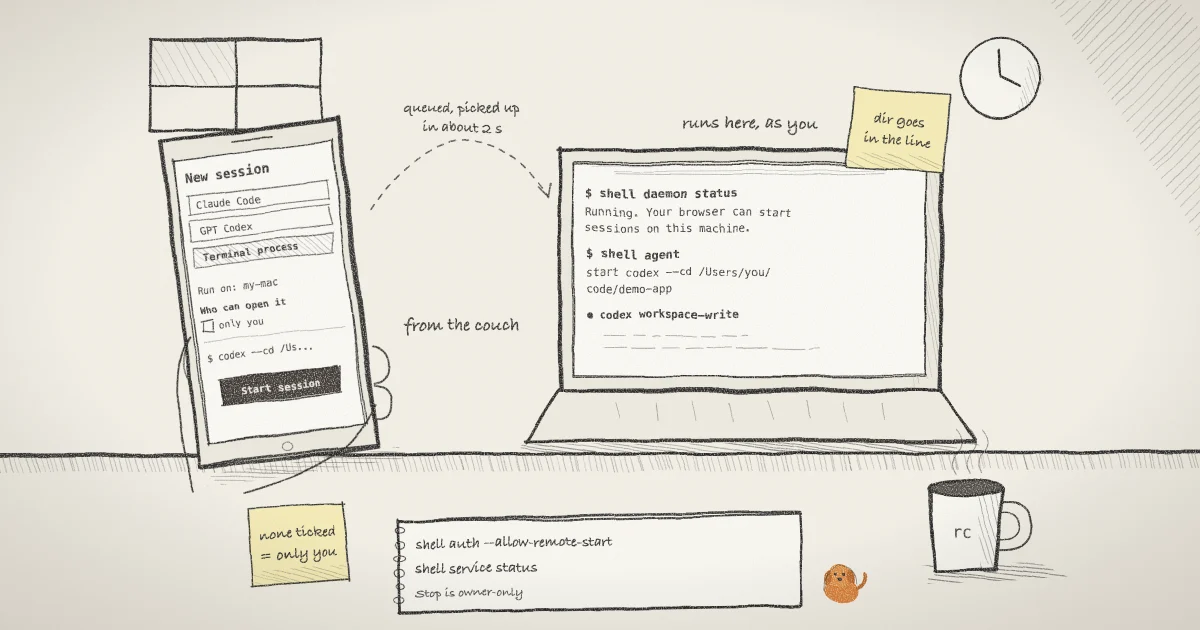
Browser starts are carried out by a small daemon on the computer. Saying yes the first time also installs it as a service, so the machine is reachable after a reboot without anybody logging in. Check both halves:
shell daemon status
shell service statusThe first prints "Running. Your browser can start sessions on this machine." when the listener is up. The second prints "Installed at" and the path of the service file. If it says "No service is installed.", run shell service install. On macOS that file is a launch agent under ~/Library/LaunchAgents with KeepAlive set, so launchd restarts the daemon if it exits; on Linux it is a systemd user unit enabled with systemctl --user.
The daemon asks the accounts service for queued work every two seconds, and the app treats a machine as reachable only if it has asked within the last 15 seconds. The daemon also checks once, when it starts, which agent tools are on its PATH (claude, codex, hermes, openclaw), and the app warns when the tool you pick was not found. If you install a new agent while the daemon is running, the warning stays until the daemon restarts, though the command is still sent.
Step 3: Open the New session sheet on your phone
Open app.shell.online in your phone's browser, sign in and press New session. The sheet says what it does in its first line: it starts a new process on your linked computer, the process stays there, and the app opens its terminal. Then it asks what to run. The choices in the current app are Claude Code, GPT Codex, Hermes Agent, OpenClaw and Terminal process.
Each choice is a short form that builds a command line. For GPT Codex you get a resume field, a model field, a "Resume the most recent session" switch, and two selectors that map straight onto Codex's own flags: Sandbox, which passes --sandbox with read-only, workspace-write or danger-full-access, and Approvals, which passes --ask-for-approval with on-request or never. The Codex CLI reference describes what each value allows. The Claude Code form has a resume field, a model picker and a "Skip permission checks" switch that adds --dangerously-skip-permissions, which Anthropic's permission modes guide recommends only for isolated containers and VMs.
Under the form the sheet prints the exact command after a $, so nothing runs on your machine that you did not see. Pick the computer under "Run on". A machine that is not reachable is marked offline and the Start session button stays disabled. Each switch is defined in session-kinds.ts.
Step 4: Point the agent at the right directory
The forms have no directory field, and a browser-started session runs in whatever directory the daemon itself is running in. That is not your project. The 0.24.1 changelog in the repository records a machine where six Claude Code sessions started this way all reported / as their directory.
Put the directory in the command. Codex resumes "the most recent chat from the current working directory", so codex resume --last started from the wrong place finds nothing, and a fresh run works on the wrong tree. Choose Terminal process and type the directory yourself.
For Codex, the --cd flag sets the working directory before the agent starts:
codex --cd /Users/you/code/demo-app --sandbox workspace-write --ask-for-approval on-requestThat line contains no shell syntax, so the daemon runs it as a program with arguments and the session reads as Codex in your list. Write the full path: with ~ in it, the line counts as shell syntax and goes through sh instead.
Claude Code has no equivalent flag, so change directory first:
cd /Users/you/code/demo-app && claudeBecause of the &&, this line goes to sh -c whole, so quoting and operators keep their normal meaning. The session list still shows the line you typed. Commands are limited to 500 characters. Add a session name in the form so the run is easy to find later; it shows up in shell ls and the app.
Step 5: Decide who can open it before you press Start
If you belong to an organization in the app, the sheet lists your colleagues under "Who can open it", and nobody is ticked. With nobody ticked it says "Only you will be able to open this session. You can add people to it afterwards." Tick a person and they can open it without being sent anything.
No password is typed at any point. Your phone's browser generates the session password and seals it to the daemon's public key, and to each person you ticked, using P-256 key agreement, HKDF and AES-GCM through the browser's Web Crypto API. The accounts service passes the envelope along without a key to open it; the server code says it is "relayed verbatim". The daemon opens it, hands the password to the new session over a pipe rather than its environment, and the session encrypts its terminal end to end as any share does. The encryption guide describes the frame cipher, and an earlier post explains how a teammate gets a sealed copy of a password.
Two details follow from that design. A colleague who has never opened the app in a browser has no key to seal to, and the sheet says so instead of listing them. And the daemon makes a new key each time it starts, so stopping it ends its ability to open anything sealed to the old one.
Step 6: Answer it, check it and stop it
Press Start session. The command is queued, the daemon picks it up on its next poll and the session appears in your list. Open it to get the terminal. The phone guide covers the controls: tap to bring up the keyboard, use the terminal key bar for keys a phone keyboard lacks, and remember that Ctrl-C interrupts the command rather than copying. Ctrl-D warns on the first press and sends end-of-file only if you press it again within three seconds. For Claude Code there is also a chat view, described in the post on reading Claude Code as a conversation.
Back at the computer, the session is an ordinary local one:
shell list
shell attach <ID>shell list shows its ID, uptime and relay status, and shell attach joins it in your terminal. Press Ctrl-X, then D to detach without stopping it.
To end the run from the phone, use Stop on the session. The server only accepts it from the session's owner and answers anyone else with "only the session owner can stop its process", even inside an organization. The daemon then runs shell kill on that session. If the agent has already finished, there is nothing to stop: the share closes when its process exits.
What this setup does not do
- It does not take over a process that is already running. The sheet says so in its first line.
- It cannot wake a sleeping or offline computer. The app refuses to queue work for a machine that has not polled in 15 seconds.
- It cannot change shell's own options. The daemon puts
--before every browser command, so a session started this way cannot be made read-only, given file access or an--auto-closedeadline from the phone. The code comment in agent_loop.go states the rule: the service may choose what program runs, but not weaken encryption or widen file sharing. Start those runs at the keyboard. - It is not a sandbox. The process runs as your user, with your files and credentials. What limits a Codex or Claude Code run is the agent's own sandbox and approval setting, which is why the sheet exposes them. OWASP lists excessive permissions and excessive autonomy among the root causes of agent damage, and an agent started from a phone with approvals off is both.
- It is limited to your own machines. The server looks the machine up among the ones linked to the account making the request, so a colleague can open a session you share with them but cannot start one on your computer.
The security page explains how read-only links and input access fit together, and the CLI reference lists every command used here. The setup itself, including the launchd priority fix that matters on a Mac left running for days, is covered in an earlier post on browser-started sessions.
Where Pilot Protocol fits
shell is developed by Pilot Protocol, which builds networking for autonomous agents. Whether you agreed to what a feature lets others do with your machine is a question Pilot answers in writing too: its consent page lists each feature that is on by default, what it costs you, and the exact setting that turns it off. If you came here from Cursor, the Pilot blog also shows how to connect Cursor to Pilot Protocol through a hosted MCP server, which gives its agent an address on a network of other agents rather than a link for a person to open.
The source for everything above is in the shell.online repository, MIT licensed, and the docs cover the rest.
Start the next run from your phone
Link the computer once with shell auth, allow browser starts if it is a machine you trust, and the New session sheet will run Codex, Claude Code or any command there, in the directory you name.
Set up the app