How to Run Codex in a Container You Can Open From a Browser
Run OpenAI's Codex CLI inside shell.online's Docker image, open its terminal from a phone, and see where container isolation stops.
Artemii Amelin10 min read
Contents
On October 7, 2026, Kaspersky used the AI Everything Global expo in Abu Dhabi to publish guidelines for securing AI agents, built on what the company calls its Cyber Immunity approach. The report, AI agent security through the lens of Cyber Immunity, starts from two assumptions: the language model and any outside data are untrusted, and irreversible actions need a person to confirm them. From there it asks for a small trusted computing base, isolated components (sandboxes and virtual machines, with trusted and untrusted contexts kept apart), and default-deny rules for tool calls and network traffic. Vladislav Tushkanov, who heads Kaspersky's AI Technology Research Center, said the principles map directly onto LLM-based systems.
None of that is new to anyone who has read the OWASP entry on excessive agency, which tells you to limit what an agent's extensions can reach to the minimum it needs. What is new is how many people now run a coding agent on the same laptop that holds their SSH keys, cloud credentials and browser sessions. Putting the agent in a container is the cheapest form of isolation most developers already have installed. The usual objection is that a container is awkward to watch: you lose the terminal the moment you close the window that ran docker exec.
This guide runs OpenAI's Codex CLI inside the Docker image that ships with shell.online, so the agent works in a container while its terminal is a browser link you can open from a laptop or a phone. It covers starting the container, getting the link out of it, putting Codex inside without root, signing in, and what a restart keeps. It also says plainly where this setup falls short of Kaspersky's list. The shell.online details come from the repository's Dockerfile, Compose file, entrypoint script and help text. I have not run this exact sequence on every Docker host, so check each step's output as you go.
Step 1: Build and start the container
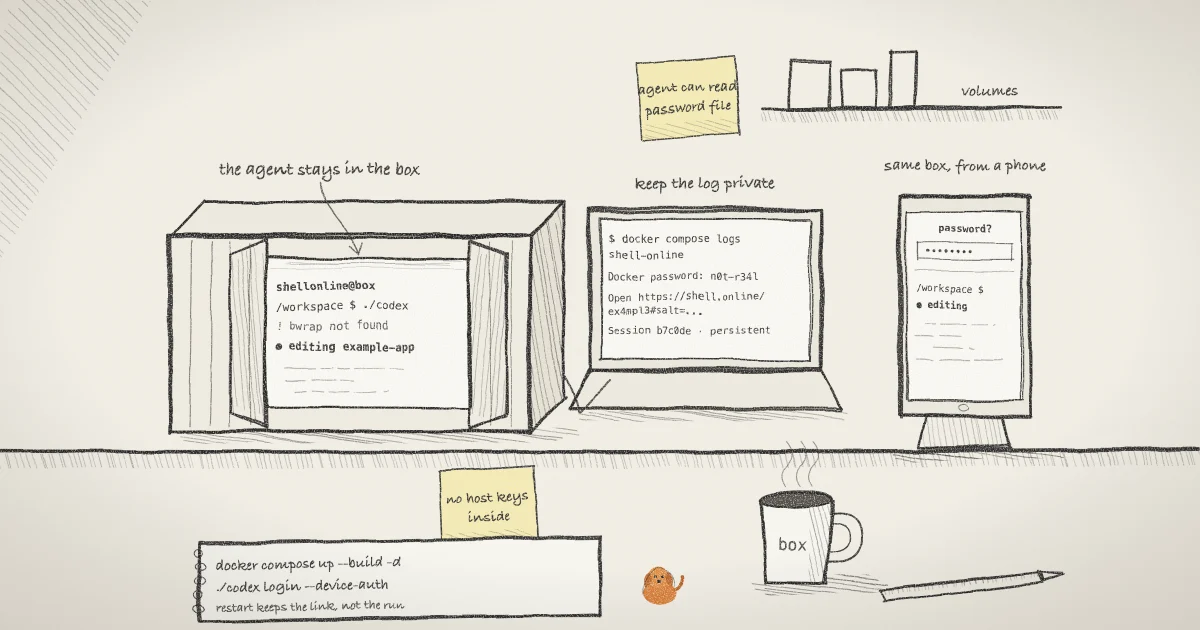
The Docker guide starts from a clone of the repository. The Compose file in its root defines one service, shell-online, with two named volumes: shell-online-state for the session identity and shell-online-workspace for your files. It builds the image from the clone and restarts the container unless you stop it.
git clone https://github.com/TeoSlayer/shell.online.git
cd shell.online
export SHELL_ONLINE_E2EE_PASSWORD='example-only-pick-your-own-long-phrase'
docker compose up --build -dThe export line is optional and only matters on the first launch. Without it, the entrypoint generates a short random password and saves it. With it, the container uses your longer password instead, which the encryption guide recommends for sessions that live a long time. A container running an agent for days is that kind of session.
The Dockerfile is short enough to read in a minute. It builds the shell binary, copies it into an Alpine image with bash, CA certificates and tini, creates a user called shellonline, and switches to that user. Nothing in the container runs as root after start. The working directory is /workspace and the default command is an interactive bash login shell.
Step 2: Read the link and open it
The entrypoint script prints the password to the container's log, then runs shell --foreground --persistent /var/lib/shell-online/session.json around bash. The session card with the browser link follows it in the same log.
docker compose logs shell-onlineYou will see a line starting Docker password:, a note that the browser asks for it and that it is never sent to shell.online, and the session card. Its Open line holds the link, which ends in a #salt= fragment, and its Session line ends in persistent. Open the link on your laptop or phone and type the password. You get a bash prompt in /workspace, running as shellonline inside the container.
The #salt= fragment never reaches the relay. The browser and the container derive the key from the salt and the password, so the relay carries ciphertext; the security page lists the metadata it still sees.
Because the container's process is wrapped with --foreground under a persistent state file, you can also ask the CLI inside the container about it. docker compose exec runs as the same user, so it finds the same local session record:
docker compose exec shell-online shell listThis prints a table with the session ID, access mode, uptime, command, share URL and whether the relay is online. The image's health check runs shell list --json for the same reason: if no session is listed, Docker marks the container unhealthy.
Step 3: Put Codex in the workspace without root
The image has no Node.js, no package manager you can use as shellonline, and no git. The simplest way in is the prebuilt binary. The Codex README lists a statically linked musl build for Linux on each GitHub release, codex-x86_64-unknown-linux-musl.tar.gz for x86_64 and codex-aarch64-unknown-linux-musl.tar.gz for arm64, and says each archive holds a single file with the platform in its name. First check which one the container needs:
docker compose exec shell-online uname -mOn an Apple Silicon Mac this prints aarch64; on most Linux servers it prints x86_64. Download the matching archive on the host. GitHub serves the newest asset at a stable address, as its page on linking to releases describes.
curl -fsSLO https://github.com/openai/codex/releases/latest/download/codex-x86_64-unknown-linux-musl.tar.gz
tar -xzf codex-x86_64-unknown-linux-musl.tar.gz
docker compose cp codex-x86_64-unknown-linux-musl shell-online:/workspace/codexFor an aarch64 container, replace x86_64 with aarch64 in all three lines.
docker compose cp copies a file between the host and a service's container. Per the docker cp reference, a file copied into a container belongs to root but keeps its permissions where possible, so the executable bit survives and shellonline can run it. Copy your project into the workspace the same way, since there is no git inside to clone it with:
docker compose cp ./example-app shell-online:/workspace/example-appFiles copied this way are owned by root inside the container. If the agent needs to edit them, change ownership with docker compose exec -u root shell-online chown -R shellonline /workspace/example-app. That is the one step here that runs as root, and it runs from the host, not from the shared terminal.
Step 4: Sign in from the browser terminal
Codex normally signs in by opening a browser on the same machine, which a container does not have. The Codex authentication guide recommends device code sign-in for headless machines, marked as beta. Type this in the shared terminal you opened in Step 2:
cd /workspace
./codex login --device-authCodex prints a link and a one-time code. Open the link on your phone, sign in, and enter the code. The same guide offers an API key as the alternative, piped in with printenv OPENAI_API_KEY | ./codex login --with-api-key after you set the variable in that terminal.
Either way Codex writes its credentials to ~/.codex/auth.json, which here is /home/shellonline/.codex/auth.json. The guide says to treat that file like a password. Note where it lives: the home directory is in the container's own writable layer, not in a named volume. It survives docker compose restart. It does not survive removing the container, which docker compose down does, so you sign in again after that.
Step 5: Run Codex and watch it from anywhere
cd /workspace/example-app
/workspace/codexExpect a startup warning about the sandbox. On Linux, Codex's own sandbox uses bubblewrap, and the Codex sandboxing page says Codex warns when bwrap is missing or cannot create the user namespace it needs. The shell.online image does not install bubblewrap. In this setup the container is the isolation boundary, and Codex's approval settings are what stands between the agent and an action you would want to confirm. Choose them on purpose from that page rather than turning everything off to make the warning go away.
From here the session behaves like any other share. Close the laptop tab and the agent keeps working, because the process belongs to the container, not to the browser. Open the same link on your phone to check on it; the mobile guide covers the phone view. If someone else needs to follow along, the earlier post on a read-only terminal link for your coding agent explains why a separate view-only share beats handing over this one.
Step 6: Know what a restart keeps
docker compose restart shell-online
docker compose logs shell-onlineAfter a restart the log shows the same link and the same password. The entrypoint reads the saved password from the state volume, and --persistent reuses the saved session identity, so a bookmark on your phone keeps working. What it does not keep is the process. The Docker guide is explicit that the container starts a new terminal process and does not restore an agent's in-memory conversation or a running job. Codex is gone after a restart, and you start it again from the shared terminal.
The agent can read the share's credentials. The entrypoint keeps the password in /var/lib/shell-online/password and the session identity and key in session.json beside it, both owner-only. The owner is shellonline, and so is Codex, because it runs in the same shell as the same user. Anything the agent executes, including a command planted by a prompt injection, can read both files. Treat the link and password as known to the agent. The same goes for the container log: it prints the password, so keep docker compose logs output out of issues and chat. The earlier post on the second secret on the host covers the same trade on an ordinary machine.
What this setup does not do
Compared with Kaspersky's list, this is partial isolation, and it is worth being exact about which part.
- It is a container, not a virtual machine. A container shares the host's kernel. The Docker Engine security page describes the namespaces that keep a container's processes apart from others and recommends running as a non-root user, which this image does. NIST's Application Container Security Guide is the longer reference.
- It does not deny network traffic by default. The Compose file declares no network rules, so the container gets the project's default Compose network with ordinary outbound access. shell.online needs outbound HTTPS to its relay and Codex needs to reach OpenAI. Anything else the agent tries to reach is also allowed unless you add your own rules.
- It does not keep the agent away from the share credentials, as the callout above says.
- It does not run your own relay. The image is a client of the hosted service. To run the relay yourself, follow self-hosting or the earlier post on running the relay on one Docker host.
- It does not confirm irreversible actions for you. Watching a terminal is not approving one. Codex's approval mode does that, inside the session.
It does keep the agent off your host's home directory, your SSH keys and your shell history, unless you copy them in. For a lot of agent work that is the part that matters most, and it costs one Compose file.
Where Pilot Protocol fits
The piece of Kaspersky's list this guide leaves open is network control, and that is where agent networking gets awkward. Lock a container's egress down to outbound port 443 and most peer-to-peer tools stop working. Pilot Protocol, the agent networking stack behind shell.online, has a compat mode for that case: as its firewall documentation describes, the daemon makes only outbound TCP connections on port 443 and relays traffic over WebSocket Secure. The write-up on getting a Pilot node online from a locked-down agent VM goes further, through an authenticating egress proxy, blackholed DNS and blocked UDP. If you tighten this container's network after reading Kaspersky's report, those two pages show what an agent can still do with only HTTPS out.
Put the agent in a box you can still see into
Clone the repository, run docker compose up --build -d, and open the link from the log. The full command list is in the CLI reference.