How to Steer a Running Codex Turn From Your Phone and Keep Ctrl-X Working
Codex CLI 0.163 takes follow-ups mid-turn and makes Ctrl+X its leader key. Steer it from a phone through shell, and see where Ctrl-X goes when you attach.
Artemii Amelin10 min read
Contents
OpenAI published Codex CLI 0.163.0 on October 15, 2026, and two lines in its release notes change how a long Codex run feels when you are away from the keyboard. The first: "Send a follow-up while Codex is responding to steer it immediately." The pull request behind it, #51812, turns on instant interrupts by default, so new input preempts the response in progress instead of waiting for the turn to end. The second: Codex now has a leader key you configure in /keymap, and the default leader is Ctrl+X. Voice mute, which used to sit on Ctrl+X, moved to F9.
Steering is the kind of correction you can make from a phone. You see the agent heading toward the wrong file, you type one sentence, and it changes course without you throwing away the turn. That only works if you can see the run and type into it from wherever you are, which is what shell.online is for: it runs Codex on your own computer and prints a browser link to that terminal. OpenAI's own Codex CLI page pitches the same loop from the other side: steer the active turn and keep follow-up work in the same session.
The leader key is the part that needs care. Ctrl-X is also the first half of the sequence that detaches you from a session in shell attach. This guide starts Codex 0.163.0 under shell, steers it from a phone, and then goes through exactly what happens to a Ctrl-X when you are attached at the laptop, based on the shell source at release v0.25.0.
Step 1: Install Codex 0.163.0 and shell
The Codex README installs it from npm as @openai/codex, and 0.163.0 is the current latest tag there. Pin the version so you know which keymap you are getting:
npm install -g @openai/codex@0.163.0
codex --versionThe second command should print 0.163.0. If you use Codex through another installer, check the version the same way before you rely on steering, because older builds wait for the turn to finish.
Then install shell on the same computer. On macOS and Linux the installer checks release checksums before it puts the binary in place:
curl -fsSL https://shell.online/install | sh
shell --versionWindows has a PowerShell installer, and Homebrew is covered on the platforms page. The CLI command reference is at /cli/.
Step 2: Start Codex as a shared session
Give the session a name so you can pick it out later, then hand shell the agent command:
cd ~/code/example-api
shell --name steer-demo codexshell starts Codex in the background on this machine and prints one browser link, a ten-character password and a QR code that carries both. The link holds only a random salt; the key is derived from the password in the CLI and in the browser, so the relay forwards encrypted frames it cannot read. The end-to-end encryption page covers the details.
Because the session runs in the background, the terminal you typed into is free again. To see it from there:
shell listThe table shows each session's ID, access mode, uptime, closing rule, command, share URL, whether a password is stored, and whether the relay is online. Copy the ID, or its first six characters; you need it in Step 4.
Step 3: Open the link on your phone and steer
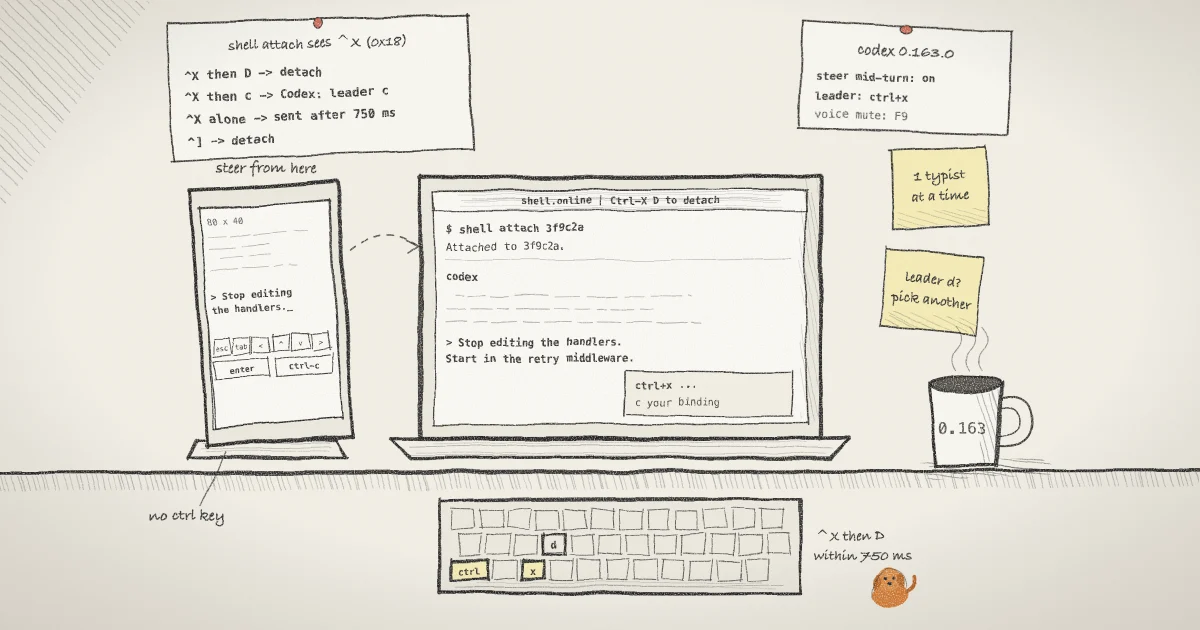
Scan the QR code with your phone, or open the link and type the password. The page draws the terminal with xterm.js by default. The phone guide describes what changes when you do: everyone sees one shared terminal grid, and a connected phone switches it to 80 columns by 40 rows. The grid returns to 120 by 36 when the last phone leaves, so a teammate watching on a laptop will see the layout change while you are connected.
Give Codex a task that takes a few minutes. When you want to change course, tap the terminal to bring up the keyboard, type the correction as a normal sentence, and press the enter key. With 0.163.0, Codex takes the follow-up while it is still responding. Something like this is enough:
Stop editing the handlers. The bug is in the retry middleware, start there.Below the terminal, shell's phone key row has eight buttons: esc, tab, the four arrows, enter and ctrl-c. They send the bytes your phone keyboard cannot produce. Two of them matter for Codex. Escape cancels a pending leader shortcut, according to the leader pull request. The ctrl-c button sends the interrupt byte; it is not a copy shortcut.
Notice what is missing from that row: a Ctrl key. The buttons are a fixed list in the web app, and Ctrl-X is not on it, so you cannot press Codex's leader from a phone. Slash commands still work, because they are typed text. /config and /keymap open from a phone like any other prompt.
Only one person types at a time. The relay gives input to whoever typed most recently and holds that for 1.8 seconds. If you are typing at the laptop, keystrokes from the phone during that window are dropped, not queued, and the same applies between two browsers. If a steering message from your phone seems to vanish, check whether someone was typing at the other end, then send it again.
Step 4: Attach at the laptop and know where Ctrl-X goes
Back at your desk, take the session over in a local terminal:
shell attach 3f9c2ashell replies with Attached to 3f9c2a. Press Ctrl-X, then D to detach (Ctrl-] also works). and sets the window title to a reminder of the same sequence. The browser link stays live while you are attached.
Ctrl-X is byte 0x18, the control character the ASCII table calls CAN. While you are attached, every byte you type passes through a small filter in attach_unix.go before it reaches Codex. Reading that filter, this is what happens in each case:
- Ctrl-X, then D or d. shell detaches. Codex receives neither byte.
- Ctrl-X, then any other key. shell forwards Ctrl-X and that key together. Codex sees an ordinary leader shortcut, such as a
leader cbinding you defined. - Ctrl-X on its own. shell holds it for 750 milliseconds in case a D follows, then forwards it. Codex's hint menu opens a moment later than it would outside shell. The hints stay open until you choose or cancel, so the delay costs nothing else. The same pause applies to any program that uses a bare Ctrl-X, such as GNU nano, where it closes the buffer.
- Ctrl-X, then Escape. Both bytes go through and Codex cancels the pending shortcut.
- Ctrl-]. shell always detaches on this legacy key, and Codex never sees it.
The D has to arrive within that 750 millisecond window. If you press Ctrl-X, pause, and then press D, shell has already forwarded the Ctrl-X, and Codex receives a leader followed by a D.
The filter exists only in shell attach. A Ctrl-X typed into the shared link in a desktop browser goes straight to Codex, and so does Ctrl-X D. You can only detach from a local attach, because that is the only place you are attached.
Step 5: Decide what to do about leader D
As far as I can read the 0.163.0 source, the leader code sets the prefix key without assigning any actions to it. The actions under the leader are the bindings you add yourself. That makes the collision narrow: it bites only if you bind something to leader d and also attach through shell.
If you want that binding, change one side. shell's detach sequence is a constant in the source at v0.25.0, with no flag to change it, so the side to change is Codex. Open /keymap and use the Use leader... option to capture a different prefix, or set tui.keymap.global.leader in your Codex config. Codex refuses a plain letter as the leader, so ordinary typing is never intercepted, and on Unix it refuses Ctrl-Z, the terminal SUSP character that sends SIGTSTP to the foreground job.
The same problem is older than either tool. tmux uses Ctrl-B as its prefix and GNU screen uses Ctrl-A, with Ctrl-A d to detach, and both shadow whatever the program inside wanted those keys for. Emacs uses C-x as a prefix key. Whatever wraps a terminal program takes some key away from it. What you need to know is which one, and here that is exactly two sequences, Ctrl-X D and Ctrl-].
When you are done at the desk, press Ctrl-X and then D. shell prints Detached from 3f9c2a., Codex keeps running, and your phone can pick the session up again. To end the run and close the link:
shell kill -- 3f9c2aWhat this setup does not do
- It does not let you press Codex's leader key from a phone. The phone key row has no Ctrl button. Use slash commands, or wait until you have a keyboard.
- shell does not read Codex's keymap. It treats Ctrl-X D and Ctrl-] as its own whatever Codex has bound, and it does not warn you about a conflict.
- Dropped keystrokes are not replayed. Input that loses the 1.8 second typing lease is discarded, so a phone and a laptop typing at once lose characters rather than interleaving them.
- Steering does not undo anything. A command Codex ran before your follow-up arrived has already run. The instant interrupt pull request also keeps the feature marked as under development, even though it is now on by default.
- A read-only link cannot steer. If a teammate should watch without typing, start the session with
shell --read-only codex; the server blocks browser input on that link. To give an agent a narrow, expiring way to watch instead of a person, see connecting an agent over MCP. - I read the attach code on the Unix path. I did not check how attach behaves on Windows.
- It does not keep a sleeping laptop reachable. The process runs on your computer, so the computer has to stay awake and online. The reliability page covers reconnects.
Earlier posts cover the parts around this one: watching an agent without shrinking its terminal, and watching a coding agent after you turn off its permission prompts, which matters more once you can redirect it from anywhere. The security page lists who can reach a session and how.
Where Pilot Protocol fits
Steering from a phone is a person sending one message to one agent over a link they hold. Once agents start correcting each other across machines, the question becomes which agent is allowed to send to which, and that is the problem Pilot Protocol works on. Pilot agents are private by default: a private node silently rejects incoming streams unless the two sides share a network or have set up mutual trust, and trust starts with a handshake that carries a justification and that the other agent approves or rejects. The right to send an agent instructions is granted, not assumed. The post on how mutual trust secures agent networks goes through the reasoning. shell.online is developed by the Pilot Protocol team.
Steer your next Codex run from your phone
Install shell, start Codex with shell codex, and scan the QR code. Everything above is in the open source repository.