How to Keep One Browser Link for a Multi-Night Antigravity CLI Run
Run Gemini 4 Argon in the Antigravity CLI through shell --persistent so a teammate keeps the same link and password every night of a long migration.
Artemii Amelin9 min read
Contents
Google released Gemini 4 Argon on October 13. In the launch post by Koray Kavukcuoglu, the model works longer on hard coding and agentic problems, and one example describes Argon working autonomously overnight on Google's Agent Development Kit, an open source agent framework, and surfacing optimizations that were later merged. The developer announcement names code migrations as the kind of long-horizon workflow it was designed for. Through the Gemini API, the launch post says, input and output share a single limit of 1M tokens.
For terminal users, the relevant line is in the Antigravity team's post: Argon is rolling out in the Antigravity desktop app and in the Antigravity CLI for Google AI Pro and Ultra subscribers. On the Gemini CLI side, an open issue on the Gemini CLI repository asks for the same model, so if you want Argon on a migration in a terminal this week, you run agy.
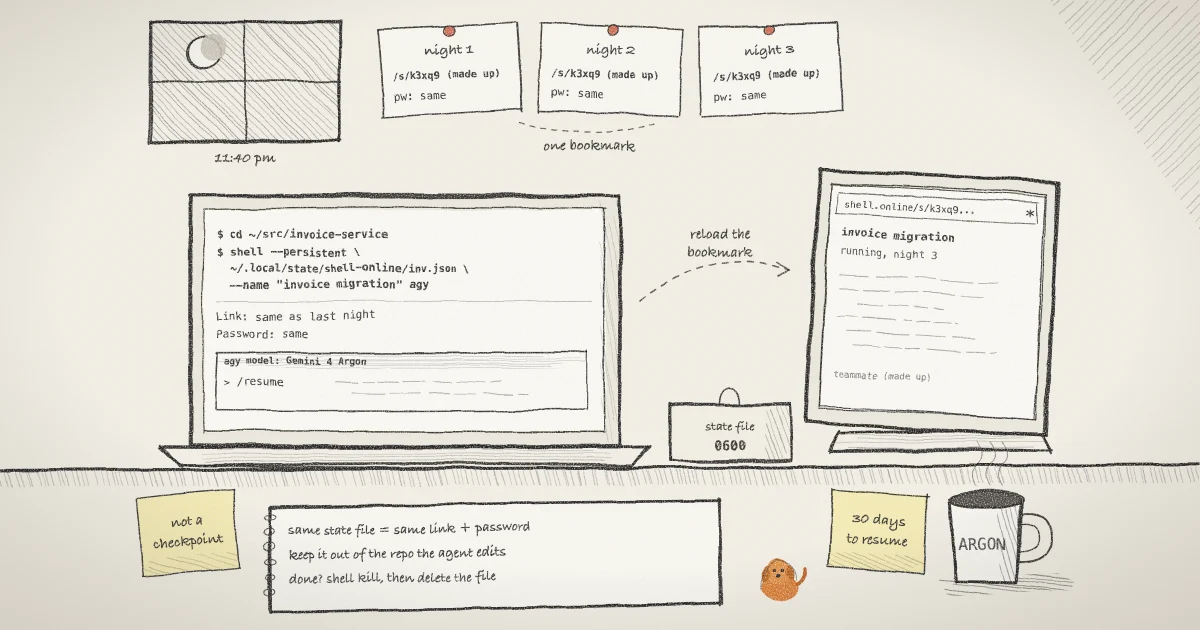
A migration that takes several nights is several runs of the agent, and that is where a shared terminal usually gets annoying. An ordinary shell.online link belongs to one run. When the task exits, its share closes, and the next start prints a new link and a new password that you have to send again. This guide uses --persistent so the teammate following the migration keeps one bookmark for the whole job. You will install both tools, put the state file somewhere the agent will not commit it, start the first night, resume the second night on the same link, and retire the link when the work is done.
Step 1: Install shell and the Antigravity CLI
Install shell on the computer that holds the repository. The installer checks release checksums, and the platforms page lists Homebrew and the other options. The commands here match shell 0.25.0, the current release named in the project README.
curl -fsSL https://shell.online/install | sh
shell --versionInstall agy the way Google's Antigravity CLI getting started page describes. On macOS and Linux the binary lands in ~/.local/bin/agy.
curl -fsSL https://antigravity.google/cli/install.sh | bash
agy --versionRun agy once by itself, finish any sign-in it asks for, then quit it. Doing that before you share anything keeps the sign-in out of the link entirely.
Step 2: Pick a home for the state file
--persistent takes a path to a state file. The first run creates it. Every later run that names the same file reuses what is inside, and the CLI reference says plainly what that is: the host credentials, the browser password and the decryption material. Anyone who holds the file can resume the session as you and read it.
I would put it under your user's state directory, outside any repository. ~/.local/state is the default user state location in the XDG base directory specification, and it works as a convention on macOS too.
mkdir -p ~/.local/state/shell-online
chmod 700 ~/.local/state/shell-onlineshell enforces part of this itself. In persistent.go it creates a missing parent directory with mode 0700, writes the file with mode 0600, and refuses to read a state file that the group or other users can access, with the error persistent state must not be accessible by group or other users. It also refuses a path that is a symlink rather than a regular file. If you are unsure what those modes mean, the chmod manual page covers them.
Do not put the state file inside the repository the agent is migrating. A .gitignore entry keeps it out of a normal git add, but the agent runs as your user and can read any file you can, and a broad commit or a forced add can still pick it up. The OWASP secrets management cheat sheet treats a secret in source control as exposed. If that happens, rotate the password (Step 5) and start a new state file.
Step 3: Start the first night's run
Change into the repository and start agy through shell with the state file and a name. The repository and session name here are invented.
cd ~/src/invoice-service
shell --persistent ~/.local/state/shell-online/invoice-migration.json \
--name "invoice migration" agyshell starts agy in the background, prints the browser link and a ten-character password, and in an interactive terminal shows a QR code that carries both. Because the state file did not exist, this run created it with a new identity. Then run shell list. The ID it shows comes from the host token in the state file, so it will be the same ID every night.
shell list
shell attach <ID>shell attach puts the running agent in your local terminal. In agy, choose Gemini 4 Argon in the model selector; the Antigravity models page lists Argon as available in the CLI for Pro, Ultra and Enterprise plans. Give it the migration prompt, then press Ctrl-X, release it, and press D to detach. The agent keeps running and the link stays live.
Send the link and the password to your teammate through two different channels. The encryption page explains why: the URL carries only a random salt in its fragment, and the password is what derives the key in the browser. The QR code holds both, so treat a photo of it as the credential.
Step 4: Resume the second night on the same link
When agy exits, because the night's work finished or you quit it, the session shows as ended and the state file stays where it is. The relay holds a persistent session's record for up to 30 days, where an ordinary disconnected share gets 12 hours; both numbers are in session-lifetime.ts. Even after that record expires, the same session comes back, because its ID is derived from the host token inside the state file.
The next evening, run the exact command again from the same directory.
cd ~/src/invoice-service
shell --persistent ~/.local/state/shell-online/invoice-migration.json \
--name "invoice migration" agyshell reads the state file, resumes the same session ID with the same host token, and prints the same link with the same password. Your teammate reloads the bookmark from yesterday and enters the password they already have. The name carries over too: per the CLI reference, a persistent session that restarts without --name keeps the name it had, including one somebody set in the web app.
Inside agy, pick up the conversation with the /resume slash command. Google's docs list it without describing its options, so look at what your version offers before you rely on it to bring back the previous night's context.
Two settings are fixed by the state file. If you add --read-only on a later night, or set SHELL_ONLINE_E2EE_PASSWORD to something different from the saved password, shell stops before contacting the relay and leaves the saved identity untouched. Decide on read-only before the first run.
Step 5: Rotate or retire the link
If the teammate leaves the project, or the state file ends up somewhere it should not be, rotate while the session runs.
shell password rotate <ID>This generates a fresh password and URL salt without restarting agy, disconnects current viewers, and rewrites the state file, so tomorrow's resume uses the new credentials. The path of the link stays the same and the fragment changes, so share the full new link and password with whoever should keep access. The guide to revoking a shared link goes through the same command in more detail.
When the migration is merged, stop the run with shell kill <ID> and delete the state file. Resuming requires the host token inside that file, so once it is gone nobody can bring the link back, and the relay's record expires on its own.
What this setup does not do
It does not save the agent. The reliability page puts it in one sentence: a persistent identity can be reused, but it is not a process checkpoint. Each night is a new agy process, and whatever it remembers comes from Antigravity, not from shell.
It does not restart anything by itself. If shell crashes or the machine loses power and leaves a local record or control socket behind, the next start refuses to resume and says recovery is needed. That is deliberate, and nothing restarts the session automatically.
It does not keep MCP grants. The relay clears grants when a persistent session resumes, so an observer agent you connected on night one needs a new grant on night two.
It does not work without encryption. --persistent cannot be combined with --no-e2ee. It also does not keep the computer awake: a sleeping laptop drops the host off the relay until it wakes. If you would rather run the migration inside a container, the post on a Docker terminal that keeps one link across restarts applies the same flag to the Docker image.
Where Pilot Protocol fits
A stable link to a process that keeps restarting is a small version of a problem Pilot Protocol was built around. shell.online is developed by Pilot, and Pilot gives each agent an address tied to its cryptographic identity rather than to the machine's IP, which is the subject of its post on persistent addresses for autonomous systems. The Pilot concepts page covers how nodes, addresses and trust fit together. None of that is needed for this guide, where one state file on one computer does the job. The other walkthrough that pairs well with this one is starting a session from the browser on a Mac that sat idle for days.
Give your next long migration one link
Install shell, keep the state file outside the repository, and start agy with --persistent so the same link and password work every night of the job.
Read the shell.online docs