How to Share an OpenCode Session Without Handing Over Your Provider Keys
After the OpenCode Console breach, rotate your provider key, then share an OpenCode run with a read-only link that keeps keys and auth.json out of reach.
Artemii Amelin9 min read
Contents
- Why an interactive link reaches your keys
- Step 1: Replace the key in a terminal nobody is watching
- Step 2: Start OpenCode without the keys it does not need
- Step 3: Give viewers a read-only link
- Step 4: If you share files, keep the root narrow
- Step 5: Send the password separately and rotate it afterward
- What this setup does not do
- Where Pilot Protocol fits
On October 17, OpenCode said on X that it had suffered a security breach the night before, "related to a large scale distillation attack", affecting 1.4% of OpenCode Console users, all of them people who had linked external providers. The email to those users, as OfficeChai reported it, said the team had found unauthorized access to a legacy system it was decommissioning and that OpenAI, Anthropic and other provider keys saved in a workspace may have been exposed. OpenCode said it was working with OpenAI, Anthropic and Google, and that the incident was ongoing.
The affected system was the hosted Console, where people store provider keys for OpenCode to use. Startup Fortune's write-up notes that the company has not said whether keys held in local config files were exposed, and the advice in both comes down to revoking and reissuing keys in each provider's own dashboard and checking recent usage. Startup Fortune adds spending limits and a review of usage back to October 17. Anyone who uses OpenCode, the open source terminal agent, will then put a fresh key into a local copy of it.
That local agent is the subject of this guide. If you run it through shell.online so a teammate can follow along, the key it needs lives on the same computer as the session you are sharing. This guide puts the new key in place without showing it to anyone, starts a session your viewers can watch but not type into, keeps the files panel away from OpenCode's credential file, and closes access when the review is over. Everything below was checked against shell.online 0.25.0, the current release.
Why an interactive link reaches your keys
shell opencode starts OpenCode in a pseudo-terminal on your computer and prints a browser link and a password. The security page is blunt about what that link gives: anyone with the complete link and password can view and type with the wrapped process's operating-system permissions. Payloads are encrypted between your computer and each browser, so the relay cannot read them, but encryption decides who can see the session, not what a viewer is allowed to do once inside.
OpenCode makes this concrete. Its TUI documentation says that starting a message with ! runs a shell command and adds the output to the conversation. A viewer on an interactive link can type !env and read every variable OpenCode was started with, or print the credentials file. The CLI reference says credentials are stored at ~/.local/share/opencode/auth.json, and the providers page lists the environment variables it reads for Bedrock, Vertex, NVIDIA and others.
shell itself already keeps one secret out of that environment. Since 0.24.1 the session's browser password travels between shell's own processes over a pipe, and the wrapper strips SHELL_ONLINE_E2EE_PASSWORD and its other internal variables before it starts your program. The changelog gives the reason, and Pilot's write-up of the change, a second secret on the host, walks through it: any program running as the same user could read it, and on Linux /proc/<pid>/environ keeps the environment a program started with, for as long as it runs. I read that stripping in the Unix session code; I did not check the Windows path. shell leaves your own variables alone, so an exported OPENAI_API_KEY reaches OpenCode, which is what you want for the provider it calls.
Step 1: Replace the key in a terminal nobody is watching
Revoke the old key in the provider's dashboard first, then create a new one. Do this in a plain terminal window that is not wrapped by shell. Anything that appears on a shared screen reaches every browser that has the link, and the relay also keeps a bounded copy of the last screen for offline viewing, encrypted in the default mode.
Then swap the key inside OpenCode:
opencode auth logout
opencode auth login
opencode auth listlogout clears a provider from the credentials file, login configures a provider's key, and list prints the providers stored there, so you can confirm the new entry exists before you share anything. If you supply keys through your shell profile instead, update the export there and open a fresh terminal so the old value is gone from the environment.
While you are in the dashboards, the general advice applies. OWASP's Secrets Management Cheat Sheet recommends rotating so a stolen credential only works for a short time, and Google's best practices for managing API keys say to restrict each key and delete the ones you no longer use.
Step 2: Start OpenCode without the keys it does not need
A process only needs the keys for the providers it will call in this session. If your profile exports several, start shell with the extras removed:
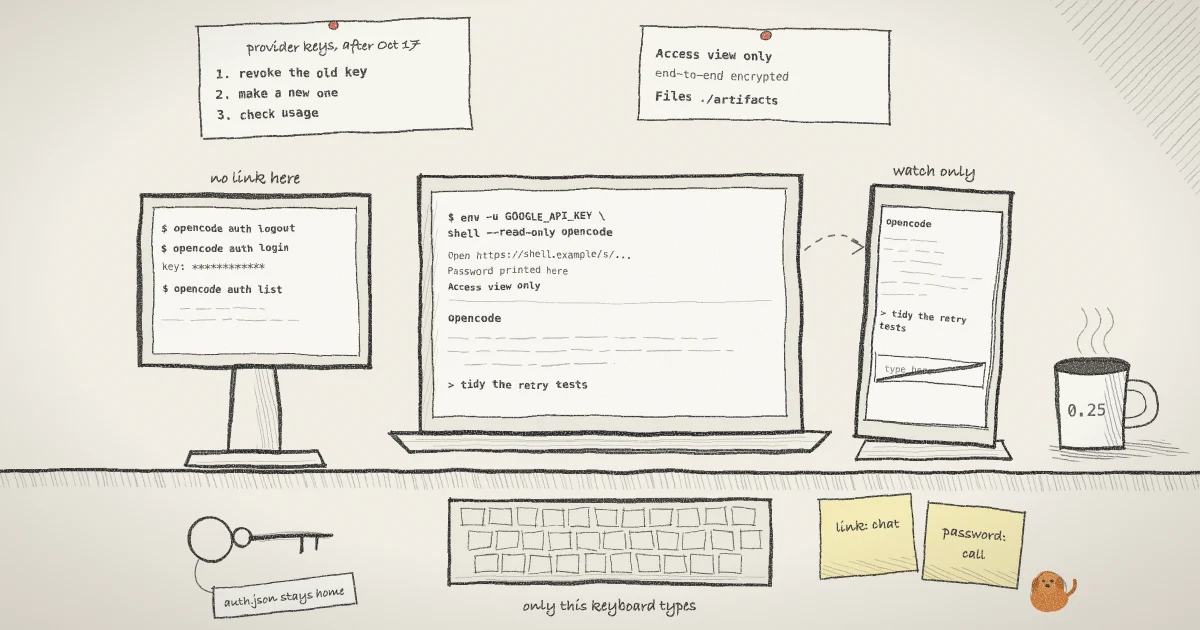
env -u GOOGLE_API_KEY -u NVIDIA_API_KEY \
shell --read-only --name "opencode review" opencodeenv -u removes a variable from the environment of the command it runs, and the flag exists on both GNU and macOS env. shell starts in that reduced environment and hands it on to OpenCode, so the removed keys are not in OpenCode's environment at all. Nothing changes in your own terminal. OpenCode still reads anything stored in auth.json, so a key you added with opencode auth login keeps working. If your OpenCode config refers to a key with the {env:ANTHROPIC_API_KEY} form the providers page documents, do not remove that one.
Keeping keys out of environments where you can is a long-standing recommendation. MITRE files it as CWE-526, cleartext storage of sensitive information in an environment variable, and the OWASP cheat sheet notes that environment variables are generally accessible to all processes and can end up in logs.
Step 3: Give viewers a read-only link
The command above already used --read-only. The start banner says so on the Access line, which reads view only · end-to-end encrypted, and the line under the QR code reads "Anyone who scans this can view this session." The CLI reference describes the flag as an immutable view-only session, and the security page adds that input is rejected by both the relay and the CLI, so a modified browser cannot turn it back into an interactive one. In the code, the host drops input and end-of-file frames from viewers when the session is read-only.
Read-only applies to browsers, so you still drive OpenCode yourself from the computer it runs on:
shell list
shell attach 3f9c2ashell list prints each local session with its ID, access mode, uptime and relay status. shell attach takes the ID or its first six or more characters and connects your terminal to OpenCode. Press Ctrl-X, release it, then press D to detach; OpenCode keeps running and the link stays live. An earlier post covers when a read-only link is the right default for a coding agent.
Read-only stops typing, not reading. If OpenCode runs cat .env or prints a token in a stack trace, every viewer sees it, and the session password cannot take it back. Watch what the agent does with secrets, and keep files with keys out of the project directory it works in.
Step 4: If you share files, keep the root narrow
File access is off unless you ask for it. --files opens regular files under the command's working directory, and --files-root chooses another directory:
env -u GOOGLE_API_KEY -u NVIDIA_API_KEY \
shell --read-only --files-root ./artifacts --name "opencode review" opencodeThe banner adds a Files line with the root and on demand. The browser gets nothing until a viewer asks for a file, and the CLI refuses parent traversal, device files and symlinks that point outside the root. A read-only link can still open files you opted in, which is why the root matters here. Never point it at your home directory, because ~/.local/share/opencode/auth.json is a regular file under it.
Step 5: Send the password separately and rotate it afterward
The link holds only a random salt in its #salt= fragment, and the password is printed beside it. The QR code includes both, so the encryption page says to treat it as a bearer credential. Send the link in one channel and the password in another, and keep the QR out of screenshots.
When the review is over, cut off everyone who joined without stopping OpenCode:
shell password rotate 3f9c2aRotation changes the password, URL salt and cipher, disconnects the current browsers, revokes existing MCP grants and updates your vault copy. The process keeps running, and you get a fresh link and password to give to whoever should keep access. To pick the replacement yourself, set SHELL_ONLINE_E2EE_PASSWORD for that one command. The earlier guide on revoking a shared link without killing the process goes through it in more detail. When the work is done, end the session:
shell kill -- 3f9c2aThat stops OpenCode and takes the link offline. Ordinary exit also closes the share, so you only need this when the agent would otherwise keep going.
What this setup does not do
- It does nothing about keys stored in the OpenCode Console. Those have to be revoked at each provider, which is Step 1.
- It does not hide keys from OpenCode. The agent needs a key to call a model, and its own tools run as you, so anything you can read, the agent can read.
- It does not scrub secrets from the screen. Read-only viewers see whatever the agent prints, and rotation cannot erase output somebody already saw.
- It does not keep the server out if you issue an MCP grant. A grant authorizes in-memory decryption on the server, and the controlling agent receives plaintext, as the agents page explains.
- End-to-end encryption does not protect against malicious code on your computer or in a viewer's browser.
env -uaffects only the session you start with it. Other terminals, and the shell profile itself, still hold whatever you exported.
Where Pilot Protocol fits
shell.online is built by the team behind Pilot Protocol, a network for autonomous agents in which every agent has its own Ed25519 key pair and a peer becomes reachable only after both sides agree to a handshake. The breach is a reminder of the same idea at a smaller scale: a credential is only as contained as the places it is copied to. Pilot's field note on what shell.online leaves on disk and what to revoke when infostealers go after coding agents lists the shell files on your own machine worth checking after an incident like this one. The source for everything above is in the shell.online repository.
Share the run, keep the key
Install shell, rotate the provider key in a plain terminal, then start OpenCode with a read-only link for whoever needs to watch.
Read the shell.online quick start