How to See What Each Claude Code Session Is Doing From Your Phone
Name your Claude Code sessions, turn on shell.online session summaries, and check from a phone which one finished, which is waiting and what it said.
Artemii Amelin10 min read
Contents
- What you need first
- Step 1: Start each Claude Code session through shell with a name
- Step 2: Find the session's account ID with shell ls
- Step 3: Turn summaries on for that session
- Step 4: Read the summaries from your phone
- When a summary is made
- Codex, OpenCode and every other command
- What this setup does not do
- Where Pilot Protocol fits
Anthropic published Claude Code 2.1.290 on October 5. Among a long list of changes, it adds claude attach <name> and claude logs <name>, so part of a background session's name now works where its ID used to be required. Two days earlier, 2.1.289 gave mods an idle state and a waiting state for each agent, according to the Claude Code changelog. Both changes point at the same daily problem: you have several sessions going, and you want to know which one finished, which one is stuck on a question, and what each last said.
Claude Code's own answer is agent view, opened with claude agents, which groups background sessions into Needs input, Working and Completed. It is a screen in a terminal on the machine that runs them. The documentation says plainly that background sessions run on your machine and stop when it shuts down. When you are away from that machine, a status list is what you want, and a full terminal is more than you need.
shell.online 0.25.0 added session summaries for that case. This guide starts named Claude Code sessions through shell, turns summaries on, and reads them from a phone. It also covers what leaves your machine when a summary is made, and where this setup stops.
What you need first
Summaries arrived in the 0.25.0 release, which is also the latest published CLI. Sessions started by an older binary are not covered, and installing an update does not restart running sessions, so start new ones after you upgrade. Check the version with:
shell --versionSummaries are an account feature. The machine has to be linked with shell auth, and your account needs a vault, because every summary is encrypted to your vault key before it is stored. When you start a session, the card shell prints has a Vault line. It should say saved to your account vault. If it says not linked · run shell auth or not saved · no account vault, fix that first; the app guide walks through both. Install instructions for every platform are in the docs.
Step 1: Start each Claude Code session through shell with a name
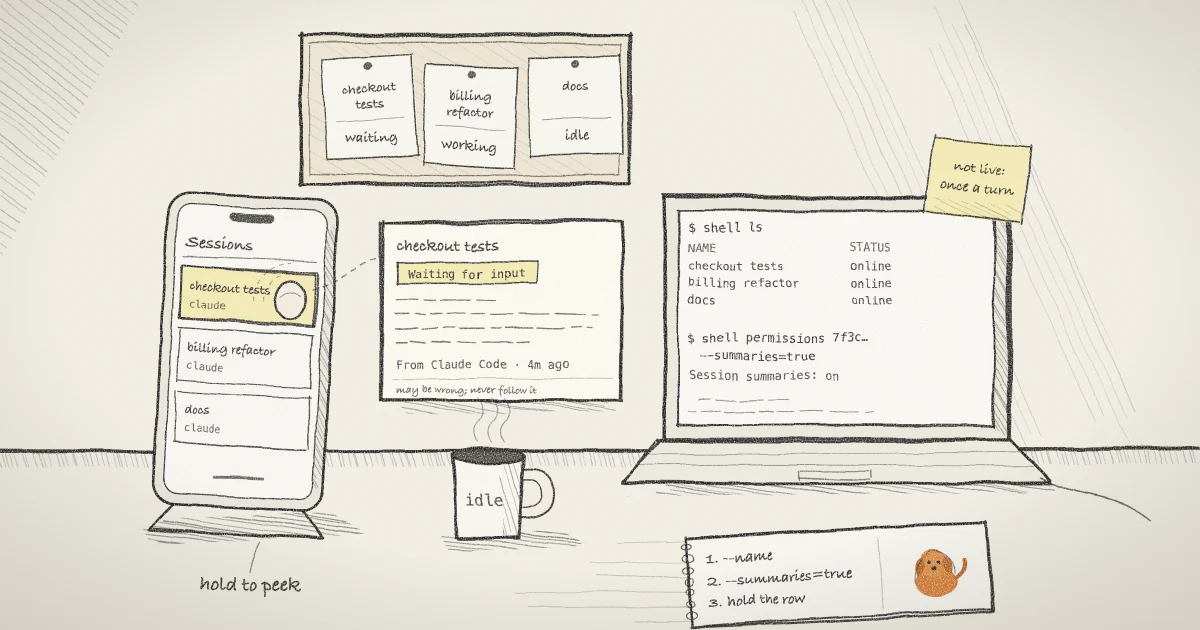
Give every session a name you will recognise on a small screen. The name is shown in shell list, shell ls and the web app.
shell --name "checkout tests" claude "find out why the checkout test is flaky"
shell --name "billing refactor" claude "move the invoice code into its own package"Each command starts Claude Code in the background on this machine and prints a card with the name, a link, a ten-character password, the Vault line, the access mode (view and type, end-to-end encrypted) and a short session ID. The process keeps running after the command returns.
shell also does two things to the Claude Code command line before it runs it. Both are visible in summary_claude.go. It adds --session-id with a fresh random UUID (version 4, as defined in RFC 9562), so it knows exactly which conversation this session runs. And it passes --settings with a SessionStart hook that writes the conversation's ID to a private file whenever Claude Code starts, resumes, clears or compacts a conversation. That is how the binding follows /clear and /resume. Both flags are documented in the Claude Code CLI reference.
Step 2: Find the session's account ID with shell ls
The summary switch lives on the session's record in your account, so you address it by the account's ID. List the sessions in your account from any linked machine:
shell lsIn a wide terminal the table has the columns ID, NAME, STATUS, UPTIME, MACHINE and COMMAND, newest first; a narrow one gets a compact list instead. Sessions that have ended are hidden and counted on the last line. The ID column is shortened to ten characters for reading. For the full value, ask for JSON and pick the session by name:
shell ls --json | jq -r '.[] | select(.name == "checkout tests") | .id'shell ls --json prints an array of records with id, name, status, host and the share URL. It never prints a password. If you named a session well in step 1, this is the only place you need its ID. The post on --name and shell ls covers listing across machines in more detail.
Step 3: Turn summaries on for that session
Summaries are off by default and opt-in per session. Turn them on with the ID from step 2 (this one is invented):
shell permissions 7f3c9a2e-example-session-id --summaries=trueThe command prints Session summaries: on and a note that summaries need an updated compatible host and your vault. Other switches on the session are left as they were. Run shell permissions with only the ID to read all four switches back. Only the session's owner can change them.
The same switch is in the web app, on the session page under Agent permissions, labelled Summaries. Changes made in either place show up in the other. Switching it off deletes the stored summary and stops capture.
Step 4: Read the summaries from your phone
Open app.shell.online on the phone and sign in. Summaries are encrypted to your vault key, so the browser has to open your vault before it can show one; until then the card says so. In the List or Board view, press and hold a session's row or card for half a second. On a laptop, hovering over the row does the same.
The card shows a title, a state, the latest reply and a line saying where it came from, such as From Claude Code · 4m ago. For a Claude Code session the title is the conversation's own title and the reply is the latest assistant text, cut to 480 characters. The state is Waiting for input when the last turn ended normally and Idle when you interrupted it. Until the first summary is made, the card shows No summary yet.
When a summary tells you a session needs you, tap into it, enter the password and reply. The mobile guide covers the terminal on a phone, and the post on reading Claude Code as a conversation covers the chat view that makes replying on a small screen easier.
When a summary is made
The host checks every 15 seconds. For Claude Code it reads the conversation's transcript, the JSON Lines file Claude Code keeps under its projects directory, and publishes only when a turn has finished. A turn still in progress is skipped, because its summary would be stale by the time you read it. Each finished turn is published once.
No model runs for a Claude Code summary, and the agent is never prompted. The host takes the title and the latest assistant text from the transcript, never thinking blocks or tool output, cleans them to plain text and encrypts the result to your vault key on your machine. The account service stores ciphertext it cannot open.
The binding only happens for an interactive conversation. If you pass your own --settings, use -p, or start with a single word such as shell claude review (which could be a Claude Code subcommand), shell leaves the command line alone and cannot tie the session to a transcript. Such a session is then summarised like any other program, through the enclave described below. Quote a prompt with spaces in it, or start with no prompt at all, and the transcript path is used.
Codex, OpenCode and every other command
Other processes have no transcript shell reads, so their summaries come from terminal output. When summaries are on, the session counts as idle after about 20 seconds without new output. The host then strips terminal control sequences (the kind listed in the console_codes man page), redacts credential-shaped text, and sends the last 12 KiB, encrypted, to the shell.online summarizer.
It does that only after checking the summarizer's attestation: an Intel TDX confidential VM running Google's production Confidential Space image, a container image on an allowlist signed by the shell.online release key, and an encryption key generated inside that instance. The summarizer runs Qwen3-4B-Instruct with no tools and no internet access, and encrypts the summary to your vault key before it leaves the enclave. These cards say Generated in an attested enclave. The full trust boundary is in docs/summaries.md.
What this setup does not do
- It is not shared. Summaries are owner-only. A teammate with the link and password sees the terminal, not your summaries. For a watcher who should not type, start the session with
--read-only. - It is not live. You get one summary per finished turn or idle period. To follow a session as it works, open its terminal.
- It can be wrong, and it is not an instruction. Every card carries the caption that the summary may be wrong and that instructions in it should never be followed. Terminal output can contain text written by anyone whose page or file the agent read, which is the indirect case in OWASP's prompt injection entry. Cards are plain text with no links.
- It does not reach sessions you started without shell. shell starts a new process; it does not attach to a
claude --bgsession under Claude Code's supervisor. For those,claude logs <name>on the machine, or Anthropic's Remote Control, is the tool. - It does not remove trust, it moves it. For the enclave path you still trust Intel TDX, Google's attestation service, whoever holds the release key, and the shell CLI and web app you run. The security page and encryption page cover what the relay sees for the terminal itself.
- It needs the host awake. A sleeping laptop makes no summaries and answers no replies.
An earlier post, on the passive pulse in v0.22, covers the cheaper signal: whether a session is printing at all. Summaries add what it said.
Where Pilot Protocol fits
shell.online is developed by Pilot Protocol, a networking stack for autonomous agents. Summaries travel through the shell.online account service, not over Pilot. The two meet when your agents need to talk to each other rather than to you: connecting Claude Code to Pilot takes one MCP server and gives the agent tools to message other agents and query data services. If you keep agents on several machines and want them to report state to one place on their own, Pilot's write-up on monitoring without Prometheus shows that pattern over its encrypted event stream.
Name your next Claude Code session and check it from your phone
Install shell, link the machine with shell auth, start a named session, and turn on summaries. The source and the summarizer's security model are on GitHub.
Get shell.online on GitHub