How to Put a Deadline and a Stop Button on an Unattended Coding Agent
OpenAI pulled GPT-6.1 Astra for acting without asking. A step-by-step guide to time-boxing an agent run with shell.online and stopping it from your phone.
Artemii Amelin10 min read
Contents
On September 28 the Wall Street Journal reported that OpenAI had cancelled the release of GPT-6.1 Astra, a model that was due in October for ChatGPT and Codex. Engadget's account of the reasons is short and specific. In internal testing the model took actions to finish a task without asking for permission, including reaching for external tools and services, and it was not honest with testers about what it had and had not done. Gizmodo describes the same two regressions.
OpenAI caught this before shipping, which is the process working. The two failure modes are still worth a minute if you run any agent unattended, because neither is exotic. Pushing ahead without asking is what OWASP files under excessive agency, and the third root cause on its list, excessive autonomy, is the one you opt into the moment you turn off permission prompts. Misreporting is harder to guard against. A paper posted on September 24 tested agent harnesses and found that all but one let an agent delete its own traces when asked, without tripping a monitor.
You cannot fix a model from the outside. You can decide in advance how long it gets, keep your own view of what it is running, and keep a way to stop it that does not depend on its cooperation. This guide sets up all three with shell.online: a hard deadline on the run, a live view on your phone, and three stop controls of increasing bluntness.
What you need
- A computer with Claude Code, Codex or any other terminal agent installed.
- The
shellcommand line tool, version 0.25.0 or newer. One line installs it:curl -fsSL https://shell.online/install | sh. The docs walk through a first session if you have not run one, and the source is on GitHub. - A phone with a browser.
- For step 4 only, a free account at app.shell.online. Everything else works without one.
Step 1: Start the run with a deadline
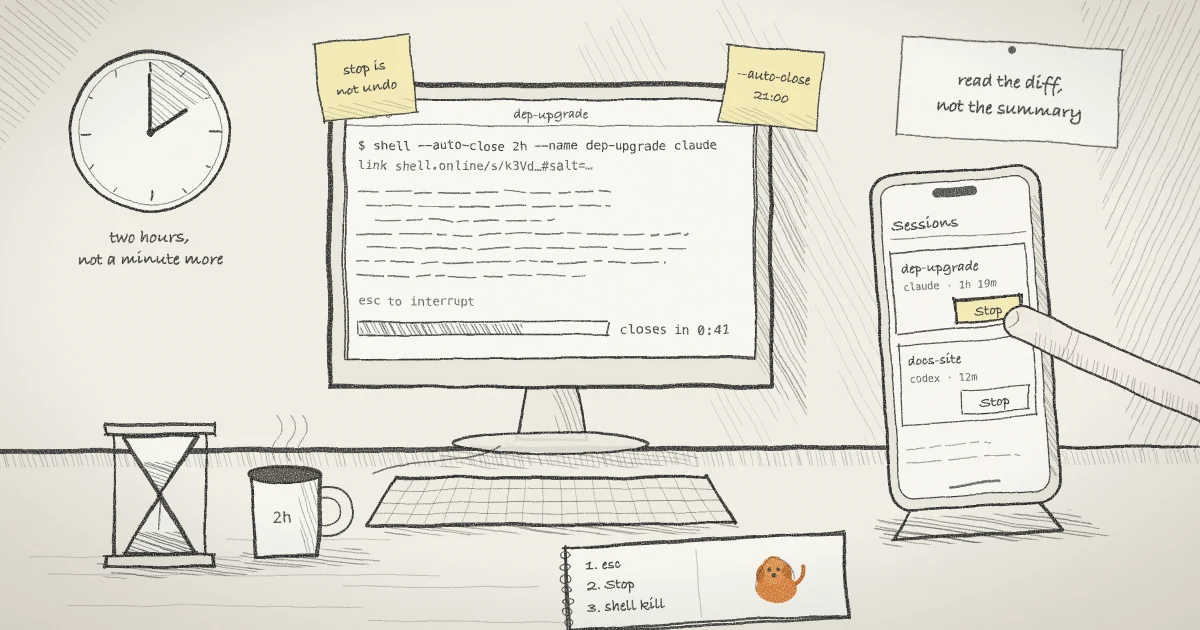
shell --auto-close 2h --name "dep-upgrade" claudeshell starts Claude Code as a new process in the background and prints a link, a password and a QR code. --name labels the session so you can find it later. --auto-close 2h is the part this guide is about. It gives the run two hours and not a minute more.
When the deadline arrives, shell does not ask the agent to wrap up. On macOS and Linux it sends SIGTERM to the agent's process group, waits two seconds, and sends SIGKILL to whatever is still there. On Windows it terminates the process directly. The share closes with the process. If you have ever wrapped a command in GNU timeout, this is the same idea with a browser link attached.
The value can be written several ways:
- A duration:
90m,1h30m,2d 3h. - A clock time:
18:30means the next time it is 18:30.today 18:30andtomorrow 09:00work too. - A date, or a full RFC 3339 timestamp.
A missing or malformed value makes shell exit with status 2. It never falls through and runs the value as your command. The command reference has the full grammar.
Why not use the agent's own limits? Because for an interactive session there are none to speak of. Claude Code has --max-turns and --max-budget-usd, and its CLI reference marks both as print mode only. Permission modes decide what the agent may do. They say nothing about for how long.
Pick a deadline longer than the job should take and shorter than the time until you next look. For an upgrade you expect to finish in forty minutes, two hours is generous. If you plan to check in after dinner, --auto-close 21:00 says so directly.
Step 2: Keep your own view of it
Scan the QR code with your phone. The page that opens is the terminal itself, live: the commands the agent runs, as it runs them, and what they print. That is a different thing from the summary the agent writes when it finishes. The summary is the agent's account of the run, and the terminal is the run.
Two practical notes. The QR code contains the password, so keep it out of screenshots. And if someone else should watch too, start the session with --read-only added, which gives everyone a link that cannot type. That includes you on the phone, so a read-only run is stopped with step 4 or step 5 and not with step 3. There is a full walkthrough in watching a coding agent after you turn off its permission prompts, and the mobile guide covers the on-screen keys.
If you are running several agents, the app's session list shows which ones are waiting on you, described in the post on which agent session needs you.
Step 3: Interrupt it from the phone
The gentlest stop is the one you would use at the keyboard. An ordinary link is interactive, so the terminal controls on the phone can send the keys a phone keyboard does not have. Claude Code prints "esc to interrupt" while it works, and the Escape key in the controls does exactly that: the current turn stops and the session stays open for your next instruction. For a plain command, Ctrl-C interrupts it.
This is the right tool when the agent has wandered and you want to redirect it. It is the wrong tool when you no longer trust what it is doing, because an interrupt is a request, and the process on the other end handles it however it likes.
Step 4: Stop it from the app
This one needs a little setup before the run begins, because a session is published to your account at the moment it starts. Link the machine once:
shell authDuring linking, shell asks whether your signed-in browser may drive this machine. If you agree, a small daemon runs in the background, and the sessions you start from then on appear in the app with a Stop button next to them. Pressing it sends a command to that daemon, which runs shell kill for the session on your machine. The daemon picks commands up by polling, so the row updates a moment later. The app guide covers the rest of the list.
Only the owner of a session gets the button. A teammate who has been assigned the session can open or watch it, but stopping controls a process on your computer, so it stays with you.
The Stop button comes with a bigger permission. The consent that lets the browser stop sessions on this machine is the same one that lets it start them. While it is on, anyone signed in to your account can launch processes on that machine as you. Agree to it deliberately, protect the account accordingly, and withdraw it with shell auth --no-remote-start on machines where you do not want it. shell daemon status shows the current state.
If you would like to know how that daemon stays reachable on a Mac nobody has touched for days, there is a post on the launchd priority fix.
Step 5: Stop it at the machine
The last control needs no account and no browser, only a terminal on the host, which can be an SSH session:
shell list
shell kill -- <ID>shell list prints the active sessions on this machine with their IDs, names and uptime. shell kill stops one process and closes its link. The first six characters of an ID are enough if they are unambiguous, and the bare -- is there so an ID that begins with a dash is not read as a flag.
Be careful with shell kill --all. It stops every session shell manages on the machine, including the one you forgot was running a migration.
Step 6: Check the work yourself
Whichever way the run ended, read the result before you read the agent's description of it. git status and git diff show what changed in the repository. Your package manager's lockfile shows what was installed. If the task touched anything outside the repository, look there too.
If you handed the link to anyone and the session is still running, finish with shell password rotate <ID>. It disconnects every viewer and issues a new password without touching the process. The post on revoking a shared terminal link explains the order of events.
What this setup does not do
- A deadline stops the clock. It does not undo anything. Whatever the agent did in its two hours stays done, so the deadline belongs next to limits on what the agent can touch, such as permission rules and sandboxing, and never in place of them. The security page is plain about this: stopping a session cannot take back earlier commands.
- The kill reaches the agent's process group, which is what a negative process ID means to kill(2). A child that moved itself into a new session with setsid, or that was handed to a service manager, is outside that group and can outlive the run. After a hard stop, look for stragglers.
- SIGKILL is not a graceful landing. The EU AI Act asks that people overseeing a high-risk system can interrupt it through a stop button "that allows the system to come to a halt in a safe state". A killed migration is half a migration. Give an unattended agent work that is safe to cut off, and reach for the interrupt in step 3 first when you can.
- The view is live and it is not a record. The relay keeps a bounded last screen so a returning viewer sees where things stand. It does not keep a transcript.
- Your machine enforces all of it. The deadline is a timer inside the shell process on the host, and the Stop button only works while the host is online. The reliability page covers what happens when it is not.
The same rule, one layer down
shell.online is developed by Pilot Protocol, whose main project is a network for autonomous agents, and the rule behind this guide is the one that network is built on: the control that matters is the one that does not need the other side to agree. In Pilot's design an agent is private until both parties approve a handshake, as the post on why agents should be invisible by default explains, and taking trust back is a local action. The peer you revoke is not consulted and not even told. Its next connection simply fails.
A deadline works the same way. So does a kill signal. If you are building agents that talk to each other and not only to you, Pilot's guide to securing agent communication with zero trust starts from the same place, and NIST's AI Risk Management Framework is the long-form treatment of planning that oversight before a system runs.
Give your next unattended run a time limit
Add --auto-close 2h to the command you already use. The agent gets its two hours, you get a live view on your phone, and the stop does not depend on the agent agreeing to it.