How to Watch a Long Codex Run From Your Phone and Share It With a Teammate
GPT-6.1 Sol made long Codex runs cheap. A step-by-step guide to starting one with shell.online, checking it from your phone and giving a teammate a read-only link.
Artemii Amelin10 min read
Contents
- What you need
- Step 1: Install shell on the machine doing the work
- Step 2: Start Codex through shell
- Step 3: Open it on your phone
- Step 4: Give a teammate a link that cannot type
- Step 5: Keep track when one run turns into four
- Step 6: Take the access back
- What this setup does not do
- Why a networking company built a terminal tool
On September 29, at DevDay, OpenAI shipped GPT-6.1 Sol. The number everyone repeated was the price: $2 per million input tokens and $10 per million output tokens on the API pricing page, which The Next Web worked out to a fifth of what GPT-6 Astra costs. It is in Codex already, and OpenAI's own model guide now points people at Sol for long, repeated work.
A price cut like that changes habits faster than any benchmark does. The refactor you used to babysit, because every wrong turn cost real money, becomes something you start and walk away from. And that is where it gets awkward. A two hour run is only useful if you can leave the desk without losing track of it, and if the teammate who reviews the result can see what happened without you pasting screenshots into chat.
This guide is the setup for exactly that, start to finish, using shell.online. It takes about five minutes and you do not need an account.
What you need
- A computer with the Codex CLI installed and signed in. macOS, Linux and Windows all work, and the platform list goes a good deal further than that.
- A phone with a browser. There is nothing to install on it.
- The
shellcommand line tool. It is open source on GitHub under the MIT license, so you can read what it does before you run it.
Step 1: Install shell on the machine doing the work
On macOS, Linux or BSD:
curl -fsSL https://shell.online/install | shOn Windows, in PowerShell:
irm https://shell.online/install.ps1 | iexThe installer verifies the release checksums. If piping a script into a shell is not something you do, the platform page has Homebrew and build from source instructions. Either way, confirm what you got:
shell --versionAs of this post that prints 0.25.0, the current release.
Step 2: Start Codex through shell
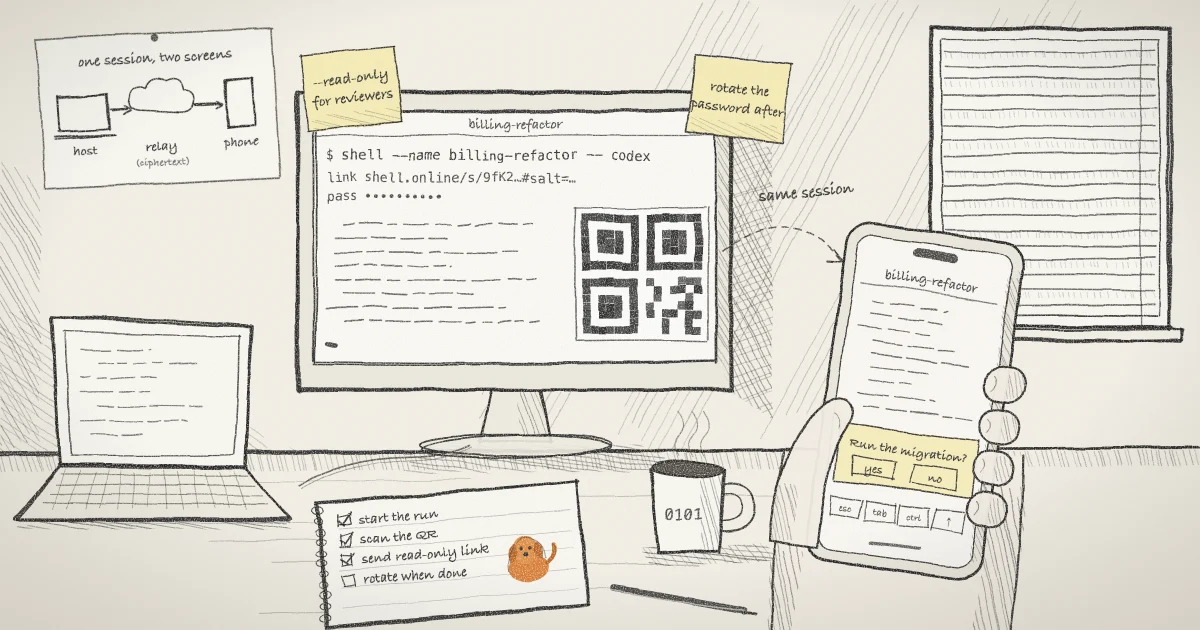
shell --name "billing-refactor" -- codex --model gpt-6.1-solThree things in that line are worth a second look.
- The bare
--separates shell's options from Codex's. Everything after it, including--model, goes to Codex untouched. --nameis for you in an hour, when there are four sessions open and you need to tell them apart.gpt-6.1-solis the model id from OpenAI's guide. If you forget the flag,/modelinside Codex gets you to the same place.
shell starts Codex as a new process in the background and prints three things: a link, a password and a QR code. It does not attach to a Codex that is already running, so start the run this way from the beginning. The Codex CLI docs cover the flags on the right side of the --, and the shell command reference covers the left.
Want to keep typing in the terminal you launched from? Add --foreground, or run shell attach <ID> whenever you like. Press Ctrl-X and then D to detach again. Codex keeps going either way.
Step 3: Open it on your phone
Scan the QR code. That is the whole step. The page that opens is the same terminal, live. It is not a second copy of the agent. When Codex stops to ask whether it may run a migration, you can answer from the bus, and the mobile guide explains paste and the on-screen keys.
Two things trip people up here.
First, the QR code contains the password. That is what makes it a single scan, and it is also why it should never end up in a screenshot. This is not a theoretical worry. Glow Labs recently found more than 13,000 internal screenshots from over 300 organizations sitting in public GitHub repositories, pushed there by coding agents that had no better way to attach an image to a pull request. A picture of your terminal with a QR code in the corner is a picture of your credentials.
Second, the process lives on your computer, so the computer has to stay awake and online. Closing the browser tab does nothing to Codex. Letting the laptop sleep stops everything. On a Mac, running caffeinate -i in a spare tab or changing the sleep settings keeps it up. On Linux, systemd-inhibit does the job, and on Windows it is powercfg.
If you would rather the run survive a closed laptop entirely, that is what Codex Cloud is for. The trade is that your code then runs on OpenAI's machines and not on yours. For a repository with production credentials in its environment, I would keep the run local and keep the lid open.
Step 4: Give a teammate a link that cannot type
The link you just scanned is interactive. Anyone holding it and the password can type into Codex with the same operating system permissions Codex has. That is right for you and wrong for almost everybody else. A reviewer needs to watch. So does the manager who asked how it is going, and so does the channel where you want to show the thing off.
For them, start the session read-only:
shell --read-only --name "billing-refactor" -- codex --model gpt-6.1-solRead-only is enforced by the server, which rejects input coming from a browser. It is decided when the session starts and it cannot be upgraded afterwards, so nobody talks their way into typing. You still drive Codex from the host with shell attach. Security people call this the principle of least privilege: each person gets the access their job needs and nothing above it. The security page spells out what each kind of link allows.
Send the link and the password through different channels. Put the link in the team chat and the password in a direct message, or use your password manager's sharing feature. Chat logs get searched, exported and forwarded, and a link on its own opens nothing.
If you are wondering what the relay in the middle can read, the short answer is ciphertext. The part of the link after the # is a random salt, and a URL fragment is never sent in a request. Your browser combines that salt with the password using PBKDF2 at 600,000 iterations, the figure the OWASP password storage cheat sheet recommends for PBKDF2 with SHA-256. Out comes an AES-256-GCM key, derived through the browser's built in Web Crypto API. The encryption page has the full description, and there is a separate post on what the relay sees and what it cannot replay.
Read-only does not cover files. File access is off by default. If you start a session with --files, a read-only viewer can still fetch files under that directory. Leave the flag off when the audience only needs to watch.
Step 5: Keep track when one run turns into four
Cheap tokens rarely buy one long run. They buy several at once. OpenAI plainly expects this, because the refreshed Codex CLI has an /agents view for handing out tasks and following them, and Claude Code has its own subagents. Those views live inside one tool. shell's list works across all of them, because it tracks terminals and does not care what is running in each.
shell listThat prints every share on this machine with its name and uptime. To see the same thing across a laptop, a build box and the Mac mini in the closet, link each of them once with shell auth. After that shell ls shows every open session in your account, and app.shell.online shows it on your phone. The account is optional, and seeing a session in the list does not reveal what is in it. You still need the password, or your own vault, to decrypt anything. The app guide covers inviting a teammate into an organization.
Version 0.25.0, released on October 2, adds something that helps here: session summaries. Hover over a session in the app, or long-press it on a phone, and you get a sentence about what that run is doing. It is off by default and you opt in per session:
shell permissions <ID> --summaries=trueRead how summaries are produced before you turn this on for a Codex session. Claude Code sessions are summarised on your own machine. Other programs, Codex included, send redacted output, encrypted, to a summarizer running inside an attested confidential computing enclave, and only after your host has verified that attestation. It is a careful design, and you should still know which of the two paths your session takes. The changelog lists the rest of the release.
Step 6: Take the access back
When the review is over, do not leave a working link lying in a chat log.
shell password rotate <ID>Rotation disconnects everyone who is watching, changes the password and the salt, and revokes any MCP grants on the session. Codex keeps running through all of it. Removing a person from your organization does not do the same job, because it cannot erase a password they already know. There is a longer post on revoking a shared link without killing the process if you want the exact order of events.
And when the run itself is finished:
shell kill -- <ID>What this setup does not do
A few limits, stated plainly, because they decide whether this fits your case.
- It is terminal sharing. It is not a cloud machine and it is not remote desktop. If the host is asleep or offline, nobody is controlling anything.
- It does not make an unsafe run safe. A link shows you what Codex is doing, but it does not sandbox it. Adversa's October roundup of coding agent vulnerabilities is a useful reminder to keep the agent's own permissions tight.
- The link and password together are a credential. Treat them the way you treat an SSH key, with the difference that this one can be revoked in a single command.
Why a networking company built a terminal tool
shell.online is developed by Pilot Protocol, and the family resemblance is deliberate. Pilot is a networking stack for autonomous agents. Each agent gets an address, discovers its peers and talks to them over encrypted tunnels, and nobody has to open a port. Anyone who has tried to reach an agent behind NAT without a VPN knows the problem well.
shell solves the human half of it. Your laptop dials out, the relay passes ciphertext along, and you reach the terminal from a phone on hotel wifi. The encryption choices rhyme too. Pilot's write-up of X25519 and AES-256-GCM in pure Go is a good next read if step 4 made you curious, and the Pilot docs show the agent side of the same idea.
Start your next long run with one extra word
Put shell in front of the command you already use. You get a link for your phone and a read-only link for your team, and the process never leaves your machine.