How to Script a Copilot CLI Prompt Run You Can Watch From Your Phone
Copilot CLI 1.0.100 adds --trust-folder for -p runs. Start a scoped prompt-mode job from a script behind a read-only shell link and get its exit status back.
Artemii Amelin10 min read
Contents
- What --trust-folder trusts, and what it does not
- Step 1: Install shell and check both versions
- Step 2: Put the prompt in a script
- Step 3: Start it as a view-only share with a deadline
- Step 4: Open it on your phone
- Step 5: Start it from a script and pass the link on
- Step 6: Get Copilot's exit status back
- What this setup does not do
- Where Pilot Protocol fits
GitHub released Copilot CLI 1.0.100 on October 19. Two of its additions are for people who start Copilot and walk away: a --trust-folder flag "for one-off prompt-mode sessions started with -p or piped stdin", and a --disable-client-telemetry flag that turns off client telemetry uploads from the CLI. Prompt mode is the form you put in a script or a scheduled job. GitHub's programmatic reference describes -p as running a prompt in non-interactive mode and exiting when it is done.
A run like that has nobody watching it. It edits files and runs commands with the tools you allowed, prints its progress to a terminal you are not looking at, and exits. If it stalls or wanders somewhere unexpected, you find out when you come back. The new flag also makes it easier to hand one run more of the repository's own configuration, which is a reason to look harder at what the run may do.
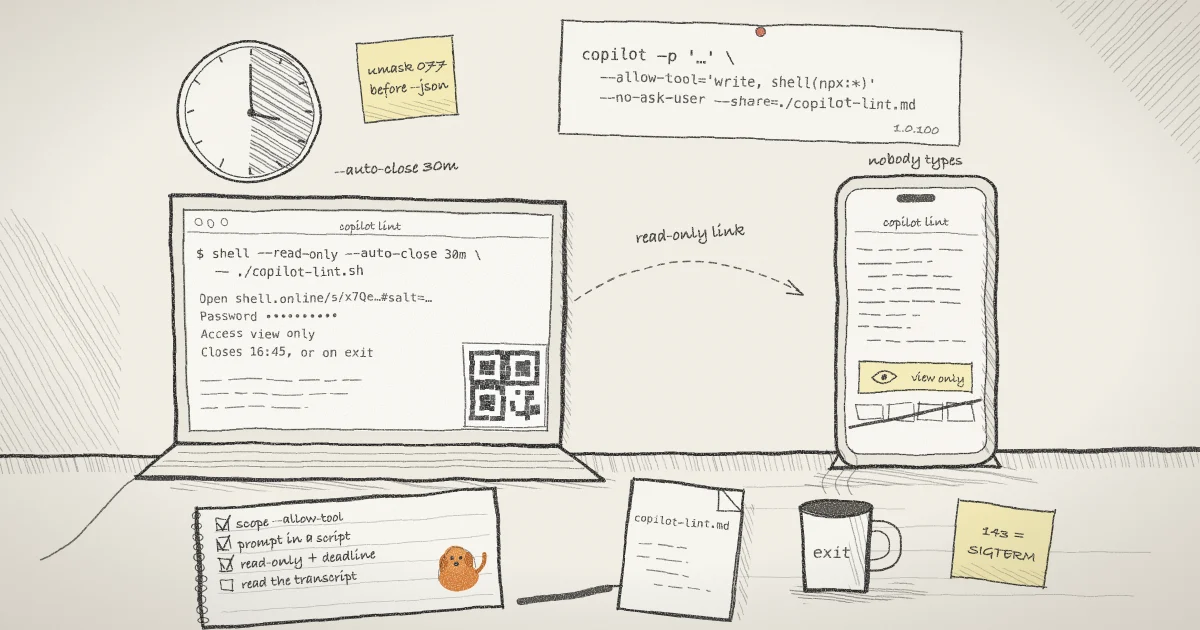
This guide puts a prompt-mode run behind a shell.online link you can open on your phone, and concentrates on the parts a script needs. You will scope the Copilot command, keep the prompt out of the recorded command line, start the run as a view-only share with a deadline, collect the link as JSON, and get Copilot's exit status back. The earlier guide to watching a coding agent after you turn off its permission prompts covers the viewing side for a headless Claude Code run. The shell behavior below comes from the 0.25.0 help text and source.
What --trust-folder trusts, and what it does not
The reference is specific. --trust-folder trusts the working directory's hooks, workspace MCP servers and repository plugin settings. The trust is not saved to trustedFolders, it does not extend to parent or sibling directories, managed policy still applies, and the flag grants no tool, path or URL permissions. GitHub's own advice on the flag is "Only use this for configuration you have reviewed." A hook in a repository you did not write is code that runs on your machine, so read it first or leave the flag off.
Permissions come from a different place. GitHub's guide to running Copilot CLI programmatically grants them with --allow-tool, using forms such as shell(git:*) for one command family and write for file edits, and it advises against --allow-all outside a sandbox. That is the same rule OWASP lists under LLM06:2025 Excessive Agency: limit the extensions an agent may call to the minimum necessary. NIST's glossary calls it least privilege. A watched run does not change that rule. It only means you see sooner when the rule was too loose.
Step 1: Install shell and check both versions
curl -fsSL https://shell.online/install | sh
shell --version
copilot --versionshell --version prints shell 0.25.0 for the current release. On Windows, the platforms page has the PowerShell installer instead. Copilot needs to be 1.0.100 or later for the two flags above; the Copilot CLI repository has the install instructions.
Step 2: Put the prompt in a script
shell records the command it starts. On this machine that record is what shell list prints. If you linked the machine with shell auth, the same command goes to your account, where shell ls and the web app show it. The help text calls this the command name. In the 0.25.0 source the field holds the whole command line as shell displays it, arguments included, and a prompt passed with -p is an argument. A prompt that mentions a customer, an internal hostname or a ticket would sit in that list, and on the account it stays after the run ends, because shell ls --all shows ended sessions too.
A short script keeps the recorded command to its own file name:
#!/bin/sh
exec copilot -p 'Fix all ESLint errors in this project' \
  --allow-tool='write, shell(npx:*)' \
  --no-ask-user \
  --disable-client-telemetry \
--share=./copilot-lint.mdSave it as copilot-lint.sh and run chmod +x copilot-lint.sh. Each flag comes from GitHub's documentation:
-pruns the prompt without an interactive session and exits when done.--allow-tool='write, shell(npx:*)'lets Copilot edit files and runnpxcommands. GitHub's own ESLint example also allowsnpmandgit. I left both out: this job needs no commits, and I would rather read the diff myself. Note that npx runs a command from a package installed locally or fetched remotely, so keep ESLint in the project's dev dependencies.--no-ask-userstops the agent from pausing to ask you something. Nobody would be there to answer.--disable-client-telemetryis new in 1.0.100.--share=./copilot-lint.mdexports the session transcript to a Markdown file after a non-interactive run completes.
exec replaces the script's shell with Copilot, so the process shell wraps is Copilot itself and its exit status is the script's. Add --trust-folder only if the run needs the repository's hooks or MCP servers and you have read them.
Step 3: Start it as a view-only share with a deadline
shell --read-only --name "copilot lint" --auto-close 30m -- ./copilot-lint.sh--read-only creates a view-only session: the relay rejects browser input, so anyone with the link can watch and nobody can type into Copilot. --name labels the session in shell list, shell ls and the web app. --auto-close 30m adds a deadline on top of the normal rule that the share closes when the task exits. -- marks the end of shell's own options.
When the deadline arrives, the macOS and Linux code sends SIGTERM to the process group, waits two seconds, then sends SIGKILL, which the signal(7) man page notes cannot be caught, blocked or ignored.
shell prints a session card and returns while Copilot keeps running. The card shows the link, the password, view only · end-to-end encrypted on the Access line, the session ID marked background, the closing time followed by "or when the task exits", and the shell attach and shell kill commands for this session. In an interactive terminal it also draws a QR code.
Short prompts can catch you here. If the task exits during the startup handshake, shell prints its exit status and no link at all.
Step 4: Open it on your phone
Scan the QR code. It carries the link and the password in the URL fragment, the part after #, which RFC 3986 says is dereferenced solely by the user agent. shell's help says the same in its own terms: fragments never reach the relay. That makes the QR code a credential. The phone guide covers the viewer itself.
Back at the desk, shell list shows each local session's ID, access mode, uptime, closing rule, command, share URL, whether a password is stored and the relay status. The command column now reads ./copilot-lint.sh and nothing more. To stop the run before its deadline, use shell kill -- <ID> with the ID or its first six characters.
The link closes when the job does. A tab that was open when Copilot exited keeps what it drew and adds "Session ended. This sharing link no longer exists." Opening the link after that, or a tab reconnecting after the end, shows "Session no longer exists. The task ended or the sharing link expired." shell gives you no way to read the output once the session is over. The transcript from --share is your record. The reference says Copilot writes it after the run completes, so a run that the deadline stops may leave no file at all.
Step 5: Start it from a script and pass the link on
For cron or CI, ask shell for the session event as JSON instead of the card:
umask 077
shell --json --read-only --name "copilot lint" --auto-close 30m \
  -- ./copilot-lint.sh 2> session.json
jq -r .share_url session.json
jq -r .e2ee_password session.json--json writes the new-session event as one JSON object on stderr. In 0.25.0 a background start includes session_id, share_url, read_only, encrypted, auto_close (set to deadline here, with a closes_at time), expires_at, name and e2ee_password. The jq manual explains the two filters: .share_url picks one key, and -r writes a string without JSON quotes. Keep the whole URL. The browser derives the key from the password and the random salt in its #salt= fragment, as the encryption guide explains, and the help text tells agents to preserve it.
The file holds the password, so umask 077 makes it readable only by you. Delete it when the run is over. If the start fails, stderr carries an error line instead of JSON, so check shell's exit status before you parse: 0 once the share is ready, 1 for a failed start, 2 for invalid usage. When the channel matters, send the link and the password by separate routes, which is what shell's own help recommends. For a teammate with their own account, the post on sharing a session password without the service seeing it covers the account route.
Step 6: Get Copilot's exit status back
A background start returns 0 as soon as the share is ready. It tells you nothing about how Copilot finished. When the script needs that, run in the foreground:
shell --foreground --read-only --name "copilot lint" --auto-close 30m -- ./copilot-lint.sh
echo "copilot exited with $?"--foreground mirrors the output in the launching terminal, blocks until Copilot exits, and returns the wrapped process status, which the shell's special parameter ? then holds. The link works the same way meanwhile. If the deadline ends the run and Copilot dies from the signal, the Unix code reports 128 plus the signal number, so 143 for SIGTERM and 137 for SIGKILL. A program that catches SIGTERM and exits by itself reports its own code.
On a linked machine there is a second route that works after a background start: shell ls --all --json lists ended sessions too, with an exit_code field once the host has reported one.
What this setup does not do
- It does not limit Copilot.
--read-onlyblocks browser input and nothing else. Copilot's tools run as your user with whatever--allow-toolgrants. For isolation, use Copilot's own sandbox or a container; the Docker guide covers running shell in one. Note that 1.0.100 lets sandboxed commands reach localhost and private-network services by default. - It is not a log. Apart from the transcript file, the only copy of the output is whatever an open tab has drawn.
--disable-client-telemetrycovers Copilot's client only. The shell relay still sees ciphertext plus routing, size, timing, IP and lifecycle metadata. A linked account gets the share URL, the command line, the host name and the timing, never terminal contents or the key. The security model lists the rest.- It does not attach to a Copilot run you already started without shell. shell starts a new process.
- It shows what reaches the terminal. It does not show Copilot's model calls or MCP traffic.
- The signal and exit-code details above are from the macOS and Linux code. Windows has its own process code, which I did not check.
Where Pilot Protocol fits
shell.online is built by the team behind Pilot Protocol, a networking stack for autonomous agents, and a scripted Copilot run is one place the two meet. Pilot's guide to connecting GitHub Copilot to Pilot Protocol adds a hosted MCP server with one copilot mcp add command and gives the agent its own node, so a run can send its result to another agent as a message. If you add it, it is one more MCP server the run can call, so allow its tools as deliberately as the rest. On the receiving side, Pilot webhooks post a JSON event to a URL you choose when a message arrives on a node, which saves the waiting machine from polling. The shell side of all this is open source in the shell.online repository.
Give the unattended run a window
Install shell, wrap your next copilot -p job in a read-only share, and check on it from your phone instead of waiting for it to finish.
Read the CLI reference