How to Retire a Machine You Linked to shell.online for Agent Runs
Arrakis found most enabled AI agents idle with live credentials. Retire a shell.online machine: revoke grants, stop shares, remove the service, unlink.
Artemii Amelin10 min read
Contents
- What a linked machine can still do while nobody uses it
- Step 1: Find the machine and its sessions
- Step 2: Revoke MCP grants before anything else
- Step 3: Stop every shared process
- Step 4: Remove the background service
- Step 5: Delete persistent state files
- Step 6: Sign the machine out
- Step 7: Confirm from the browser, or unlink a machine you cannot reach
- If you want to keep the machine but stop browser starts
- What this does not do
- Offboarding agents on a network
On October 21 Arrakis Security released its 2026 Autonomous Agents Threat Report, built from 12 weeks of production telemetry on thousands of agents in its customers' environments. Help Net Security's write-up on October 26 gives the headline figure: about 76% of enabled agents examined had not run in 60 days, and 44% had not run in 180 days. About a quarter of the dormant ones could still be started through an unsigned webhook from outside the organization, and 19% used API keys and tokens that never expired and were embedded in their configurations. Let's Data Science summarized the same report as agents whose "credentials still work and their triggers still fire." Tal Baron, the company's CEO, explained it this way: "When an agent stops being used, nobody removes anything, because in most companies nobody owns it."
The report is about enterprise agents wired to SaaS integrations, but the same shape shows up on a single developer's desk. You link a spare Mac or a Linux box to shell.online so you can run Codex or Claude Code there and watch it from your phone. You allow browser starts so you can launch a run from the couch. A month later the project is over, and the machine still holds an account token, still runs a background service that your signed-in browser can use to start processes as you, and may still have a persistent link on disk that comes back the moment anyone reruns a script. OWASP lists this as the first item in its Non-Human Identities Top 10: improper offboarding.
This guide retires such a machine in order: find it, revoke agent grants, stop what is shared, remove the service, delete persistent state, and unlink it. Every shell command and message below comes from the shell.online repository at the current release, v0.25.0, plus the web app's Machines page on the main branch. The service details cover macOS and Linux, the two platforms that have an installer.
What a linked machine can still do while nobody uses it
Three separate things keep working after you stop paying attention, and each has its own off switch.
- The account link.
shell authstores credentials in your user config directory. In the accounts server's token code, the access token lasts one hour, and the machine gets a new one with its refresh token, which the server accepts as long as it exists and has not been revoked. There is no idle expiry. RFC 9700, the OAuth security best current practice, says refresh tokens "SHOULD expire if the client has been inactive for some time," so this is a choice worth knowing about: the link lasts until you revoke it. - Remote start. If you said yes at
shell auth, a daemon polls for sessions your browser queues. The prompt states the cost plainly: anyone signed in to your account could start processes on this machine, as you, without touching its terminal. On macOS and Linux, the first yes also installs that daemon as an operating system service so it survives a restart. - Shares and grants. Each running session has a browser link and password, and possibly MCP bearer grants for other agents. A persistent session also has a state file that brings the same link back whenever it is reused.
Step 1: Find the machine and its sessions
Open the Machines page in the web app at app.shell.online. It lists every machine that can publish sessions to your account, with when each was linked and when it was last used. An Online badge means its agent checked in within the last 15 seconds. Offline usually means the machine is publish-only, and the page says so under the row. A machine that shows Online and that you have not touched in weeks comes first, because it accepts browser starts right now.
From any linked machine you can also list the sessions in the account:
shell ls --allThis prints every session from every linked machine, newest first, with its name, status, uptime and machine. Without --all, ended sessions are hidden and only counted. The web app guide covers the rest of that page.
Step 2: Revoke MCP grants before anything else
An MCP grant is a separate bearer credential that lets another agent read a session, and with a control grant, type into it. It is a credential separate from the browser link and password. On the machine itself, list the local sessions and then the grants on each one:
shell list
shell mcp list k3v9q2m7xashell list shows each session ID, access mode, uptime, closing rule, command and relay status. shell mcp list prints No MCP grants. or one line per grant: its ID, whether it is live, revoked or expired, its scopes, its label and its expiry time. Revoke them all for that session:
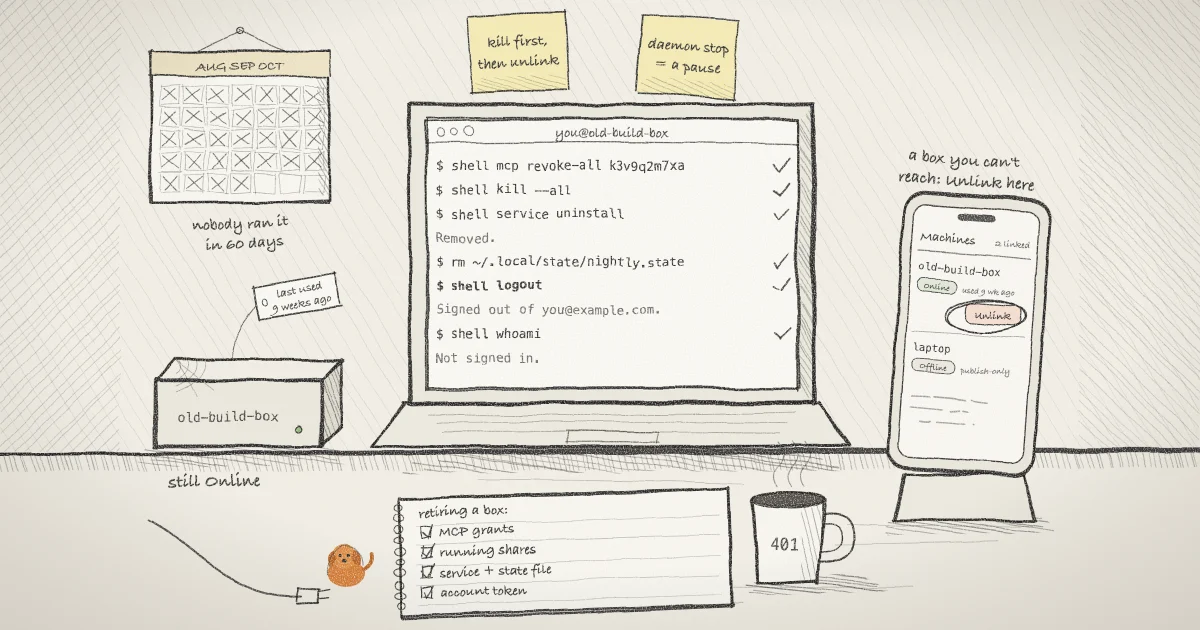
shell mcp revoke-all k3v9q2m7xaDo this before you stop the session, while you can still see what was granted and to whom. Revocation cannot undo completed actions or erase output an agent already received. The earlier post on MCP grants that expire and revoke explains how the grants work.
Step 3: Stop every shared process
shell kill --all
shell listshell kill --all stops every locally managed shell.online process and takes its browser link offline. The second shell list should come back empty. If you only want to close one link and keep the process, the post on revoking a link without killing the process covers shell password rotate. For a machine you are retiring, stopping the process is the point.
Unlinking does not stop a running terminal. The Machines page says it directly: unlinking cuts the account link, and a terminal already running keeps running. Its share link and password still work, because a share is a relay session between that machine and the browser, not an account feature. If you unlink a machine from the browser and never get back to it, its shares stay open until their processes exit. Run shell kill --all on the machine before you sign it out.
Step 4: Remove the background service
shell service statusThis prints Installed at followed by the path, or No service is installed. On macOS the file is ~/Library/LaunchAgents/online.shell.daemon.plist. On Linux it is a systemd user unit, ~/.config/systemd/user/shell-online.service.
The unit is written to come back. The macOS plist sets KeepAlive to true with a ThrottleInterval of 10, and the launchd.plist manual describes that as keeping the job alive unconditionally. The Linux unit sets Restart=always with RestartSec=10, which the systemd.service manual says restarts the service "regardless of whether it exited cleanly or not." You can read both definitions in service_darwin.go and its Linux sibling. Remove it:
shell service uninstallIt prints Removed. The daemon still starts when you run a shell command. On macOS the command boots the job out of launchd and deletes the plist. On Linux it disables and stops the unit, deletes the unit file and reloads systemd. To confirm on a Mac, ask launchd directly with launchctl print, which should now fail with an error instead of printing the job:
launchctl print gui/$(id -u)/online.shell.daemonNote that shell daemon stop is not a substitute. It prints Stopped. Sessions it started keep running., and the code comment beside it is explicit that stopping is not withdrawing consent: the next shell command starts the daemon again.
Step 5: Delete persistent state files
If you ever ran a session with --persistent <state-file>, that file holds the host credentials, the browser password and the decryption material. shell never deletes it, and killing the session leaves it on disk. Anyone who reruns the same command with the same file gets the same URL and password back, and the relay keeps a persistent session's record for 30 days after the host was last connected, against 12 hours for an ordinary one. Find the files your scripts pointed at and remove them:
grep -rn -- "--persistent" ~/bin ~/scripts 2>/dev/null
rm ~/.local/state/agent-nightly.shellstateThe paths are examples; use whatever your own scripts or cron entries name. The reliability guide explains what a persistent session restores and what it does not.
Step 6: Sign the machine out
shell logout
shell whoamishell logout stops the daemon first, so nothing is left polling with a dead token, then revokes the machine's token on the server and clears the local credentials. It prints Signed out of you@example.com. with your address. If the server cannot be reached it still clears the local file and says could not revoke remotely. In that case, finish the job from the browser in Step 7. shell whoami should now print Not signed in. Run 'shell auth' to link this machine.
Step 7: Confirm from the browser, or unlink a machine you cannot reach
Reload the Machines page. The machine should be gone. If you are retiring a box you no longer have, because it was wiped, sold or lost, press Unlink on its row instead. The page says unlinking revokes its token immediately, and the server scopes the request to your account so a guessed ID cannot touch anyone else's machine. You cannot kill that machine's terminals from here, which is one more reason to do Steps 2 to 5 while you still have it.
If you want to keep the machine but stop browser starts
To keep the machine and drop only the remote capability, run:
shell auth --no-remote-start
shell service uninstallThe first command goes through sign-in again (add --no-browser on a headless box), saves the machine as publish-only and stops the daemon. It ends with Publish-only. Run 'shell auth --allow-remote-start' to start sessions from the browser. It does not remove the service, so the second command does. You can still run shell codex in a terminal there and get a link. The help text lists what a linked machine publishes for each session: the share URL, the command name, the host name and the timing, never the terminal contents or the key. The security page covers the rest of the model.
What this does not do
- It does not touch the agent's own credentials. Codex, Claude Code and OpenCode keep their sign-ins and any provider API keys in their own files and environment. Revoke those with each tool.
- It does not erase anything a viewer or an MCP client already saw. Rotation and revocation only protect what comes after.
- Nothing in this build unlinks a machine because it has gone quiet. The Machines page shows when it was last used and leaves the decision to you.
- It only covers shell.online. SSH keys, cron jobs, cloud credentials and other remote tools on the same machine need their own review.
- Windows has no service installer in this release, so Step 4 does not apply there. This guide follows the macOS and Linux code paths; the Windows ones were not checked.
For the full command list see the CLI reference, and for the history of the background service on a Mac see the launchd priority fix in v0.23.3. Sessions across machines were introduced in the post on --name and shell ls.
Offboarding agents on a network
The Arrakis numbers describe a missing owner more than a missing feature. Pilot Protocol, which develops shell.online, builds the owner into the network for agents that talk to each other: a self-hosted Pilot registry can sync membership from your directory, and with remove_unlisted set, any member missing from the exported list is removed from the network. The Pilot identity and directory sync docs also describe a key-info call that reports each key's age in days, which is the number you need for a rotation policy. On a single machine, the steps above do the same job by hand.
Retire the machine before you forget it
Run shell list, shell service status and shell whoami on any box you linked for an agent project, and close what you no longer use.