How to Keep a Record of Who Prompted a Shared Codex Session
Trial GPT-6.1 Terra in one Codex session your team can type into, then read the sealed audit log of who sent each prompt and interrupt.
Artemii Amelin10 min read
Contents
OpenAI released GPT-6.1 Terra on October 26, 2026. The announcement on the OpenAI developer forum says it is rolling out to Plus, Pro, Enterprise and Edu users in ChatGPT Work and Codex, and that it finishes tasks more than three times faster on average than GPT-6 Astra and GPT-6.1 Sol. The model page lists the API id as gpt-6.1-terra at $1 per million input tokens and $5 per million output tokens. BleepingComputer reports a Terminal-Bench 4.0 score of 50.3% at maximum reasoning effort, and notes that OpenAI still recommends Sol or Astra for the hardest coding work. 9to5Mac covered the same launch the same day.
Every one of those figures comes from OpenAI's own evaluations. A team deciding whether Terra is good enough for its repository will want to try it on its own code, and the useful way to do that is together: one Codex session on one machine, with two or three people sending it prompts and stepping in when it goes wrong. Afterwards someone will ask which prompt produced which change, and who pressed Ctrl-C halfway through the migration. Memory is a poor record of that.
This guide starts a Codex session on GPT-6.1 Terra through shell.online, brings teammates into it through the app, and then reads the team's audit log, which records what each person typed into the session from the browser. The log is sealed in each browser to a key the team holds, so the service stores it without being able to read it. The guide also covers the gaps in that record, because there are several.
Step 1: Start Codex on Terra from a linked machine
The audit log belongs to a team in the shell.online app, so the machine that runs Codex has to be linked to an account first. On that machine:
shell auth
shell whoamishell auth opens a browser to approve the machine; on a machine without one, shell auth --no-browser prints the approval URL instead. Remote start is a separate question during setup, and you can say no to it for this guide. shell whoami prints the linked account so you know the approval went through.
Codex 0.165.0, released on October 27, added GPT-6.1 Terra to its model catalogs, so update Codex before you start. Then, from the project directory:
shell --name terra-trial codex --model gpt-6.1-terraThe Codex command reference describes --model as overriding the model set in configuration, so this run uses Terra and your config.toml stays as it was. Everything before codex belongs to shell and everything after it is handed to Codex untouched, because shell parses its own options with Go's flag package, which stops at the first argument that is not a flag. --name terra-trial labels the session in shell list, shell ls and the app.
shell starts Codex in the background and prints a link, a ten-character password and a QR code. Because the machine is linked, the session also appears in the app's session list. The session is end-to-end encrypted by default, and the encryption guide explains what the relay can and cannot see.
Step 2: Invite teammates and give everyone a vault
Open the Team page in the app. Only a team owner or admin sees the Invite someone form: enter an email address if you want the invite tied to one person, choose Member or Admin (only the owner can create admin invites), and press Create invite. Each person who joins appears in the member list with their role.
Each teammate then sets up a personal vault from the Account page. The vault is per account and holds encrypted copies of session passwords. It also holds the team's audit key. The first member with a vault creates that key in their browser and seals a copy to every member who already has one. A member who sets up a vault later gets a copy sealed by a teammate's browser the next time that teammate opens shell.online, and until then their Audit log page shows what was typed as sealed. The app guide covers vault setup and recovery keys.
The cryptography runs in the browser on the Web Crypto API: ECDH on the P-256 curve, with the shared secret run through HKDF before it encrypts anything. The source is in team-crypto.ts. A copy of the team key is sealed with the sender's own vault key, so a browser accepts it only from a teammate whose key it already knows. That prevents the service from inventing a team key and handing it out as if a teammate had sent it.
Step 3: Let teammates open the session
Open the terra-trial session's page in the app. Two parts of it matter here, and they are easy to confuse.
People with saved access is the list of teammates holding a sealed copy of the password. Pick someone under Add someone and your browser seals the password to their vault. Only the session's owner sees this section, because only the owner's browser holds the password to seal.
Assignees in the Details column says who is responsible for the session. The owner, a team owner or an admin can change it. When the owner adds an assignee from their own browser, the password is sealed to that person at the same time. When an admin assigns someone, it is not sealed, since an admin's browser has no password to seal, and the owner's page shows "is assigned but cannot open it yet" with a Let them open it button.
If a teammate's vault key has changed since you last sealed to them, the page stops and says so before sealing anything. That happens when someone resets their vault. If you did not expect it, ask them before pressing Share anyway. An earlier post on password requests covers the other route, where a teammate asks for the password from the session's password prompt and you approve the request.
Step 4: Prompt Codex from the app
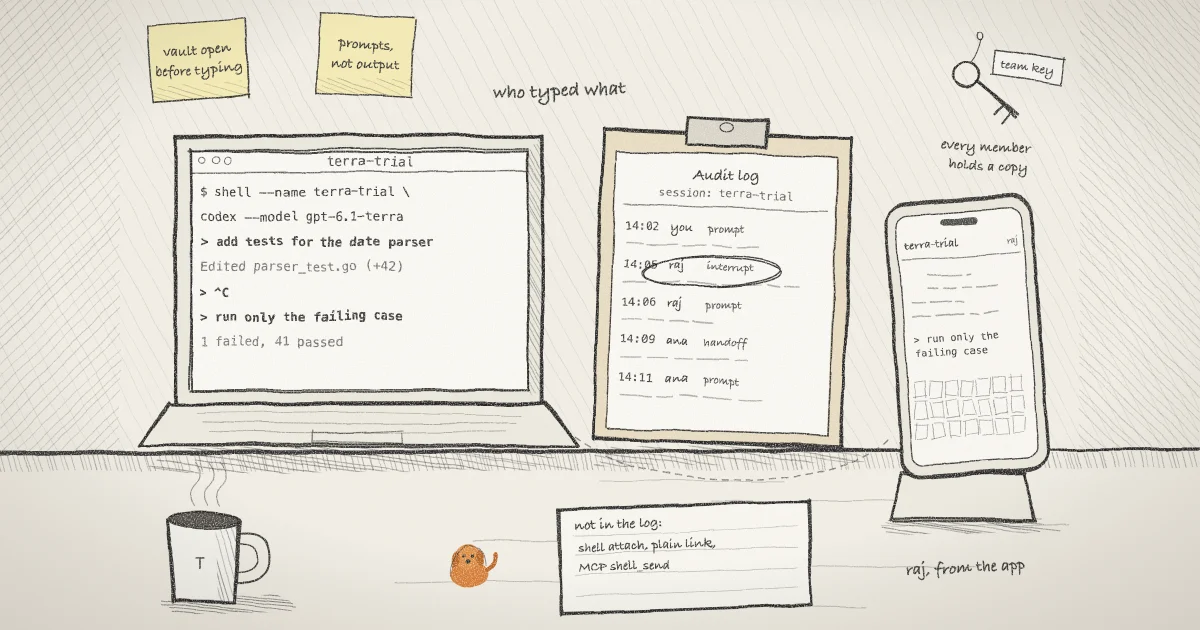
Each teammate opens the session as a tab in the app and types into Codex as they would in a local terminal. As they type, the app assembles keystrokes into the line that was finally submitted, which is the prompt for Codex or the command at a shell prompt, and emits it when they press Enter. Backspace, Ctrl-U and Ctrl-W edits are applied first. Ctrl-C is recorded as an interrupt, together with whatever was typed but not yet sent. Arrow keys and other escape sequences are dropped rather than guessed at, so a prompt edited with the cursor keys can be logged slightly differently from what Codex received. Entries are capped at 4,000 characters. The logic is short enough to read in input-log.ts.
The app batches entries for 1.2 seconds, seals each one to the team's audit key in the browser and sends the batch to the service. The service refuses unencrypted input entries.
Only an open vault gets recorded. A browser seals entries with the team key it holds, and it holds that key only while its vault is open. If a teammate opens the session by typing its password with their vault locked, their entries wait up to 60 seconds for the key and are then dropped, by design: the app prefers a gap in the log to a terminal that stalls on a failing log write. Ask everyone to open their vault before the trial starts, and treat a quiet stretch in the log as possibly missing, not as proof that nobody typed.
Step 5: Read the audit log
Open Audit log from the app's navigation. If your vault is open and holds the team key, the entries decrypt in your browser and the page says so. Narrow it to the trial with the filters:
- Session: pick
terra-trial. - Person: one teammate, or Everyone.
- Event type: Commands and prompts, Interrupts, Opened, Handoffs (assignment changes), Stopped and Removed.
- Time range: the last hour, 24 hours, 7 days or all time.
Newest entries come first, in your local timezone. The search box and the Export CSV button run in your browser on the decrypted entries, so the export is plaintext once it is on your disk. Treat that file as you would the prompts themselves.
Handoffs, stops and removals are written by the service next to the action itself. A browser may only submit input and interrupt entries, so a member cannot add a fake handoff with a plain API request. The handler is in audit.ts.
Read the log next to the repository's history. A prompt at 14:02 from one teammate and a commit at 14:09 tell you more together than either does alone, and the OWASP Logging Cheat Sheet asks every log entry to answer when, where, who and what for the same reason. NIST's guide to log management, SP 800-92, is the longer reference if your team has to keep these records for an auditor.
What this setup does not do
- It is not a transcript. The log holds what people typed from the app, not what Codex printed, which files it changed or which commands it ran on its own. For those, use the repository and Codex's own session files.
- It covers the app only. Input from someone who opened the plain share link outside the app, from
shell attachon the host, or from an MCP controller usingshell_sendis not in it. - The service still sees metadata. Which member sent an entry, for which session, of which kind and when are visible to it. Only the text is sealed.
- Removing access is not instant revocation. The saved access list only adds, and taking someone off the assignees does not reach into their vault. To cut someone off from a running session, run
shell password rotate <ID>on the host, which replaces the password and removes stale teammate copies. An earlier post on revoking a link walks through rotation. - It does not judge Terra for you. It tells you who asked for what. Whether the result was good is still a review of the diff.
When the trial is over, shell kill -- <ID> on the host stops Codex and closes the link. Find the ID with shell list. The CLI reference lists every command used here, and the security guide covers read-only sessions for teammates who should only watch.
Roles and records in Pilot Protocol
shell.online is built by the team behind Pilot Protocol, a networking stack for autonomous agents, and the same questions come up there once more than one person runs agents on a network. Pilot's enterprise networks use the same three roles, owner, admin and member, and the RBAC and access control documentation sets out what each can do and how invites work. The post on RBAC, policies and audit covers how Pilot records and exports what happened on a network, which is the agent-to-agent version of the question this guide answers for a shared terminal.
shell.online is open source under the MIT license, and every file linked above is in the GitHub repository.
Trial a new model with your team in one session
Link a machine, start Codex with the model you want to test, and let teammates prompt it from the app while the team's sealed audit log keeps track of who sent what.
Open the shell.online app