How to Control Which Folder a Shared Coding Agent Starts In
A planted AGENTS.md in Downloads can steer Codex or Claude Code. See where shell starts each session, check the folder, and pin it from your phone.
Artemii Amelin11 min read
Contents
- Why the starting folder decides what the agent reads
- Step 1: Start terminal sessions from the project root
- Step 2: Read the instruction files that folder will load
- Step 3: Find out where browser-started sessions land
- Step 4: Put the folder in the command you start from the phone
- Step 5: Check the folder of a session that is already running
- What this setup does not do
- Trust given on purpose, not by location
On October 22 Gal Weizman and Omer Samet of Forever Security published a report on hijacking coding agents through the Downloads folder. They found a malicious AGENTS.md in a customer's ~/Downloads, which was also the working directory of that customer's coding agent, and the agent tried to install an npm package called function-color. Their argument rests on one line: "~/Downloads is special. It is the one folder the web can write to on its own." In their tests, run mostly with a harmless stand-in payload, a planted file got Codex to run it in more than 90% of attempts, and got Claude Code to rewrite its own project settings about half the time. They also wrote, "There is nothing here for OpenAI or Anthropic to patch," because both agents are doing what they were built to do.
Bill Toulas covered the research for BleepingComputer on October 25, and noted that Chrome, Edge and Firefox save downloads without asking by default. Chrome's own help page confirms it: files go to your Downloads folder unless you turn on "Ask where to save each file before downloading."
The lesson for anyone sharing an agent session is that the folder a session starts in decides which instruction files the agent reads before you type anything. A session you start in a terminal keeps that terminal's folder, and a session you start from your phone inherits the folder of a background process you may never have thought about. This guide shows where shell starts each kind of session, how to check it, and how to pin the folder before you send a link to anyone. The shell details come from the shell.online repository at the current release, v0.25.0, read on the macOS and Linux code path.
Why the starting folder decides what the agent reads
AGENTS.md describes itself as "a simple, open format for guiding coding agents," and agents load it without asking. The exact rules differ by agent, and both are tied to the working directory.
Codex's AGENTS.md guide says Codex first reads a global file from ~/.codex, then starts at the project root, usually the Git root, and walks down to your current directory, taking at most one file per directory. If it cannot find a project root, it checks only the current directory. That second case is the Downloads case: a folder that is not a repository, holding one file the agent will read.
Claude Code's memory docs say it loads CLAUDE.md "from your current working directory and every directory above it," and since v2.1.277 it reads AGENTS.md directly when no CLAUDE.md is present. OWASP lists this class of problem as indirect prompt injection: instructions that reach the model through files or websites rather than through you.
A shared session adds a second way to start an agent, from a browser, where the folder is chosen for you.
Step 1: Start terminal sessions from the project root
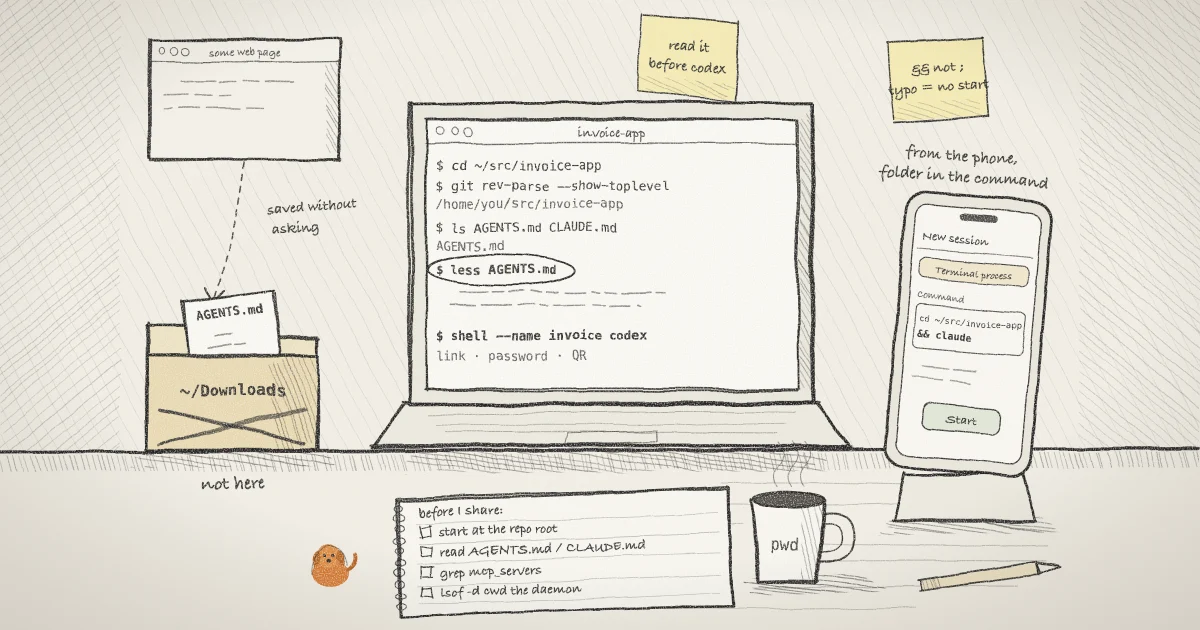
shell runs the command you give it in the directory you ran shell from. I checked the CLI source for any call that changes directory and found none, including in the background start path, which detaches the process with setsid and leaves its directory alone. So the folder is set by your cd:
cd ~/src/invoice-app
git rev-parse --show-toplevel
shell --name invoice codexgit rev-parse --show-toplevel prints the repository root, which tells you both that you are inside a repository and where Codex will start its walk. If it prints an error instead, you are not in a repository, and Codex will read only the folder you are in. The shell line starts Codex under the name invoice and prints a link, a password and a QR code, as the getting started guide describes.
Codex can also take the folder as a flag. The Codex CLI reference lists --cd (short form -C) to "set the working directory for the agent before it starts processing your request":
shell --name invoice -- codex --cd ~/src/invoice-appshell's help says to use -- "before a command when argument boundaries are ambiguous," which is the case when the agent takes flags of its own. Claude Code has no equivalent flag in its docs, so for Claude the cd comes first.
Step 2: Read the instruction files that folder will load
Forever also recommends reading any AGENTS.md or CLAUDE.md you did not write before an agent uses it. Because both agents look above the current folder as well as inside it, check the parents too. This loop walks from where you are up to / and lists every instruction file on the way:
d=$PWD
while :; do
  ls -l "$d"/AGENTS.md "$d"/AGENTS.override.md "$d"/CLAUDE.md "$d"/CLAUDE.local.md 2>/dev/null
  [ "$d" = / ] && break
  d=$(dirname "$d")
doneIt prints one line per file it finds. Open each one before you start the agent, including any in your home directory.
The report also shows what a planted file tried to change, so look there as well. In the Codex chain the file added an MCP server to ~/.codex/config.toml, which loads in every later session in any folder. In the Claude Code chain it wrote a project .claude/settings.json that sent API traffic to a server the attacker controlled:
grep -n '^\[mcp_servers' ~/.codex/config.toml
grep -n -i 'base_url' .claude/settings.json 2>/dev/nullThe first command lists every MCP server Codex will start. The second shows any API endpoint override in this project's Claude settings. Anything you do not recognise is a reason to stop, and Forever's advice for a suspected compromise is to rotate credentials, since a leaked token is a live session.
Step 3: Find out where browser-started sessions land
If you agreed to remote start during shell auth, a daemon on your machine starts sessions when you press New session in the web app. In the daemon's command loop the start command runs shell -- <your command> without setting a directory, so the new session starts wherever the daemon itself is running. Which folder that is depends on how the daemon was started:
- Installed as a service on macOS.
shell service installwrites a LaunchAgent plist with noWorkingDirectorykey, so the folder is whatever launchd gives the job. shell's own changelog for 0.24.1 notes six Claude transcripts on one machine that all named/as their directory, because a launcher started every session in the same place. - Installed as a service on Linux. The systemd user unit sets no
WorkingDirectory=either, and the systemd.exec manual says that for a user manager it then defaults to "the respective user's home directory." - No service. The built-in help says "the daemon still starts whenever you run a shell command." The code starts it as a detached child of that command, so it keeps that command's directory.
Check which case you have, then look at the daemon's directory directly:
shell service status
shell daemon status
pgrep -f 'shell daemon'
lsof -a -p 4242 -d cwdshell daemon status prints "Running. Your browser can start sessions on this machine." when the daemon is up. pgrep prints its process ID; put that number in place of 4242. lsof then prints one line whose last column is the daemon's working directory. On Linux, readlink /proc/4242/cwd gives the same answer, since /proc/pid/cwd is "a symbolic link to the current working directory of the process."
Without the service, the first ordinary shell command after a restart starts the daemon in whatever folder you happened to be in. If that command was shell claude run from ~/Downloads to sort some files, every session you start from your phone afterwards begins in ~/Downloads too, until the daemon restarts. Without a service, shell daemon start and a fresh shell auth also start the daemon from the folder you run them in, so to move it, cd to a project or an empty folder, run shell daemon stop, then shell daemon start.
Step 4: Put the folder in the command you start from the phone
Rather than depend on the daemon's folder, put the folder in the command itself. The New session sheet's Claude Code and Codex forms have no folder field; they build a command from fields such as the model, a resume ID and permission options. The Terminal process form takes any command line, so use that one:
cd ~/src/invoice-app && claude
cd ~/src/invoice-app && codexUse && rather than ;. If the path is wrong, cd fails and the agent never starts, instead of starting in the daemon's folder. A line containing & or ~ is one shell.online cannot split into arguments itself, so it hands the whole line to sh -c, where the tilde expands and the && works as usual.
Claude Code adds one check of its own. Its security docs say that in an interactive session it "shows the workspace trust dialog when you start it in a folder you haven't trusted." In a shared session that dialog appears in the terminal on your phone, and it is worth reading the folder path it names before you accept. The same page notes that trust given in your home directory is not saved, so a daemon that starts Claude in your home folder will ask every time.
Step 5: Check the folder of a session that is already running
shell list --json gives each local session's pid, which is the shell process hosting the session:
shell list --json
lsof -a -p 5151 -d cwd
lsof -a -d cwd -c codexFor a session you started in a terminal, the host process never changes directory, so lsof on its pid shows the folder the agent started in. For a session started from the phone with a cd in the command, the host shows the daemon's folder and the agent moved after that, so ask about the agent process by name instead, as in the last line. Replace codex with claude for Claude Code. This matches on the process name, so it finds the agent only if its process is called that on your machine. Claude also says which instruction file it loaded: its docs show a line such as no CLAUDE.md found; AGENTS.md loaded: /home/you/repo/AGENTS.md at the start of the conversation, and you can read that line from the phone.
What this setup does not do
- shell does not read, scan or block instruction files. It starts the command you gave it in a folder, and the agent reads what it reads.
- Choosing the right folder does not help when the planted file is inside the repository, for example in a project you just cloned. Step 2 is the part that covers that case.
- The folder is a starting point, not a boundary. Claude Code's docs say a Bash command you approve "can still write anywhere your user account can," and the agent can change directory at any time.
- Codex reads its global file in
~/.codexwhatever folder you start in. - A read-only link stops a viewer from typing, and file access stays off unless you pass
--filesor--files-root. Neither changes what the agent itself can read on your machine. - I read the macOS and Linux code paths. Windows starts processes through different files, and I have not checked how the folder behaves there.
For more on keeping a shared session's files narrow, see the earlier post on sharing a terminal session without handing over the filesystem. For what the LaunchAgent does to browser-started sessions on a Mac, see the launchd priority fix in v0.23.3. The full command list is in the CLI reference.
Trust given on purpose, not by location
The Downloads attack works because a folder is trusted for being where the agent started. Pilot Protocol, which develops shell.online, takes the opposite default for agents that talk to each other over its network: an agent is private until its owner opts in, and two agents connect only after a mutual trust handshake that either side can revoke. The Pilot post on why autonomous agents need private-by-default discovery puts it as "invisible until you decide otherwise." Remote start is also a deliberate grant: anyone signed in to your account can launch processes on that machine as you, and the Pilot write-up of the LaunchAgent behind browser-started sessions makes the same point.
Start your next shared agent in the folder you meant
Install shell, cd to the project root, read its instruction files, and run shell codex or shell claude. No account needed.