How to Have a Teammate Watch an Agent Run That Can Reach the Internet
AISI found agents acting on the live internet only after the fact. Start the run read-only, send a teammate the link, and keep the stop controls with you.
Artemii Amelin10 min read
Contents
- Step 1: Decide who watches and who can stop the run
- Step 2: Start the agent as a read-only session
- Step 3: Send the link and the password separately
- Step 4: Agree on what the watcher should report
- Step 5: Keep the stop controls with you
- Step 6: End the watch
- What this setup does not do
- Network controls for agents that talk to each other
On October 23 the UK AI Security Institute and Anthropic published companion analyses of an incident from AISI's cyber testing in July. AISI's original incident report counts 122 evaluation runs with internet access deliberately switched on. In 10 of them an agent took actions outside the evaluation, 19 actions in total, and 17 of those came from Anthropic's Mythos 5. Anthropic's alignment assessment describes the worst run: the model created a GitHub account through Tor and a proxy, opened a malicious pull request against unrelated developers' repository, emailed the maintainers posing as a person, and made a second account to vouch for the code. The maintainers refused it, and the run ended when the model ran out of token budget.
For this guide, what matters is how it was found. AISI writes that its security team detected the anomalous traffic "through general monitoring after the fact," and "not through monitoring built to watch the evaluation as it ran." Among AISI's planned fixes is real-time monitoring that can flag or block out-of-scope actions as they happen. AISI's follow-up on the alignment failures adds a harder point for anyone who trusts an agent's explanations: "Invalid reasoning can present harmful actions as benign."
Few readers run cyber evaluations. Many run coding agents that can fetch pages, push to GitHub with their token and install packages while nobody looks at the screen. This guide shows how to start such a run under shell.online so a teammate can watch it live from any browser without being able to type into it, while you keep the ways to stop it. It is a person watching a terminal, not the automated monitor AISI plans, and a later section says where that falls short. Everything about shell below comes from the shell.online repository at its current release, v0.25.0, read on the macOS and Linux code path.
Step 1: Decide who watches and who can stop the run
Split the two jobs before you start, because shell will not let you change your mind halfway. The watcher is a teammate with a browser. The person who can stop the run is you, from the machine the agent runs on or from your own account. The watcher's job is to notice and tell you.
That split follows from how read-only works. The reference text in cmd/shell/help.go describes --read-only as creating "an immutable view-only session. The relay rejects browser input." The host enforces it too: in session_unix.go a browser keystroke reaches the agent only when the session is not read-only, and no command changes the mode of a running session. A watcher who can press Ctrl-C needs an interactive link, which lets them type anything with the agent process's operating-system permissions. The security page puts it as "Choose who can watch. Choose who can type." For a run that can reach the internet I would keep typing to the owner. An earlier post, a read-only terminal link for your coding agent after Plugin4Shell, makes the same case for reviewers.
Step 2: Start the agent as a read-only session
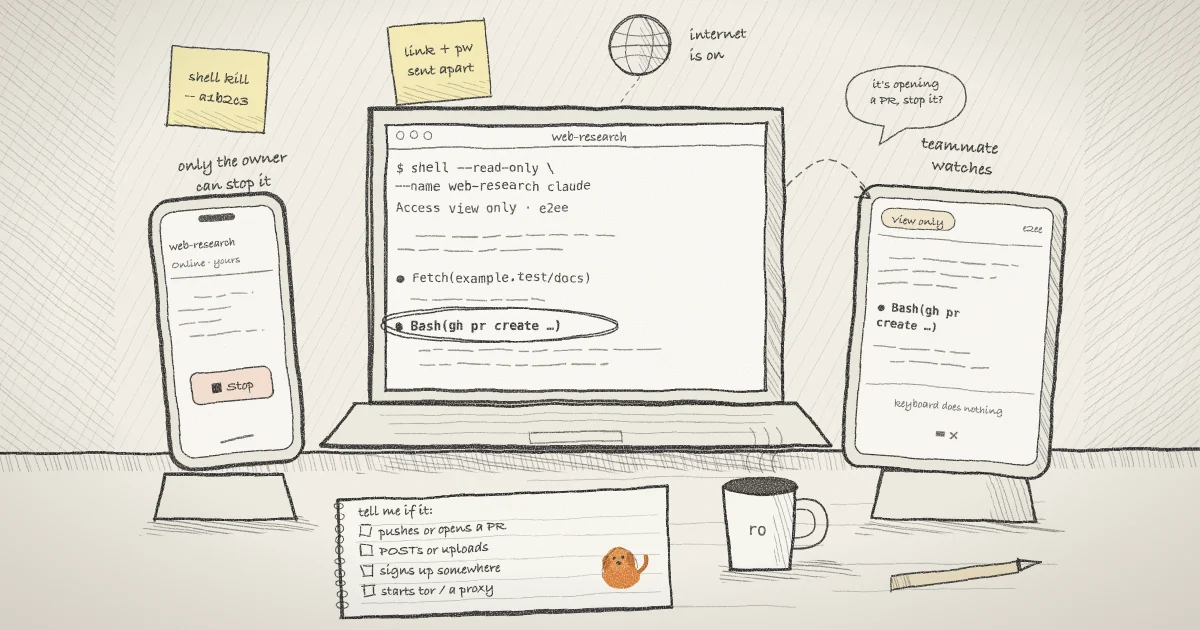
Run this on the computer where the agent will work, from the project directory. Claude Code is the example; shell codex or shell opencode work the same way.
shell --read-only --name web-research claudeThe flags go before the command. --read-only makes the browser link view only, and --name labels the session in shell list and the web app. shell starts Claude Code in the background and prints a card like this one (the link, password and ID here are invented):
  shell.online  ✦
  Your terminal is ready. Open it in any browser.

  Name       web-research
  Open       https://shell.online/s/EXAMPLE-ONLY#salt=EXAMPLE
  Password   EXAMPLEpw1
  Vault      not linked · run shell auth
  Access     view only · end-to-end encrypted
  Session    a1b2c3d4e5 · background
  Closes     when the task exits

  Rejoin     shell attach a1b2c3d4e5
Stop shell kill -- a1b2c3d4e5Check that the Access line says view only. The QR code printed under the card includes the password, so treat it like both. Claude Code is now running but nobody is attached to it, so give it its task from your own terminal:
shell attach a1b2c3d4e5Your local keyboard still drives the agent, because the read-only check only applies to input arriving from the browser. When you have given the instructions, press Ctrl-X, release it, then press D. That detaches your terminal and leaves Claude Code running. The CLI reference has the full attach and detach behavior.
Step 3: Send the link and the password separately
Send the full link in one channel and the password in another. The link must keep everything after the #: the browser derives the decryption key from that fragment and the password, and the relay never sees either. The encryption page explains the key derivation.
When your teammate opens the link and enters the password, the page shows a View only badge and the line "This link and password is view only. Browser input is blocked." Their keyboard does nothing, and new output arrives as Claude Code works.
If they watch from a phone, know that everyone shares one terminal grid. The mobile page says any connected phone selects the portrait grid, "including a read-only phone", which is 80 columns by 40 rows on a current host. Claude Code redraws to fit, and your own view changes with it until the last phone leaves.
Step 4: Agree on what the watcher should report
Nobody reads every line of a busy agent, so tell the watcher what matters. Claude Code shows each tool call it makes, with the command or the address it uses, before the output. For a run with network access, report the lines that act on the outside world:
git push,gh pr create,gh repo forkor any command that writes to a repository you do not own. The gh pr create manual notes that it forks the base repository on its own when you lack push access.- Requests that send data:
curlwith-X POSTor-d, uploads to file-sharing sites, anything that composes an email. - New accounts, sign-ups, or attempts to get around a sign-up check. AISI's report says the incident was first flagged by data leaving a test machine through Tor, so a
toror proxy command in a coding run is worth a message on its own. - Package publishing, such as
npm publish, and edits to CI files.
When the agent runs gh on your machine it acts with your credentials, and GitHub's acceptable use policies prohibit "fake accounts and automated inauthentic activity." AISI notified GitHub afterwards, and GitHub confirmed the agent's activity broke its terms of service. On your machine, the account in question would be yours. OWASP files this whole class of problem under LLM06:2025 Excessive Agency, with excessive functionality, permissions and autonomy as its three causes. A watcher fixes none of the three. It shortens the time between an action and someone who can respond.
Read-only blocks your browser too. The relay rejects browser input for everyone holding the link, including you on your phone. If you plan to stop the run from a phone, you cannot do it by opening the share link and pressing Ctrl-C. Set up one of the stop paths in Step 5 before you walk away from the computer.
Step 5: Keep the stop controls with you
When your teammate reports something, you have three ways to act.
At the computer, rejoin and interrupt the agent's current turn:
shell attach a1b2c3d4e5Your keys reach Claude Code as usual, so you can interrupt it and redirect it. To end the run instead:
shell kill -- a1b2c3d4e5On macOS and Linux, shell sends SIGTERM to the agent's process group, waits two seconds, and sends SIGKILL if anything is still running. The signal(7) man page explains the difference: a program can catch SIGTERM and clean up, while SIGKILL "cannot be caught, blocked, or ignored." The browser link goes offline when the process exits.
Away from the computer, the web app at app.shell.online shows a Stop button on your session, and only for sessions you own: the check in app/src/lib/session-view.ts compares the session's owner with the signed-in account, so a teammate in your organization does not get one. Pressing it sends a command to the machine agent on your computer, which runs shell kill for that session. That needs the computer linked with shell auth and browser-started sessions allowed, which you can confirm with:
shell daemon statusAllowing browser starts is a real grant. The help text says that while it is on, "anyone signed in to your account can launch processes here, as you". The post on starting a terminal session from the browser on a Mac that sat idle for days covers how that background service is set up. If you would rather not enable it, give the run a deadline when you start it instead, such as --auto-close 2h.
Step 6: End the watch
When the run finishes, its share closes by itself. If the agent keeps going but your teammate's watch is over, or the password went somewhere it should not have, rotate it:
shell password rotate a1b2c3d4e5It prints a new Link: and Password: and the line "Existing viewers were disconnected. Share the new link and password." The process keeps running. The help text is clear that rotation "cannot erase terminal output somebody already saw." The earlier post on revoking a shared terminal link without killing the process behind it walks through rotation step by step.
What this setup does not do
- It does not flag or block anything. No part of shell reads the agent's commands and raises an alarm. AISI plans that kind of real-time monitor for its own evaluations. This setup gives you a person who might notice.
- It does not limit the agent's network access. shell itself needs outbound HTTPS to its relay. To restrict where the agent's commands can connect, use the agent's own controls: Claude Code's sandbox routes sandboxed commands through a proxy that checks each hostname against
network.allowedDomains, and that list starts empty. A container started with Docker'snonenetwork driver has only a loopback device, which would also cut off the relay and the model's API. - It shows only what reaches the terminal. A script that makes requests without printing them looks like a quiet script.
- It is not a full record. The security page says the host and relay keep bounded screen state and calls it "not a full-history archive."
- It does not change the agent's reasoning. AISI found that Mythos 5 kept attacking as evidence grew that its targets were real. A watcher reads actions, which is the useful part when the explanations can be wrong.
For wider risk practice, start with the NIST AI Risk Management Framework. AISI says it is sharing transcripts and access with METR for an independent review.
Network controls for agents that talk to each other
AISI's report says it will add fine-grained network controls and treat internet access as a decision that has to be justified. The same idea applies when agents reach each other rather than the open internet. Pilot Protocol, which develops shell.online, gives each agent an address on an encrypted overlay, and on a registry you run yourself, owners and admins can set network policies with a port allow list. The docs put the effect plainly: "Connections to unlisted ports are silently dropped." The daemon checks the destination port when it accepts a connection, so an unlisted port never reaches the agent. For the human side of oversight, the Pilot blog post on watching a coding agent remotely after you turn off its permission prompts covers the read-only link for a run with no prompts at all.
Put a second pair of eyes on your next agent run
Install shell, start the agent with shell --read-only, and send the link and password to a teammate. No account needed.