How to Check a Claude Code Login Will Outlast a Long Shared Run
Read the login end date Claude Code 2.1.318 reports, renew before a long run, and watch the run from your phone through a read-only shell.online link.
Artemii Amelin10 min read
Contents
- What you need
- Step 1: Read the date your login ends
- Step 2: Renew at the desk if the run would cross the date
- Step 3: Start the run behind a read-only link
- Step 4: Know what an expired login looks like from the phone
- Step 5: Sign in again from the machine with shell attach
- Step 6: Do the same check for a claude -p job
- What this setup does not do
- Credentials with an end date, between agents
Claude Code 2.1.318, released on November 4, added the date a stored claude.ai sign-in ends to claude auth status, as a field called loginExpiresAt, and to the JSON result of claude -p, as credential_expires_at. The same release prints a one-line warning on standard error in claude -p text output, starting 10 days before that date. Both entries are in the Claude Code changelog. Until then, a script usually learned about a stale login from the request that failed.
The date matters most for long runs. Anthropic's authentication page says renewing early matters most for sessions that run unattended, because a session that outlives its login stops making progress and cannot recover until you sign in again. The error reference describes the moment it happens. Claude Code tries to renew the login, the OAuth service rejects the stored refresh token (the credential that, in the OAuth 2.0 specification, gets a new access token when the current one expires), Claude Code clears the saved credentials, and every model request after that stops locally with Login expired · Please run /login. If you started a six hour refactor before dinner and are checking it from your phone, that line is all you will see.
This guide adds the check to a long Claude Code run that you watch through shell.online. You read the date before you start, renew at the desk if the run would cross it, start the run behind a read-only link for your phone, and sign in again from the machine if the line appears anyway. The last step does the same for a claude -p job.
What you need
Claude Code 2.1.318 or later, signed in with a claude.ai account. The expiry warnings apply only when a claude.ai login is the active credential. A session that runs on ANTHROPIC_API_KEY, ANTHROPIC_AUTH_TOKEN or a cloud provider gets none of them, and the authentication page lists the order in which Claude Code picks among its credentials. You also need the shell command line tool, version 0.25.0, which the docs explain how to install, and a phone with a browser. The source is in the shell.online GitHub repository. No shell.online account is needed for any step.
claude --version
shell --versionThe first command should print 2.1.318 or a higher number. Older versions do not report the date.
Step 1: Read the date your login ends
claude auth status
claude auth status --textThe CLI reference says claude auth status prints the authentication status as JSON, that --text prints a version meant for people, and that the command exits with 0 when you are logged in and 1 when you are not. The JSON has an authMethod field whose value is one of none, claude.ai, oauth_token, api_key, api_key_helper or third_party. To pull out the two fields this guide cares about:
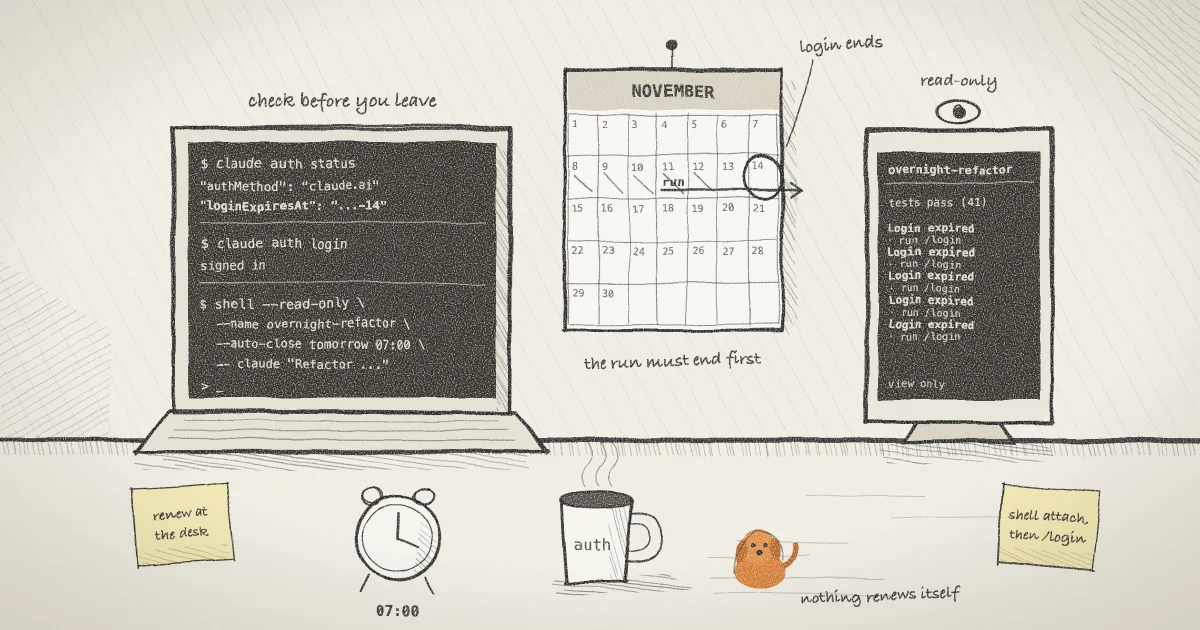
claude auth status | grep -oE '"(authMethod|loginExpiresAt)": *"[^"]*"'The pattern matches whether the JSON is printed on one line or across many. You want authMethod to read claude.ai. If it reads anything else, the date does not apply to the credential your run will use, and the rest of this step does not either. Compare loginExpiresAt with the time you expect the run to end, and leave a margin for a run that goes long.
Step 2: Renew at the desk if the run would cross the date
claude auth login
claude auth status | grep -oE '"loginExpiresAt": *"[^"]*"'claude auth login signs you in to your Anthropic account. It opens the sign-in in a browser on this computer, which is why this step belongs before you leave. Typing /login inside a Claude Code session does the same from there. The second line reads the date again so you can see that it moved.
Claude Code also warns on its own, later. The authentication page says that within three days of the end it shows Your login expires in 3 days · run /login to renew at startup, and that the warning never blocks a request. A run that started four days before the end sees no warning at all, which is why the explicit check is worth the ten seconds.
Step 3: Start the run behind a read-only link
cd ~/src/example-app
shell --read-only --name overnight-refactor --auto-close tomorrow 07:00 -- \
claude "Refactor the billing module to use the new tax table, run the tests after each change"claude "query" starts an interactive session with a first prompt, so the agent has its task before you walk away. --read-only makes a view-only link: the relay rejects input from every browser that opens it. --name labels the session in shell list and in the web app. --auto-close tomorrow 07:00 adds a deadline. The share always closes when the task exits, and the deadline is an earlier stop in case it does not. The help text lists the forms the flag accepts: durations such as 6h or 1h30m, RFC 3339 timestamps, YYYY-MM-DD HH:MM, a bare HH:MM, and today or tomorrow with an optional time. At the deadline shell stops the process and closes the link.
The command returns once the share is ready and prints a link, a password and a QR code. Scan the QR code with your phone. It carries the password as well as the link, so the session opens without typing anything. Or open the link and type the password. The phone guide covers what the screen looks like there, and the post on watching Claude Code from your phone as a conversation covers the chat view that is easier to read on a small screen.
A read-only link cannot answer Claude Code's permission prompts or the folder trust dialog on a first run in a new directory. Settle those before you leave, or read the guide to watching an agent after you turn off its permission prompts first. The computer also has to stay awake and online for the whole run. On macOS caffeinate holds off idle sleep, and on Linux systemd-inhibit does the same job.
Step 4: Know what an expired login looks like from the phone
When the login runs out mid-run, nothing on the shell side changes. The session stays online, the link still opens, and the process is still running. What changes is the agent's output. Each time Claude Code tries a model request, it prints Login expired · Please run /login and does not send the request. On the phone that looks like a run that stopped working and started repeating one line.
The error reference also gives a way to see the state before a request fails: /status inside the session shows a Login row that says the saved login has expired, along with the organization and email it belonged to. You cannot type /status through a read-only link, but you can from the machine, which is the next step.
Step 5: Sign in again from the machine with shell attach
shell list
shell attach 3f9c2ashell list prints the sessions running on this computer with their ID, name, uptime, relay status, closing rule and access mode. Copy the ID of overnight-refactor, or six or more of its first characters, and pass it to shell attach. The ID above is an invented example. Attaching puts the running Claude Code session in your terminal, with the screen it had. The read-only flag blocks browser input only, so you can type here.
Type /login and complete the sign-in in the browser it opens on this computer. If no browser opens, the authentication page says to press c to copy the login URL. When the sign-in is done, tell the agent to continue where it stopped. Then press Ctrl-X, release it, and press D. That detaches your terminal and leaves the process and the phone link running.
Do not plan to renew from the phone. A read-only link cannot type /login at all. An interactive link could, but the sign-in then tries to open a browser on the computer running the agent, which is the one you are not sitting at. Renewing before the run, as in Step 2, avoids the problem. If it happens anyway, the fix needs the machine.
Step 6: Do the same check for a claude -p job
shell --read-only --name nightly-audit -- \
claude -p "List the TODO comments in src/ and group them by file"A claude -p run in text mode prints the new warning on standard error, starting 10 days before the login ends. On macOS and Linux, shell runs the command in a pseudoterminal, and the command's standard output and standard error both go to that terminal unless you redirect them. So the warning line shows in the browser next to the rest of the output. If you add 2>/dev/null or send standard error to a file, it will not.
shell --read-only --name nightly-audit -- \
claude -p --output-format json "List the TODO comments in src/ and group them by file"With JSON output, the warning is replaced by a field. The result carries credential_expires_at, so the date is on the phone screen when the job ends and in whatever file a script saves the result to. If the login has already run out, the error reference gives the non-interactive message as Failed to authenticate: OAuth session expired and could not be refreshed, with the error code authentication_failed, which a script can test for.
What this setup does not do
shell does not know about Claude Code's login. It does not read loginExpiresAt, does not renew anything, and does not alert you when the agent starts printing Login expired. The phone shows the line when you look. The --auto-close deadline is a time you choose, not one taken from the login.
The checks above cover the claude.ai login only. Codex keeps its own cached login, which OpenAI's authentication page says sits in ~/.codex/auth.json or in the operating system's credential store, and nothing here tells you when that one ends. A token from claude setup-token lasts a year, and the authentication page says that command does not save it anywhere, so it is not the stored sign-in that 2.1.318 reports on.
A read-only link limits who can type from a browser. It does not limit what the agent can do on your computer, and it does not keep anybody who has the link and password from reading the output. If a password reaches the wrong person, shell password rotate replaces it without stopping the run, as the guide to revoking a shared terminal link explains. The security page lists what the relay can and cannot see.
Logins that end are deliberate. The OWASP session management cheat sheet recommends an absolute timeout for every session regardless of activity, because it limits how long a stolen session stays useful. The aim here is to stop the end date from surprising an unattended run, not to push it back.
Credentials with an end date, between agents
shell.online is developed by Pilot Protocol, a networking stack for autonomous agents, and the same question of when a credential runs out comes up there between machines. Pilot's enterprise identity documentation describes a registry that validates identity tokens against their expiry and not-before claims, with 60 seconds of clock skew allowed, and a get_key_info command that reports a key's expires_at and its age in days for anyone auditing rotation. The post on identity, directory sync and audit export in the open source rendezvous shows how that fits into a self-hosted deployment. If your agents talk to each other rather than to you, that is where to read their expiry dates.
Read the date before the next long run
Run claude auth status, renew if the run would cross loginExpiresAt, and start the agent behind shell --read-only so you can see from your phone whether it is still working.