How to Check Which systemd Services Can Start Claude Code on Linux
Find the systemd units that can launch a coding agent, tell shell.online's own service from the rest, and see which credential its agents get.
Artemii Amelin11 min read
Contents
- Step 1: List the services that could start an agent
- Step 2: Identify shell's own unit
- Step 3: Know what that unit is allowed to start
- Step 4: Map every running agent to the unit that owns it
- Step 5: Check which credential those agents get
- Step 6: Turn it off if you do not start sessions from the browser
- What this does not do
- Where Pilot Protocol fits
On November 12 Help Net Security reported a Darktrace lab test that turned Claude Code into a remote-controlled implant using stolen Claude credentials. A small payload found Claude Code on a Linux machine, collected the credentials, and installed a systemd service that kept launching Claude Code with --dangerously-skip-permissions. Each run checked in through a Claude memory store, read a job written in plain English, did it, and posted the result. Across nine jobs in a simulated corporate network the agent mapped the network, sprayed a password at the domain controller, and uploaded a 1 GB file in three pieces through the Files API. All of it went to api.anthropic.com, the endpoint the agent talks to anyway.
Darktrace says the technique needs a machine that is already compromised, exploits no vulnerability in Claude, and has not been seen in the wild. Two details still matter to anyone running agents on Linux. Persistence was an ordinary systemd service, the technique MITRE tracks as T1543.002, Create or Modify System Process: Systemd Service. And the credential decided the reach: according to Tim Bazalgette, Darktrace's Chief AI Officer, a standard API key could reach memory stores and an OAuth credential could not. His summary was "Approved is not the same as safe, and only behaviour tells you the difference."
If you linked a Linux machine to shell.online and let your browser start sessions there, you have a legitimate service of the same shape: a systemd user unit that stays up across restarts and can start Claude Code with permission prompts off when someone asks it to. This guide lists the units on a machine that can launch an agent, shows exactly what shell's unit contains, maps every running agent process to the unit that owns it, checks which credential those agents get, and ends with how to turn the service off. Everything shell-specific below is read from the shell.online repository at v0.25.0, on Linux.
Step 1: List the services that could start an agent
Start with what systemd will run for your user and for the machine:
systemctl --user list-unit-files --type=service --state=enabled
systemctl --user list-timers --all
systemctl list-unit-files --type=service --state=enabledThe systemctl manual describes list-unit-files as the installed unit files with their enablement state, which is what you want here: a unit that is enabled starts again at the next login or boot whether or not it is running now. --user asks your own user manager, the one that reads ~/.config/systemd/user, and needs no root.
Read every name you do not recognize with systemctl --user cat <unit>, which prints the unit file and any drop-ins, each under a comment naming the file it came from. Look at ExecStart=, Restart= and any Environment= lines.
Step 2: Identify shell's own unit
Ask shell where it put its service:
shell service statusOn a machine where the service is installed it prints Installed at and the path, which is ~/.config/systemd/user/shell-online.service unless XDG_CONFIG_HOME points elsewhere. Without one it prints No service is installed. and exits with status 1. The service is only offered to a machine that is signed in and has agreed to browser starts, and saying yes the first time installs it, as cmd/shell/service.go shows. Now print it:
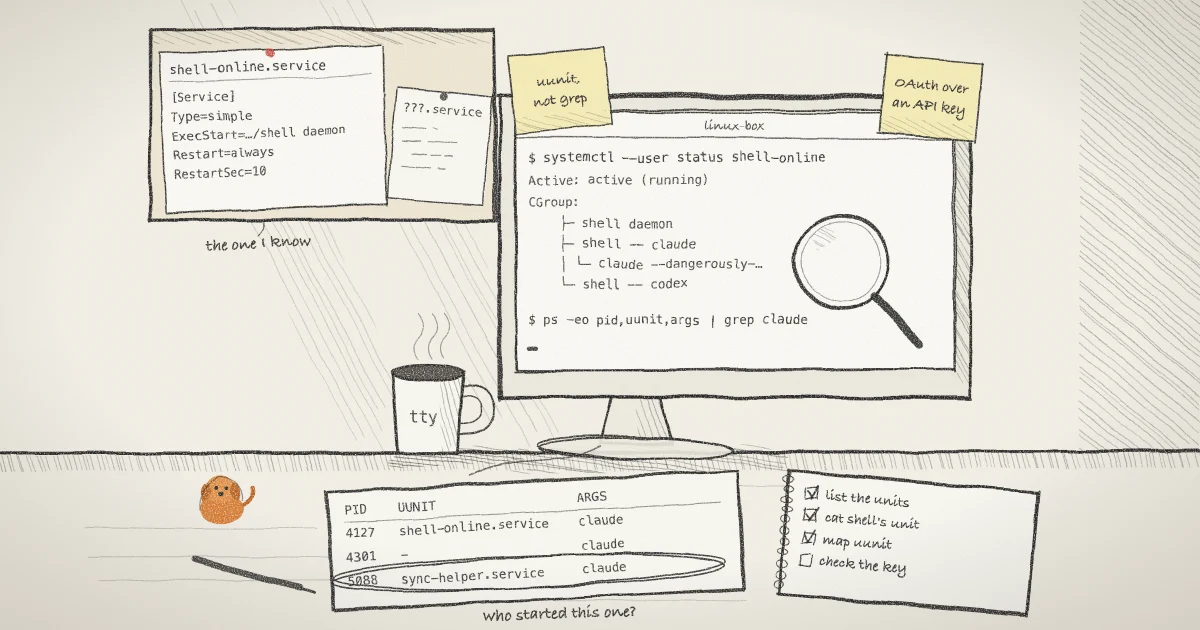
systemctl --user cat shell-online.serviceThe file is generated by cmd/shell/service_linux.go, so you can compare it line by line. With an invented install path it reads:
[Unit]
Description=shell.online daemon
Documentation=https://shell.online
After=network-online.target

[Service]
Type=simple
ExecStart=/home/you/.local/bin/shell daemon
# Restarted if it exits, but throttled: a daemon that cannot start should not
# be relaunched in a tight loop.
Restart=always
RestartSec=10

[Install]
WantedBy=default.targetThree checks. ExecStart= should be the absolute path of the shell binary you installed, followed by the word daemon and nothing else; compare it with command -v shell and shell --version. The only Environment= lines shell ever writes carry six variables, all named SHELL_ONLINE_ something, and only when they were set at install time, which in normal use they are not. Any other Environment= line came from someone else, and so did any drop-in that systemctl --user cat lists under the unit.
Restart=always means, in the words of the systemd.service manual, that the service is restarted whether it exited cleanly or not. When the daemon process exits on its own, clean or not, systemd starts it again ten seconds later.
Step 3: Know what that unit is allowed to start
shell daemon statusThis prints Running. Your browser can start sessions on this machine. or Not running. Sessions can only be started from this terminal. When it is running, the consent question you answered at shell auth spells out the scope: anyone signed in to your account could start processes on this machine, as you, without touching this terminal.
The daemon polls for work queued from the web app and runs it. In cmd/shell/agent_loop.go a start request is a full command line, handed to the platform shell and wrapped by shell --, so the browser can choose any program but cannot pass flags that weaken shell's own encryption or widen file sharing. In the app's New session sheet, the Claude Code form has a toggle called Skip permission checks whose help text reads "Adds --dangerously-skip-permissions. The agent will not ask before acting." That is the same flag Darktrace's service used. The difference is visibility: every session the daemon starts is published to your account with the command the browser asked for, so it appears in shell ls and on the web app.
Step 4: Map every running agent to the unit that owns it
A unit file says what may start. The process table says what did. On Linux, procps ps can print the unit each process belongs to:
ps -eo pid,ppid,uunit,etime,args | grep -E '[c]laude|[c]odex'The ps manual defines uunit as the user unit a process belongs to, when ps was built with systemd support. The args column shows the whole command line, so a --dangerously-skip-permissions run stands out,.
Read the UUNIT column against what you know. The reason it is reliable comes from the kernel, not from shell: the cgroup v2 documentation says a forked child is born into the cgroup of the process that forked it. The daemon starts each browser session as a descendant of itself, so while the daemon runs under the service, a browser-started agent shows shell-online.service, and a setsid along the way does not change that. An agent you started yourself from a terminal shows the unit or scope of that login instead. An agent under a unit name you did not recognize in Step 1 is the shape Darktrace built.
For shell's unit you can also see the whole tree at once:
systemctl --user status shell-online.serviceThe CGroup: block lists every process in the unit: the shell daemon process, each session host it started, and the agent inside each one. Match those against shell ls, which lists the sessions in your account with their name, status and machine. A process in that tree with no matching session in shell ls deserves a closer look.
Step 5: Check which credential those agents get
A browser-started session inherits the daemon's environment; the launch code copies it before adding its own variables. Under systemd that environment is the user manager's block plus the unit's own lines, not whatever your .bashrc exports. Check it by name only, so no value lands on your screen:
pid="$(systemctl --user show -p MainPID --value shell-online.service)"
tr '\0' '\n' < "/proc/$pid/environ" | cut -d= -f1 | grep -E 'ANTHROPIC|API_KEY|OPENAI'
systemctl --user show-environment | cut -d= -f1 | grep -E 'ANTHROPIC|API_KEY|OPENAI'The proc_pid_environ manual explains the format: entries separated by null bytes, readable only with ptrace read access to the process, which you have for your own. No output from either command is the result you want.
If ANTHROPIC_API_KEY shows up, every Claude Code session the browser starts runs on that key. Claude Code's authentication documentation ranks the variable above a /login sign-in, and in -p mode the key is always used when present. Given what Darktrace found about API keys and memory stores, a claude.ai or OAuth sign-in is the better credential for a machine that starts agents on request. Open one of the sessions from the browser and run /status to see which credential is active. The same page says that on Linux a sign-in lives in ~/.claude/.credentials.json with mode 0600, which any process running as you can read, including every session shell starts.
Step 6: Turn it off if you do not start sessions from the browser
Look at the CGroup: block from Step 4 first. The unit sets no KillMode=, and the systemd.kill manual says the default, control-group, kills all remaining processes in the unit's control group when the unit stops. I read this from the unit file and the manuals and have not tried it with sessions running: expect any browser-started session still in that tree to end with the unit.
shell service uninstall
shell auth --no-remote-startThe first runs systemctl --user disable --now, deletes the file and reloads systemd, then prints Removed. The daemon still starts when you run a shell command. That second sentence is the reason for the next command. shell auth --no-remote-start goes through the browser sign-in again, records that this machine does not accept browser starts, and stops the daemon. After that no ordinary shell command brings it back, and sessions you start with shell claude are still published to your account.
If you keep browser starts, leave Skip permission checks off unless you are watching the run. Note also that without lingering, loginctl says the user manager is not kept around after you log out, and shell warns about this when it installs the unit.
Grepping unit files for "claude" will not find shell's unit. Its ExecStart= runs shell daemon, and the agent's name only appears when a session starts. Any launcher can do the same with a script or a wrapper. Treat Step 1 as a list of candidates and trust Step 4, which looks at what is running and which unit it belongs to.
What this does not do
It does not detect the Darktrace technique. Its traffic went to api.anthropic.com like any other Claude Code session, and Darktrace's advice is behavioral: correlate the processes an agent launches with the traffic they generate and compare both with a baseline. A unit inventory tells you what can start an agent, not what an agent is doing.
It does not cover every way to persist. Cron, at, shell startup files, desktop autostart entries and system units in places you cannot read all start processes without appearing in systemctl --user. The uunit column needs a procps built with systemd support, and a process can be moved to another cgroup by something with the rights to do it.
shell does not watch for any of this. It knows the sessions it started and nothing else, and it changes nothing about who can read ~/.claude/.credentials.json. It also does not make --dangerously-skip-permissions safe; the OWASP entry on excessive agency recommends a human approval step for high-impact actions, and that flag removes it. If you run that way anyway, an earlier post covers watching an agent remotely after you turn off its permission prompts.
Everything above is Linux. On a Mac the same daemon is a LaunchAgent with the label online.shell.daemon, and a post on starting a session on a Mac that sat idle for days covers that side. The security page and the CLI reference state the limits of the browser link itself.
Where Pilot Protocol fits
shell.online is developed by Pilot Protocol, a networking stack for autonomous agents, and the question in this post is one Pilot answers at the network layer: who is allowed to reach an agent at all. Pilot's trust model keeps agents invisible by default, so a peer has to complete a mutual handshake before it can send anything. On the shell side, a Pilot post on what shell.online leaves on disk when infostealers go after coding agents, and what to revoke is the companion to Step 5: it lists the files shell keeps on disk that a program running as you could read, and what to revoke if one did.
Know what can start an agent on your machine
Run shell service status and systemctl --user status shell-online.service on your Linux box, then read the docs for what each start option shares.
Read the shell.online docs