How to Run a Claude Haiku 5.5 Job in the Background and Step Back In
Start Claude Code on Haiku 5.5 with shell, attach from a local terminal, detach with Ctrl-X D without stopping it, and check the run from a phone.
Artemii Amelin11 min read
Contents
- Step 1: Start Claude Code on Haiku 5.5 in the background
- Step 2: Find the session again
- Step 3: Attach from a terminal on the same computer
- Step 4: Detach without stopping Claude
- Step 5: Check on it from your phone
- Step 6: Stop it, or let it stop itself
- How this differs from Claude Code's own background sessions
- What this setup does not do
- Where Pilot Protocol fits
Anthropic released Claude Haiku 5.5 on October 7, 2026. The announcement says it costs around 75% less to run than Haiku 4.5 on average, priced 90% lower for requests up to 100,000 tokens and 50% lower above that. The Claude Code changelog added it the same day in version 2.1.293 as the default Haiku model on the Anthropic API, at $0.10 per million input tokens and $0.50 per million output tokens for prompts up to 100K. Anthropic is plain about what it is for: Sonnet 5.5 and Opus 5.5 remain the better choices for complex agentic coding, while Haiku 5.5 suits narrowly scoped work that used to cost too much, such as summarization, compaction and subagent tasks.
That kind of work has a particular shape. You hand an agent a pile of files and a narrow instruction, and it grinds through them for an hour. You do not want to watch it, and you do not want it tied to whichever terminal window you had open. You do want to step back in when it stops to ask a question, then step out again without killing it.
This guide uses shell.online to do exactly that with Claude Code on Haiku 5.5. You will start the session in the background, find it again, attach to it from a local terminal, detach with the right keys, check it from a phone, and stop it when you are done. Every command and key below comes from the shell 0.25.0 help text and source.
Step 1: Start Claude Code on Haiku 5.5 in the background
Install shell if you have not already. Then, in an ordinary terminal (not inside another Claude Code session), go to the directory the job should work in and run:
shell --name "haiku changelog digest" claude --model claude-haiku-5-5Everything before claude belongs to shell. --name labels the session in shell list, shell ls and the web app, up to 120 characters on one line. Everything from claude onward is the command shell runs. --model is the Claude Code CLI flag that picks the model for this session, and claude-haiku-5-5 is the model ID from Anthropic's Haiku 5.5 migration guide. Claude Code also takes --effort; the CLI reference notes that the available levels depend on the model, so check the model configuration page before you rely on a particular level.
shell wraps the process in a pseudoterminal, connects it to the relay, prints a card and returns your prompt. The card looks like this, trimmed, with your own values:
  Name       haiku changelog digest
  Open       https://shell.online/s/EXAMPLE-ONLY#salt=EXAMPLE
  Password   (ten random characters)
  Vault      not linked · run shell auth
  Access     view and type · end-to-end encrypted
  Session    a1B2c3D4e5 · background
  Closes     when the task exits

  Rejoin     shell attach a1B2c3D4e5
  Stop       shell kill -- a1B2c3D4e5
Run these on this computer. Ctrl-X, then D detaches after rejoining.The two lines at the bottom are the ones this guide is about. Claude Code is now running in the background with nobody attached to it. Closing the terminal you typed this in does not stop it; the session ends when the process exits.
Step 2: Find the session again
An hour later, in a different terminal window, you will not remember the ID. Ask shell:
shell listThe table has one row per session on this machine, with its ID, name, uptime, relay status, closing rule, access mode, command, share URL and whether a password is stored. ACCESS reads interactive+e2ee for the session above. The table shortens long URLs, so use shell list --json when a script needs the complete record. If you linked the machine to an account with shell auth, shell ls lists sessions from every linked machine instead, without passwords. The CLI page has both side by side.
Step 3: Attach from a terminal on the same computer
Use the ID, or any unambiguous prefix of at least six characters:
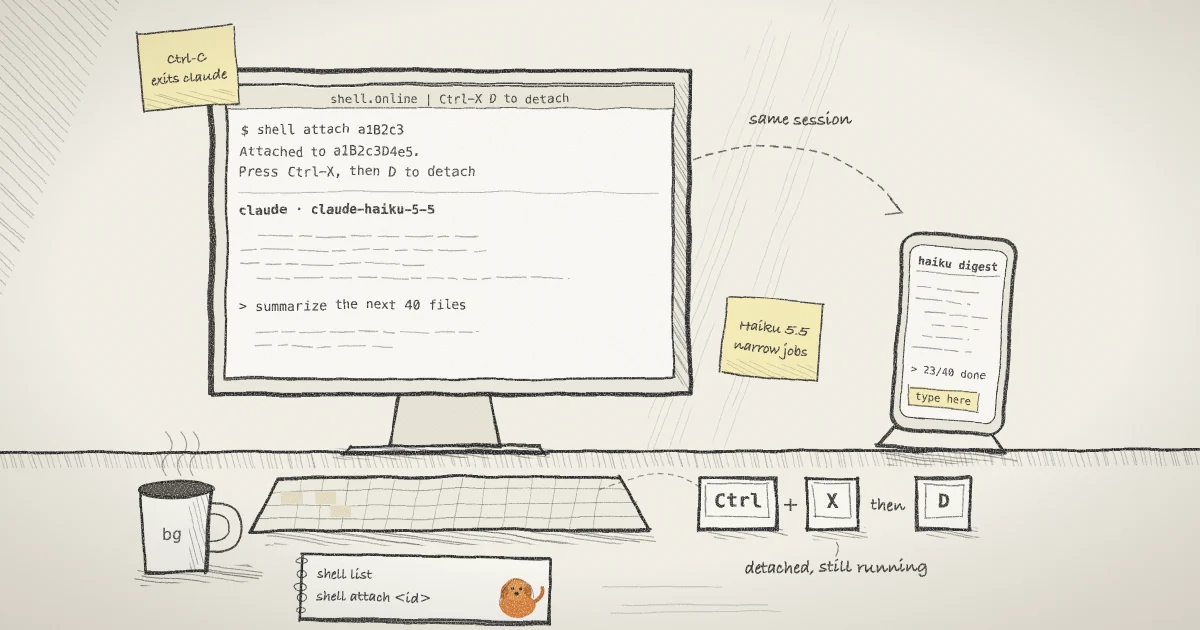
shell attach a1B2c3shell prints Attached to a1B2c3D4e5. Press Ctrl-X, then D to detach (Ctrl-] also works). and then replays the current screen, so you see Claude Code exactly where it is rather than a blank window waiting for the next repaint. It also sets the window title to shell.online | Ctrl-X D to detach and sets it again whenever Claude Code writes a title of its own, so the reminder stays visible. It uses the standard xterm title sequences to save your previous title on attach and restore it when you leave.
While you are attached, your terminal window owns the size of the session. The comment in the source puts it as "this terminal owns the session's grid while it is attached": Claude Code is drawn at your window's size and follows it when you resize. A browser that asks for a larger grid during that time is held to your window's size. When you detach, that limit is dropped and the grid stays where it was until a viewer asks for something else. An earlier post covers how the browser side handles size: watching a coding agent remotely without shrinking its terminal.
Only one local terminal can be attached at a time. A second shell attach to the same session gets the error another local terminal is attached. Browser viewers are not affected by that rule; they keep their own connection while you type locally.
Now type into Claude Code as usual: give it the job, answer the permission prompt it is waiting on, or read what it has done.
Step 4: Detach without stopping Claude
Press Ctrl-X, let go, then press D. shell prints Detached from a1B2c3D4e5., restores your terminal settings and gives you your prompt back. Claude Code keeps running and the browser link stays live.
The detach sequence is read by shell before Claude Code ever sees it, and the code is specific about the timing. After Ctrl-X, shell waits up to 750 milliseconds for D. If any other key arrives, or the 750 milliseconds pass, shell forwards the Ctrl-X to the program as if nothing happened. That matters with Claude Code, because its interactive mode has several shortcuts that start with Ctrl+X: Ctrl+X Ctrl+E opens your editor, Ctrl+X Ctrl+S sends queued messages now, and Ctrl+X Ctrl+K stops all running background subagents. All three still reach Claude through an attached shell session. Only Ctrl-X followed by D is taken. Ctrl-] detaches at once, which is the older binding shell keeps for compatibility.
If you have used GNU Screen, where C-a d detaches, or tmux, the model is the same: the process belongs to the session, not to your window. The difference is that the session also has a browser link.
Ctrl-C is not a detach key here. It goes straight through to Claude Code. Claude Code's documentation says that when nothing is running, the first Ctrl+C clears the prompt and a second press exits Claude Code. Under shell, the process exiting ends the session and takes the link offline. Claude Code 2.1.295 made a double Ctrl+C at the idle prompt detach from its own claude attach. If you carry that habit into a shell session, you will end the job. Use Ctrl-X then D.
Step 5: Check on it from your phone
Open the link from the card on your phone and enter the password, or scan the QR code shell printed in the original terminal if it printed one, which carries both. The key is derived in the browser from the password and the salt in the URL fragment, and the fragment never reaches the relay; the encryption page describes what the relay can and cannot see. The mobile guide covers the phone layout.
The app offers more than one way to draw a session, and its terminal view is built on xterm.js. Either way you can read the screen and type, since the session was started without --read-only. One key behaves differently there. In a browser, Ctrl-D has to be pressed twice within three seconds to send end of file, because the first press warns you. termios(3) explains what EOF does: typed at the start of a line, it makes the program's read return 0, which a shell takes as the end of its input. Closing the browser tab does not stop anything.
If a teammate only needs to watch, start the job with shell --read-only instead. Read-only is fixed when the session starts, and the relay rejects browser input for it. If you have already sent the link to someone and want them out, shell password rotate a1B2c3 replaces the password without restarting Claude. The steps are in how to revoke a shared terminal link without killing the process behind it.
Step 6: Stop it, or let it stop itself
When Claude Code exits, the share closes on its own. To stop it early from this machine:
shell kill -- a1B2c3This terminates the wrapped process and takes the link offline. shell kill --all stops every session shell manages on this machine. If you want a ceiling on the run from the start, add a deadline when you launch it, for example shell --auto-close 2h --name "haiku changelog digest" claude --model claude-haiku-5-5. The session still closes when the task exits, and closes at the deadline if it is still going.
How this differs from Claude Code's own background sessions
Claude Code has its own background mode. The CLI reference documents claude --bg, which starts a session as a background agent, claude attach to bring it into a terminal, and claude agents to see them all in agent view. They are managed from a terminal on that machine.
shell is narrower. It knows nothing about Claude's background supervisor. It wraps one process in a pseudoterminal and gives that terminal a browser link, so the same session can be attached locally, opened on a phone and handed to a teammate. It works the same for Codex, OpenCode or a plain script.
What this setup does not do
- It does not attach to a process that is already running.
shell attachjoins sessions that shell started. If Claude Code is already open in some terminal, shell cannot adopt it. - Attaching is local only.
shell attachtalks to a local control channel on the computer running the job. From anywhere else, use the browser link. - It does not keep the computer awake. If the machine sleeps or loses its network, the browser side goes offline. The card says this too: keep the computer awake and online.
- It does not change what the job costs. The tokens are Claude Code's. Anthropic's migration guide notes that Haiku 5.5 uses a newer tokenizer that produces about 30% more tokens than Haiku 4.5 for the same text, so recount before you budget.
- It does not make Haiku the right model for every job. Anthropic's own announcement points complex agentic coding at Sonnet 5.5 and Opus 5.5. Pick the model for the task; shell does not care which one runs.
- It does not resume after a crash on its own. With
--persistent, a clean restart restores the same link. The help text says a crash that leaves a local record or control socket blocks the resume until you review it, and nothing restarts automatically.
The reliability page lists the rest of the limits, and the platforms page lists where the CLI runs. The help text says Windows supports the same background, list, attach and kill workflow; the timing and key handling above come from the shared CLI source.
Where Pilot Protocol fits
Anthropic's examples for Haiku 5.5 are mostly about a small model working alongside a larger one. Once those pieces live on different machines, the connection between them becomes the hard part. shell.online is built by Pilot Protocol, a networking stack for autonomous agents, and its post on chaining AI models across machines measures what persistent encrypted tunnels save over a fresh HTTP request per call in a multi-model pipeline. For passing results between agents rather than terminals, the messaging docs cover send-message, send-file and the inbox. shell covers the human side: seeing what one of those agents is doing and typing into it when it asks.
Put your next long run in the background
Install shell, start the job with shell --name, and use Ctrl-X then D whenever you want your terminal back. The source is on GitHub under the MIT license.